Every day, billions of phishing emails land in inboxes around the world. Some look exactly like a message from your bank. Others arrive dressed as a shipping notification, a password reset request, or an urgent alert from Apple or Microsoft. Most people scroll past them without a second thought, and that’s exactly the problem.
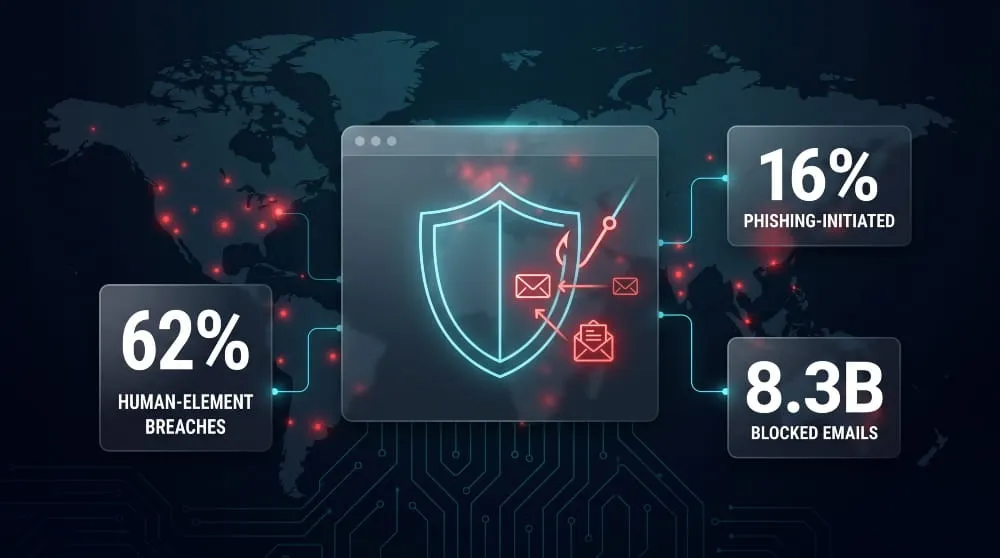
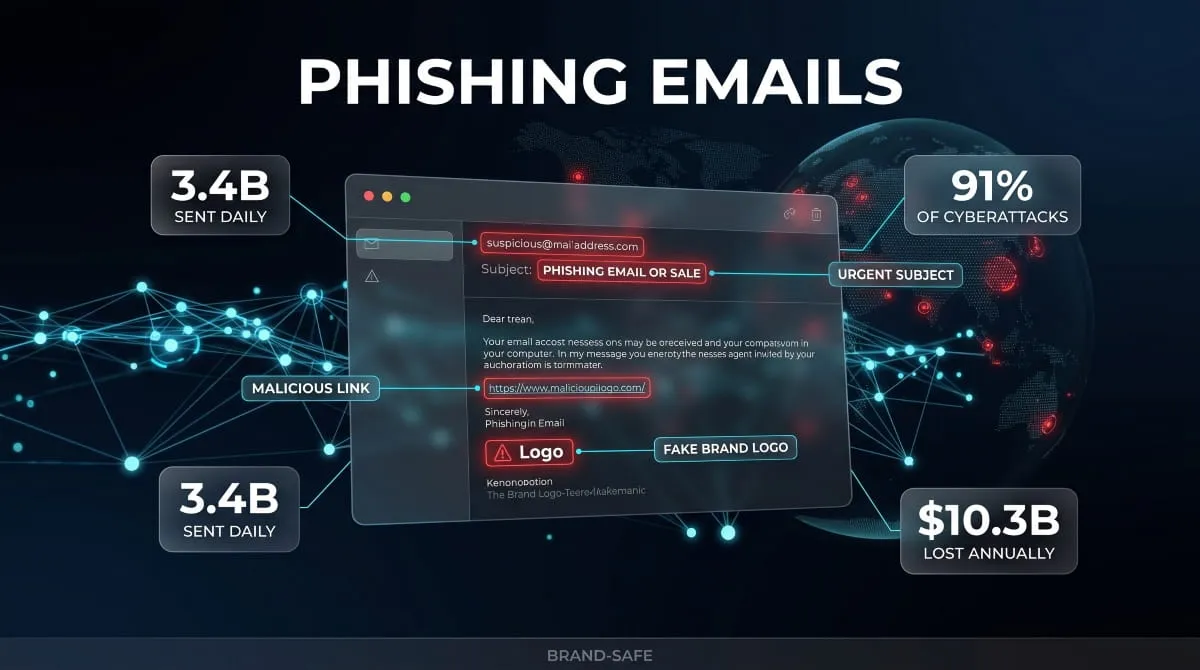
Phishing emails are one of the oldest tricks in cybercrime, but they are far from outdated. They are the single most common entry point for data breaches, ransomware infections, and identity theft across both personal and corporate environments. In fact, over 90% of all cyberattacks begin with a phishing email. The attacker doesn’t need to break through your firewall or exploit a software vulnerability. They just need you to click once.
What makes these attacks so effective isn’t technical sophistication, it’s psychology. A well-crafted phishing email creates urgency, mimics trust, and exploits the two or three seconds most of us give any message before deciding what to do with it. And with AI now being used to generate phishing emails that are grammatically flawless, hyper-personalized, and eerily convincing, the old advice of “just look for spelling mistakes” no longer cuts it.
This guide covers everything you need to know: what phishing emails are, how they work, the different types targeting people right now, the real warning signs most people miss, and exactly what to do if one lands in your inbox, or if you’ve already opened one.
Whether you’ve received a suspicious email and aren’t sure what to do, or you want to build a sharper eye for spotting attacks before they reach you, this is the resource you’ve been looking for.
What Is a Phishing Email? (Definition + How It Works)
Before you can reliably spot a phishing email, you need to understand what it actually is, and more importantly, what it’s designed to do. The term gets used loosely, often interchangeably with “spam” or “scam email,” but phishing is something more specific, more deliberate, and far more dangerous than junk mail clogging your inbox.
Phishing Email Definition in Plain Language
A phishing email is a fraudulent message designed to trick you into handing over something valuable, such as a password, credit card number, Social Security number, or account access. The Word “phishing” is a deliberate play on “fishing”: the attacker casts a lure, waits, and hopes you bite.
What separates a phishing email from ordinary fraud is impersonation. These messages are built to look legitimate. They copy the branding, tone, and formatting of organizations you already trust, your bank, your email provider, the IRS, and a shipping carrier. The goal isn’t to impress you with technical skill. The goal is to make you feel safe enough to act without thinking.
At its core, a phishing email is a social engineering attack delivered through your inbox. It doesn’t exploit a flaw in your software. It exploits a flaw in human behavior: the tendency to trust familiar names, respond to urgency, and click before questioning.
How a Phishing Email Attack Actually Works Step by Step
Understanding the mechanics of a phishing attack makes every future attempt easier to recognize. Here’s how a typical email phishing attack unfolds from the attacker’s side:
The attacker first chooses a target, either a broad audience (millions of random addresses) or a specific individual or organization. They then craft a message that mimics a trusted sender: a bank, a government agency, a well-known platform like PayPal or Microsoft. The email is designed to trigger a specific emotional response, usually urgency or fear. “Your account has been compromised.” “Verify your information within 24 hours or lose access.” “You have a pending package. Confirm your address.”
Embedded in that message is either a malicious link pointing to a fake website built to harvest your credentials. This malicious attachment installs malware the moment it’s opened, or a direct request for sensitive information is submitted in reply.
Once you interact, whether by clicking the link, opening the attachment, or replying, the attacker has what they came for. From there, stolen credentials are used to access accounts, sold on dark web marketplaces, or leveraged for further attacks against your contacts and organization.
The entire chain, from email sent to data stolen, can happen in under a minute.
What Phishing Emails Are Designed to Do to You
Not every phishing email has the same end goal. Understanding what attackers are actually after helps explain why these messages are written the way they are.
The most common objective is credential theft, capturing your username and password to break into accounts. Once an attacker has your email login, for example, they can use it to reset passwords across every platform tied to that address.
A second objective is financial fraud. Invoice phishing emails, wire transfer requests, and fake payment alerts are engineered to move money directly out of your account or your organization’s.
A third is malware delivery. Some phishing emails don’t need you to enter anything; a single click on an attachment is enough to install ransomware, keyloggers, or spyware on your device.
Finally, some phishing campaigns are designed for data harvesting, collecting personal details like names, addresses, and Social Security numbers to fuel identity theft or sell in bulk on criminal forums.
In every case, the email is not the attack itself. It’s the door the attacker is trying to get you to open.
Email Phishing vs. Email Spoofing: What’s the Difference?
These two terms appear together constantly, and they are closely related, but they are not the same thing.

Email spoofing is a technical technique in which an attacker forges the “From” field of an email to make it appear that the message came from a trusted address, such as your company’s IT department, your CEO, or a bank you use. Spoofing manipulates the visible sender identity to create a false sense of legitimacy.
Email phishing is the broader attack strategy. It is the intent and the action that deceive the recipient into surrendering information or clicking a malicious link. Phishing frequently uses spoofing, but not always. An attacker can conduct a phishing attack from a legitimate-looking domain they registered themselves, without technically spoofing anything.
Think of spoofing as a costume and phishing as the crime. The costume makes the crime more convincing, but the costume alone isn’t the crime.
This distinction matters because it affects how attacks are detected. Technical email security tools can catch spoofed sender headers. But a phishing email sent from a convincingly named domain, something like support-apple-id.com, won’t trigger the same filters, which is why human recognition remains essential.
Spam vs. Phishing Emails: Why the Distinction Matters
Most people use “spam” as a catch-all for unwanted email, and while phishing emails are unsolicited, they are not spam in the traditional sense. The difference is intent, and that difference has real consequences.
Spam is bulk, indiscriminate email, typically commercial in nature. Unwanted newsletters, promotional blasts, and affiliate marketing. Spam is annoying. It wastes your time. But opening a spam email, by itself, won’t steal your credentials or infect your device.
Phishing is targeted deception with a specific harmful goal. Where spam wants your attention, phishing wants your information, your money, or access to your systems. A phishing email can look nothing like the garish promotional emails you’d immediately recognize as junk. The best ones look urgent, professional, and completely routine.
The practical consequence is this: your spam filter catches spam. It does not reliably catch phishing. Many phishing emails pass directly into your primary inbox precisely because they are designed to look legitimate. Treating every suspicious email as “just spam” is how people get compromised.
Knowing the difference is the first step toward taking phishing seriously enough to stop it.
Types of Phishing Emails You Need to Know
Not all phishing emails are built the same way. Attackers tailor their approach based on who they’re targeting, what they want, and how much effort the potential payoff is worth. Some campaigns are designed to reach millions of people at once. Others are crafted specifically for a single individual, with enough personal detail to fool even a cautious reader. Understanding the different types of phishing emails currently circulating is one of the most effective ways to recognize them before they cause damage.

Standard Phishing Emails (Mass Volume Attacks)
The most common form of email phishing is also the most straightforward. Standard phishing campaigns are sent at a massive scale, millions of identical or near-identical messages blasted to harvested email lists, with no particular target in mind. The strategy is pure volume: cast a wide enough net, and a percentage of recipients will always bite.
These emails typically impersonate large, universally recognized brands, such as Amazon, PayPal, Netflix, Apple, Microsoft, and the IRS, because the attacker has no idea who they’re reaching. By choosing household names, they maximize the odds that the recipient actually has an account with that service and won’t immediately question the email’s relevance.
The messaging follows a predictable formula. Your account has been suspended. A payment failed. Unusual activity was detected. Verify your information now or face consequences. The details change; the psychological pressure doesn’t.
Standard phishing emails are the lowest-sophistication, highest-volume attacks in the ecosystem. They are also responsible for the majority of successful credential thefts, simply because so many are sent every day. You don’t need a highly targeted attack to be effective when you’re sending 3 billion emails a day.
Spear Phishing Emails (Targeted and Personalized)
Where standard phishing casts a wide net, spear phishing uses a precision hook. A spear phishing email is crafted for a specific individual, and it shows. These messages generally address you by name, reference your employer, your role, a recent transaction, or some other detail that makes the email feel personal and legitimate.
Attackers research their targets before writing a single Word. They pull information from LinkedIn profiles, company websites, social media, and data exposed in previous breaches. The result is an email that doesn’t feel like a mass-market scam. It feels like a message from a colleague, a vendor, or a service you actually use.
What makes spear phishing emails so dangerous is precisely this credibility. The generic warning signs, a mismatched sender name, generic greetings, and obvious spelling errors are largely absent. The email is tailored to pass scrutiny. Spear phishing emails are the most common method in targeted attacks against businesses, and they account for a disproportionate share of successful breaches relative to the number sent.
The key difference to internalize: if a phishing email knows something specific about you, it isn’t a coincidence. It’s research.
Whaling and CEO Phishing Emails
Whaling is spear-phishing aimed at the biggest targets in an organization: executives, board members, financial officers, and anyone else with elevated access or financial authority. The name comes from the idea of going after the “big fish.”
A whaling phishing email typically impersonates a trusted authority figure, often another executive, a legal representative, or a major client, and the request it carries reflects the target’s level of access. Instead of asking for a password reset, a whaling attack might request an urgent wire transfer, demand access to payroll systems, or instruct the target to share sensitive corporate data before an imminent deadline.
CEO phishing emails flip the impersonation: rather than targeting the CEO, attackers impersonate them. A message that appears to come from the company’s chief executive, instructing a finance team member to process an emergency payment, carries enormous implied authority. That authority is exactly what attackers exploit. Employees who would question a request from a stranger rarely question one that appears to come from the top.
These attacks are high-effort and high-reward. A single successful whaling attack can result in millions of dollars transferred, corporate data exfiltrated, or entire systems compromised.
Invoice and Wire Transfer Phishing
Invoice phishing is one of the most financially destructive variants currently in use, targeting businesses of every size. The attacker sends what appears to be a routine invoice from a vendor, supplier, or service provider that the target organization actually works with. The invoice looks professional, the amounts are plausible, and the payment instructions redirect funds to an account the attacker controls.
Wire transfer phishing follows a similar logic but moves faster. These emails create artificial urgency around an immediate financial transaction, a vendor requiring payment today, a deal closing that needs a deposit, or a tax liability that must be settled by the end of business. The urgency is engineered to bypass the deliberate review process that would normally catch the fraud.
Both attack types exploit the routine nature of business finance. When employees process dozens of invoices and payment requests a week, each one starts to blur into background noise. Attackers understand this, and they time their emails accordingly.
The financial losses from invoice and wire-transfer phishing run into the billions of dollars annually. Unlike stolen credentials, transferred funds are rarely recoverable.
Business Email Compromise (BEC) vs. Phishing
Business Email Compromise (BEC), commonly discussed in the same breath as phishing, is a frequent target of attacks. They share tactics, they often overlap in execution, and both arrive through email. But understanding how BEC differs from standard phishing matters for anyone trying to defend against it.
Traditional phishing is deception through impersonation; the attacker pretends to be someone else using a fake or spoofed email address. Business Email Compromise takes this further. In a BEC attack, the attacker either gains access to a legitimate email account and sends fraudulent messages from it, or constructs a domain close enough to the real one that recipients don’t notice the difference.
The result is fraud that originates from, or appears to originate from, a real, trusted business relationship. A supplier’s actual email domain. Your CEO’s genuine account. A law firm your company has engaged for years. There is no suspicious link to hover over, no warning from your email filter, no obvious red flag in the sender address.
BEC is technically a subset of phishing in the broad sense, but it operates at a higher level of sophistication and targets financial transactions and data transfers specifically. It consistently ranks among the costliest forms of cybercrime by total dollar losses.
QR Code Phishing Emails (Quishing)
QR code phishing, increasingly referred to as quishing, emerged as a significant threat as traditional phishing defenses improved at scanning links embedded directly in email text. Attackers adapted by embedding malicious URLs in QR codes, bypassing filters that analyze text-based links entirely.
The email itself often looks routine: a security notice, a document awaiting your signature, a two-factor authentication setup request. Instead of a hyperlink, it contains a QR code with instructions to scan it with your phone. When you do, you’re sent to a phishing site designed to capture your credentials, now on a mobile device that may have even fewer security controls than your work computer.
What makes quishing particularly effective is the shift in environment. The email arrives on your laptop, where security tools may be running, but the actual attack happens on your phone, where those tools aren’t present. The QR code also makes automated analysis harder, since most email security systems are built to evaluate links rather than decode images.
QR codes in phishing emails are now common enough that any email asking you to scan one, especially one with any urgency attached, deserves serious scrutiny before you point your camera at it.
AI-Generated Phishing Emails: Why They’re So Convincing
For years, one of the most reliable ways to identify a phishing email was poor writing, awkward phrasing, grammatical errors, and and a stiff, machine-translated tone. That signal is rapidly disappearing.
AI-generated phishing emails, produced using large language models, are grammatically flawless, tonally appropriate, and capable of being personalized at scale. What once required a skilled social engineer spending hours on a single target can now be automated across thousands of targets simultaneously, each email individually tailored to the recipient’s name, company, role, and recent activity.
The implications are significant. AI doesn’t just remove the spelling mistakes. It removes the subtle wrongness that trained people to be suspicious in the first place. An AI-generated phishing email can match the writing style of a real colleague, mirror the communication patterns of a legitimate company, and calibrate its urgency to feel natural rather than alarming.
Why do phishing emails generated by AI seem so real? Because they’re written with the same underlying language patterns as legitimate correspondence, trained on the same data, tuned to the same norms. The difference between a real email and an AI-crafted phishing email is increasingly a matter of context and intent, not grammar and style.
This doesn’t mean detection is impossible. It means the detection strategy has to shift away from surface-level writing quality and toward behavioral signals, sender verification, and the kind of critical thinking no filter can replace. The sections that follow cover exactly that.
The Red Flags: How to Spot a Phishing Email
Knowing that phishing emails exist is one thing. Being able to recognize one in the two seconds you spend scanning your inbox is another. The good news is that most phishing emails, even sophisticated ones, share identifiable patterns. Attackers are constrained by psychology: they need you to feel something and act on it. That constraint leaves traces, and those traces are what you’re learning to read.

These are the warning signs that matter most.
Urgency and Fear-Based Language
If an email is trying to make you panic, slow down. Urgency is the single most reliable tool in a phishing attacker’s kit, and it appears in some form in the vast majority of phishing emails across every category.
The messaging follows familiar patterns. Your account will be suspended within 24 hours. Unusual sign-in activity has been detected on your account. Your payment was declined. Verify now to avoid service interruption. A legal matter requires your immediate attention.
Every one of these constructions is engineered to short-circuit careful thinking. When people feel threatened or pressed for time, they act before they verify. Attackers know this. The urgency isn’t incidental; it’s the mechanism.
Legitimate organizations do occasionally send time-sensitive notices. But a real bank, a real government agency, and a real technology company will not threaten immediate account closure if you don’t click a link in the next hour. Any email that demands instant action and frames inaction as catastrophic deserves more scrutiny, not less.
Suspicious Sender Addresses and Display Name Spoofing
The name displayed in your inbox and the actual email address behind it are two different things, and phishing attacks frequently exploit that gap.
Display name spoofing is straightforward: the attacker sets the visible sender name to something trustworthy, such as “Apple Support” or “PayPal Security Team,” while the actual sending address is unrelated. On a mobile device, where only the display name is visible by default, this trick is particularly effective.
Even when an email address is visible, it requires careful reading. Attackers register domains specifically designed to catch a glance, support-apple.com, paypal-security.net, and microsoft-account-alert.com. At normal reading speed, these look plausible. The critical habit is examining the domain after the @ symbol, not just the name before it.
A subtler version of this is character substitution, replacing a lowercase “l” with a capital “I,” swapping an “o” for a zero, or using lookalike Unicode characters that are visually indistinguishable from the real thing. If an email claims to come from a company you trust, verify the sending address character by character before taking any action.
Mismatched or Malicious Links (How to Check Before You Click)
The link in a phishing email is almost always the weapon. Everything else, the branding, the urgency, the professional formatting, exists to get you to click it.
The most important habit you can build is hovering over any link before clicking it. On desktop, hovering reveals the actual destination URL at the bottom of your browser window. What you’re looking for is a mismatch: a link that displays as “Verify your account” but points to a domain unrelated to the company the email claims to represent.
Watch for several specific patterns. A legitimate company’s link will use its primary domain, such as amazon.com, paypal.com, or apple.com. A phishing link will use a subdomain or a modified domain that buries the real destination (amazon.account-verify.com; the real domain is account-verify.com, not Amazon), or a string of random characters followed by a legitimate-sounding Word.
Also, treat shortened URLs with caution. Link shorteners obscure the real destination entirely, which is exactly why attackers use them. If an email from a major organization contains a shortened link rather than a direct URL to their own domain, that alone is worth pausing over.
On mobile, the hover preview doesn’t exist, which is why phishing emails are more dangerous on phones. Press and hold on a link to preview the destination before committing to the tap.
Generic Greetings and Impersonal Language
Every organization that sends you an email knows your name. Your bank has it. Your email provider has it. Amazon, PayPal, and Apple all have it on File. When a message that claims to come from one of these organizations addresses you as “Dear Customer,” “Dear User,” or “Dear Account Holder,” something is wrong.
Generic greetings are a byproduct of mass phishing campaigns. The attacker has your email address but not your name, so the salutation defaults to a vague, impersonal tone. It’s a small signal, but reliable, and it becomes more significant when combined with other red flags.
The caveat worth noting: AI-generated phishing emails have made this indicator less dependable on its own. Attackers can now personalize at scale, so the presence of your name is no longer automatic proof of legitimacy. Use the generic greeting as a warning sign, but don’t let a personalized greeting lower your guard on everything else.
Spelling, Grammar, and Formatting Mistakes
For years, obvious spelling and grammar mistakes were the most visible sign of a phishing email. They still appear, particularly in lower-effort campaigns, and they remain a reliable red flag when present.
Poor writing in phishing emails isn’t always accidental. Some researchers have argued that deliberate errors help attackers filter their audience; only the least skeptical recipients will proceed past obvious mistakes, which means the attacker wastes less time on targets likely to catch the fraud later in the process.
Beyond spelling, look at visual formatting. Phishing emails often have subtle formatting inconsistencies that real brand communications don’t: slightly off-color logos, inconsistent font sizes, misaligned buttons, or a mix of professional and amateurish design elements within the same message. Legitimate organizations maintain strict brand consistency in their communications.
It bears repeating, though: the absence of spelling mistakes is no longer proof that an email is legitimate. AI-generated phishing emails have largely solved the grammar problem for attackers. Treat clean writing as neutral information, not as clearance.
Unexpected Attachments or Requests
Any email carrying an attachment you weren’t expecting deserves immediate suspicion, regardless of how professional the rest of the message looks.
Malicious attachments are one of the primary delivery mechanisms for malware, ransomware, and keyloggers. They typically masquerade as routine documents: an invoice, a shipping notice, a shared contract, a voicemail transcript, a tax document. The file extensions vary, .pdf, .docx, .zip, .exe, and some attackers use double extensions like invoice.pdf.exe to disguise executable files as documents.
The same logic applies to unexpected requests embedded in the email body itself. A message asking you to call a phone number to verify your account, respond with your employee credentials, or confirm personal information by reply is a significant red flag. No legitimate company will ask for your password, full credit card number, or Social Security number over email.
The consistent principle: if you weren’t expecting it, verify through a separate channel before engaging with it. Don’t call the number in the email. Don’t click the link in the email. Go directly to the organization’s official website or use a contact number you already have on File.
Requests for Login Credentials, Payments, or Personal Data
This one is simple enough to state as a rule: legitimate organizations will never ask you to submit your password, full payment card details, or sensitive personal information through an email link or by replying to a message.
Not your bank. Not the IRS. Not Apple, Microsoft, or PayPal. Not your HR department. Not your IT team.
This is the defining characteristic of what phishing emails are actually trying to do. Every design choice, the urgency, the spoofed sender, the convincing branding, exists to manufacture a moment where handing over that information feels not only reasonable but necessary. The request itself is the point.
When an email directs you to a login page to “verify your account,” that page is almost certainly a credential harvesting site. It will look identical to the real thing. It will have a convincing URL. It may even have a padlock icon in the address bar. None of that makes it legitimate. The padlock confirms an encrypted connection; it says nothing about whether the site on the other end is who it claims to be.
If you receive an email asking you to log in somewhere, don’t use the link in the email. Open a new browser tab and navigate directly to the organization’s official website.
What Do Virtually All Phishing Emails Have in Common?
Across every type, every sophistication level, and every impersonated brand, phishing emails share one defining characteristic: they ask you to do something, and they give you a reason to do it without thinking.
The action varies. Click a link. Open an attachment. Reply with information. Call a number. Scan a QR code. But the architecture is always the same: a constructed reality designed to make one particular response feel urgent, logical, and safe, while rendering verification unnecessary or impossible within the given time frame.
The other near-universal quality is external pressure paired with limited verification. The email creates a scenario where the stakes feel high, but the time to confirm the story feels short. That compression, high stakes, low time, is the environment phishing is designed to create.
Understanding this underlying structure is more durable than memorizing any specific list of warning signs. Phishing emails evolve. The tactics shift. AI has already changed what these messages look and sound like. But the fundamental design, pressure, impersonation, and a single requested action stay constant because they work.
When an email makes you feel like you have to act right now, that’s the red flag. Everything else is detail.
Phishing Email Examples: Real Screenshots and Scenarios
Reading about the warning signs of phishing emails is useful. Seeing how those signs appear in actual messages is what makes the knowledge stick. Attackers rely on familiarity, a trusted brand, a routine-looking request, and professional formatting to make phishing emails feel like normal emails. The best way to counter that is to study what these messages actually look like before they land in your inbox.

The examples and scenarios below cover the most common categories in active circulation. No two phishing emails are identical, but the patterns they follow are consistent enough that recognizing one makes every subsequent attempt easier to catch.
Classic Phishing Email Examples (and Why They Work)
The classics persist because they work. Certain phishing scenarios have been in circulation for years, not because attackers lack creativity, but because the psychological triggers they exploit haven’t changed.
The account suspension notice is perhaps the most enduring. An email arrives claiming that your account with a major platform has been locked, compromised, or flagged for unusual activity. To restore access, you must verify your identity immediately through the provided link. The branding matches the real company. The language is professional. The link goes somewhere else entirely.
The failed payment alert follows the same architecture. A message from a streaming service, an e-commerce platform, or a subscription provider informs you that your payment method was declined and that your access will be terminated unless you update your billing information. The email creates financial anxiety, and the solution is simple: click here.
The prize or reward notification is older and more transparent, but it still drives clicks. You’ve been selected. You’ve won. A package is waiting. These emails work on hope rather than fear, but the mechanism is identical: to manufacture an emotional state that makes clicking feel natural.
What these examples share is an exploitation of existing relationships. They don’t ask you to engage with something unfamiliar. They appear to come from services you already use, about accounts you already have, concerning transactions you might plausibly have made. That context, real or manufactured, is what makes them land.
Bank and Financial Institution Phishing Emails
Financial institution phishing is among the most sophisticated and financially damaging categories in active circulation. The stakes are high enough that attackers invest real effort in making these messages convincing, and the targets, anyone with a bank account, are essentially universal.
A typical bank phishing email arrives, appearing to come from a recognizable institution: Bank of America, Wells Fargo, Chase, Capital One, American Express, Citibank, or any number of regional banks and credit unions. The message reports a security event. An unusual transaction was flagged. Your online banking access has been temporarily limited. A new device attempted to log into your account from an unrecognized location.
The email’s design is often indistinguishable from genuine bank communications, with correct color schemes, appropriate logos, professional language, and a plausible sender name. The call to action directs you to verify your identity or review the suspicious activity through a link that leads to a counterfeit login page.
What happens on that page is straightforward: you enter your username, password, and sometimes a multi-factor authentication code. The fake site captures each entry in real time, feeding your credentials to the attacker while sometimes redirecting you to the real bank’s website to avoid raising immediate suspicion.
The tell is always the URL. A legitimate bank will always send you to its own primary domain. bankofamerica.com is real. bankofamerica-secure-login.com is not. secure.wellsfargo.com is real. wellsfargo-account-alert.net is not. No matter how perfect the rest of the email looks, the destination URL tells the truth.
Shipping and Delivery Phishing Emails (FedEx, USPS, UPS)
Delivery phishing has expanded dramatically alongside the growth of e-commerce. People expect packages. They track shipments. They respond to delivery notifications as a matter of routine, and that routine is exactly what attackers exploit.
A shipping phishing email typically impersonates FedEx, USPS, UPS, or DHL. The message claims that a package could not be delivered, that a customs fee is outstanding, that delivery requires address confirmation, or that a parcel is being held pending payment of a small redelivery charge. The amounts involved are often minor, a few dollars, which lowers suspicion and makes the request feel proportionate.
USPS phishing emails are particularly common in the United States, partly because USPS is a universal service and partly because the agency’s brand is widely trusted. A message appearing to come from the postal service with a tracking number that looks legitimate is easy to accept at face value, especially if you’re actually waiting for the Mail.
The payment page attached to these emails is where the real damage happens. A small redelivery fee requires you to enter your credit card number, expiration date, security code, and billing address. That information doesn’t process a delivery charge; it goes directly into a fraud operation.
Any delivery notification that requests payment or personal information should be verified by visiting the carrier’s official website and entering the tracking number there. If the number isn’t real, the package isn’t real.
Tech Brand Phishing Emails (Microsoft, Apple, Google, DocuSign)
Technology companies are the most impersonated brand category in phishing campaigns globally, and for obvious reasons: hundreds of millions of people have active accounts with Microsoft, Apple, and Google, making these brands almost universally relevant to any random list of email addresses.
Microsoft phishing emails most commonly claim unusual sign-in activity on a Microsoft account, warn of a compromised password, or appear as Microsoft 365 alerts. They are designed to target both consumers and corporate users, with business-focused variants directing recipients to fake Microsoft login portals to harvest credentials used across entire organizations.
Apple phishing emails typically center on Apple ID accounts, iCloud storage warnings, App Store purchase receipts for transactions the recipient didn’t make, or payment method issues. An Apple ID phishing email is effective because it carries an implied threat to an entire ecosystem, including photos, contacts, messages, and payment information, all of which could be accessed with a single set of compromised credentials.
Google phishing emails range from Gmail security alerts to fake Google Drive sharing notifications. A phishing email purporting to be a shared document from Google Workspace arrives in the inbox, the recipient clicks to view the File, and a credential prompt captures their account login.
DocuSign phishing emails deserve particular attention because they exploit professional trust at a high level. A message appearing to be a document awaiting your signature carries institutional legitimacy; people sign contracts. The link leads to a fake DocuSign portal, a credential-harvesting page, or, in some cases, directly delivers malware via a document payload.
All four brands share one thing in common: an implied urgency around account access that users are conditioned to take seriously.
Government and IRS Phishing Emails
Government impersonation in phishing is effective because it introduces a category of pressure that goes beyond mere account inconvenience: legal consequences, financial penalties, and the weight of official authority. Most people, confronted with what appears to be official government correspondence, feel a reflexive urge to comply rather than to scrutinize.
IRS phishing emails are the most prevalent in the United States and spike predictably around tax season, though they operate year-round. Common scenarios include notifications of an outstanding tax balance requiring immediate payment, alerts about a fraudulent return filed in your name, or notices that your tax refund is on hold pending identity verification.
The IRS has been explicit and consistent on this point: the agency initiates contact through postal Mail, not email. The IRS will not email you demanding immediate payment, threatening arrest, or asking you to verify your Social Security number through a link. Any email claiming to be from the IRS and asking for action is fraudulent, without exception.
Social Security Administration phishing emails follow a similar pattern, warning that your Social Security number has been suspended or linked to suspicious activity, and offering a phone number or link to resolve the issue. SSA phishing emails often carry an additional layer of fear because of the implied identity theft angle, making recipients feel that inaction carries its own risk.
Government phishing emails also appear as FBI warning emails, stimulus payment notices, customs clearance requests, and benefit disbursement notifications. Across all variants, the defense is the same: government agencies communicate through official channels. They do not demand immediate action through unsolicited email.
AI-Crafted Phishing Email Examples in 2025–2026
The phishing email landscape has shifted meaningfully since large language models became widely accessible. What used to be identifiable by awkward prose, inconsistent tone, and obvious translation artifacts now arrives polished, contextually appropriate, and calibrated to the recipient.
In 2025 and 2026, AI-crafted phishing email examples are distinguished less by what they contain and more by what they no longer lack. There are no grammar errors to catch. There is no stiff, impersonal language. There are no mismatched tones between the subject line and the body. A well-constructed AI phishing email reads exactly like a message from the organization it’s impersonating, because it was written using the same patterns, vocabulary, and structural conventions as that organization’s legitimate communications.
More concerning is personalization at scale. AI tools allow attackers to generate thousands of individually tailored phishing emails per hour, each incorporating the recipient’s name, employer, role, and contextual details sourced from public information or previous data breaches. Spear phishing, which once required significant manual research per target, can now be automated across entire corporate directories.
Some 2025–2026 campaigns have demonstrated another AI-enabled capability: adaptive follow-up. Initial phishing emails that receive a reply, even a skeptical one, can be fed back into a language model that generates a convincing continuation of the conversation, maintaining the deception across multiple exchanges.
The practical implication for recognition is this: if you’re waiting for a language error to confirm your suspicion, you may be waiting longer than the attack takes to succeed. Verification behavior, checking sender domains, navigating directly to official websites, and confirming requests through separate channels matter more now than ever.
Anatomy of a Phishing Email: Breaking One Down Line by Line
To understand how a phishing email creates the illusion of legitimacy, it helps to dissect one systematically. The following breakdown uses a composite of common phishing email characteristics, not a single real message, but a representative example that reflects the patterns seen across thousands of actual attacks.
Subject line: “Action Required: Your Account Has Been Temporarily Limited.” The subject line does three things simultaneously: it names an account (vague enough to apply to any service), signals a negative consequence (a limitation), and conveys urgency (action required). It is engineered to compel an open.
Display name: “PayPal Security Team.” The visible sender name appears legitimate. The actual sending address, visible only when you expand the sender field, is something like noreply@paypal-secure-alerts.com. The domain paypal-secure-alerts.com is not affiliated with PayPal. The attacker registered it.
Salutation: “Dear Customer” No name. The attacker has an email address, not a name. This is a residual tell in mass phishing campaigns, though AI-assisted versions increasingly substitute a real name pulled from data breach records.
The message describes a suspicious transaction on the account, creating a specific enough scenario that feels real while remaining vague enough to apply universally. It establishes that the account is limited “for your protection”, framing the restriction as a service rather than a threat. This subtly positions the attacker as being on your side.
Call to action: A button labeled “Verify My Account” or “Restore Access.” The button’s display text is legitimate-looking. The underlying URL is not.
Footer: Fake customer service contact information, a fabricated address, and sometimes a real legal disclaimer lifted from the genuine company’s website to add credibility.
Closing signal: Some phishing emails include a line like “This is an automated security message. Do not reply to this email.” This discourages you from attempting to verify through the reply channel, the one channel the attacker can’t control.
Read this way, the construction of a phishing email becomes visible. Every element is a deliberate choice made to lower your skepticism and raise your likelihood of clicking. Seeing the machinery diminishes its power
What Happens If You Open or Click a Phishing Email?
This is the question most people ask after the fact, heart rate slightly elevated, cursor hovering somewhere it probably shouldn’t have gone. The answers matter, and they’re more nuanced than most sources suggest. The risk depends significantly on what you did exactly, which device you used, and how far the interaction went. Understanding the distinction between opening, clicking, and engaging gives you an accurate picture of your exposure and a clear map of what to do next.

Just Opening a Phishing Email: Is It Dangerous?
For the vast majority of people using modern email clients, simply opening a phishing email does not compromise your device or your accounts. Reading a malicious email in Gmail, Outlook, Apple Mail, or virtually any mainstream provider is not, by itself, an event that triggers an attack.
This wasn’t always true. In an earlier era of email security, messages could contain active code that executed automatically on open, a technique called a “zero-click exploit.” Those vulnerabilities existed, and some still surface in targeted attacks against specific platforms. But for ordinary users on fully updated email clients, the passive act of opening a message and reading its contents does not install malware, expose passwords, or send your data anywhere.
Opening a phishing email can confirm to the attacker that your address is active if the email contains a tracking pixel. This tiny, invisible image loads and registers. This is a minor risk in practice, but it can result in your address being marked as engaged and targeted more aggressively.
The danger begins when you interact. Clicking a link, downloading an attachment, enabling macros in a document, or entering information on a page that the email directs you to are the actions that create real exposure. The email is the envelope. The threat is what’s inside.
What Happens When You Click a Phishing Link
Clicking a link in a phishing email is where the attack typically begins in earnest. What happens next depends on what the link was designed to do, but the outcomes generally fall into one of three categories.
The most common outcome is redirection to a credential-harvesting page, a fake website designed to look exactly like a legitimate login portal. These pages are often pixel-perfect replicas of real sites, hosted on domains designed to pass a glance. When you enter your username and password, that information goes directly to the attacker. In some cases, the fake site then redirects you to the real one, completing a silent handoff while you remain unaware that anything happened.
The second outcome is malware delivery. Some phishing links lead to pages that automatically attempt to download malicious files to your device, such as ransomware, keyloggers, and remote access trojans, through drive-by download techniques that exploit browser vulnerabilities. Others prompt you to download a file that appears to be a necessary plugin, a security update, or a document relevant to the email’s scenario.
The third outcome is information collection through a form. Rather than a login page, the link leads to a form requesting personal details, your name, address, date of birth, Social Security number, or payment information. This data is used directly for identity theft or sold on criminal marketplaces.
The immediate steps after clicking a phishing link matter enormously. Do not enter any information on the page you land on. Close the tab immediately. Run a security scan on your device. Change passwords for any account relevant to the email’s scenario, using a device you’re confident is clean. The section on what to do after a phishing email covers this in detail.
Can a Phishing Email Install Malware Without Clicking?
The short answer is: in most circumstances, no, but the exceptions are real and worth understanding.
For a standard user on an up-to-date device using a mainstream email client, receiving a phishing email does not automatically install malware. The attack requires your participation at some point, whether that’s clicking a link, opening an attachment, enabling a macro, or entering information somewhere.
The more nuanced answer involves two specific scenarios in which malware can be delivered with minimal or no deliberate interaction from the recipient.
The first is malicious attachments that execute on opening. A document that appears to be a PDF or Word file can contain embedded macros or exploit code that runs when the File is opened and, in older or unpatched software, sometimes when the preview pane displays it. This is why security professionals advise against opening unexpected attachments even from known senders.
The second is zero-day exploits targeting email client vulnerabilities. These are rare, require significant attacker sophistication, and are typically deployed in high-value targeted attacks rather than mass phishing campaigns. They exploit unpatched flaws in how an email client renders certain content. Keeping your email software and operating system up to date closes most of these windows.
The practical takeaway is that, for most users, malware delivered via phishing requires some user interaction. But “I didn’t click anything” is a less reliable defense than it once was on older, unpatched systems. Keeping software current isn’t just general hygiene; it’s a specific defense against this attack vector.
Phishing Emails on iPhone and Mobile Devices
Mobile devices have become a primary target for phishing attacks, and for reasons that go beyond the size of the user base. Smartphones introduce specific conditions that make phishing more effective and harder to catch.
The first is display constraints. On an iPhone or Android device, email clients typically show only the sender’s display name, not the full email address. The “From” field, which would immediately reveal paypal-secure-alerts.com as fraudulent on desktop, shows only “PayPal Security Team” on mobile. That single difference removes one of the most reliable indicators of a phishing email from the equation.
The second is URL opacity. Mobile browsers often truncate long URLs or display only the domain in the address bar, making it harder to spot the subtle domain manipulations that give phishing sites away. A URL like secure-login.apple-id-verification.com may display only as secure-login. apple… in a mobile browser bar, which looks plausible enough to pass a glance.
The third is behavioral context. People use their phones differently than they use their computers: faster, more reactively, often while doing something else. The deliberate pause that desktop users might take before clicking is less common on mobile, and attackers design their messages accordingly.
Opening a phishing email on an iPhone is no more inherently dangerous than on a desktop, provided your iOS is up to date, and you don’t interact with the message’s content. The risk elevation on mobile stems from reduced visibility into signals that would otherwise trigger suspicion. If you receive a suspicious email on your phone, the best practice is to review it on a desktop, where you have full visibility into the sender and URL, before taking any action.
What Information Can a Phishing Email Steal?
A phishing email doesn’t steal information directly; it creates the conditions under which you hand it over voluntarily, believing you’re doing something legitimate. What gets stolen depends on the specific attack’s target, but the categories are consistent across the phishing ecosystem.
Login credentials are the most common target. An email address and password, once harvested, give an attacker access to the account in question and often far beyond it. Because password reuse is widespread, a single stolen credential set can unlock dozens of accounts. Email account credentials are particularly valuable because they can be used to reset passwords across all linked services.
Financial information is the target of bank phishing, fake invoice schemes, and delivery fee scams. Credit card numbers, expiration dates, CVV codes, and online banking credentials can be used immediately for fraudulent purchases or drained directly from accounts.
Personal identifying information, such as full name, date of birth, address, Social Security number, and passport number, is the raw material for identity theft. This data is used to open fraudulent credit accounts, file false tax returns, and access government services under your identity. It is also sold in bulk on dark web markets where buyers run their own fraud operations.
Corporate access credentials are the target in business-focused phishing. A single employee’s Microsoft 365 login, VPN credentials, or remote desktop access can give an attacker a foothold in an entire organization’s network, the first step in ransomware deployment, data exfiltration, or long-term infiltration.
What makes the theft particularly damaging is that, in many cases, the victim doesn’t immediately know it happened. Credentials are tested quietly, accounts are accessed gradually, and the full consequences of a successful phishing attack can unfold over weeks or months before anyone notices. The earlier the compromise is identified, the less damage there is, which is why knowing what to do after an interaction with a phishing email is as important as knowing how to avoid one in the first place.
How to Detect a Phishing Email (Step-by-Step Identification)
Spotting the warning signs of a phishing email is one skill. Systematically verifying whether an email is legitimate before you act on it is another, and it’s more reliable. Warning signs can be faked, suppressed, or polished away. A structured verification process cannot be easily fooled because it relies on technical evidence rather than surface appearance.

This section covers the specific, repeatable steps you can take to identify a phishing email with confidence. None of them requires technical expertise. All of them are available to any email user, on any platform, right now.
How to Analyze an Email Header for Phishing Signs
Every email carries a header, a block of technical metadata that records the message’s origin, its path through mail servers, and the authentication checks it passed or failed along the way. The body of an email is what an attacker designs for you to see. The header is where the technical truth lives.
Most email clients hide the full header by default, but it’s accessible in a few clicks. In Gmail, open the message, click the three-dot menu in the top right corner, and select “Show original.” In Outlook, open the email, go to File> Properties, and look for the Internet Headers field. In Apple Mail, go to View and select “All Headers.”
Once you have the raw header, the most important fields to examine are these:
The “From” field shows the display name and sending address, but this can be spoofed. What matters more is the “Return-Path” or “Reply-To” fields. If a message claims to come from security@paypal.com but the Return-Path shows noreply@randomdomain.net, the email is not from PayPal.
The authentication results section records whether the email passed SPF, DKIM, and DMARC checks, the three primary technical standards that verify an email actually originated from the domain it claims to represent. A legitimate email from a major organization will pass all three. A spoofed email will often fail one or more of them. Look for lines reading spf=fail, dkim=fail, or dmarc=fail; any of these in a message asking for sensitive action is a serious warning.
The “Received” fields trace the email’s journey through mail servers in reverse chronological order. If an email claims to come from Microsoft but the first receiving server is based in an unrelated country with no Microsoft infrastructure, something is wrong.
Full header analysis takes practice to read fluently, but the authentication results alone, SPF, DKIM, and DMARC, give most users the signal they need without having to parse everything else.
How to Check If a Link in an Email Is Safe
A link in an email can display any text the sender chooses. The text “Click here to verify your account” tells you nothing about where that link actually goes. Checking the real destination before you click is one of the most important habits in phishing defense.
On a desktop computer, hover your cursor over any link without clicking it. The actual destination URL will appear in the status bar at the bottom of your browser window or email client. Read it carefully and look for the following.
The real domain is the segment immediately before the final top-level domain. In secure.paypal.com, the real domain is paypal.com, a PayPal-owned address. In paypal.secure-login.com, the real domain is secure-login.com, nothing to do with PayPal. Attackers construct URLs specifically to pass a fast glance, placing legitimate brand names as subdomains or prefixes while the actual domain belongs to them.
Look also for slight misspellings in the domain itself: microsofft.com, appIe.com with a capital I instead of a lowercase l, paypa1.com with the number 1 substituting for the letter l. Attackers register these to exploit the fraction of a second most people spend reading a URL.
For links you want to check without hovering, or on mobile where hovering isn’t possible, copy the URL and paste it into a link scanner before visiting it. Tools like Google’s Transparency Report, URLVoid, or VirusTotal’s URL checker will analyze the destination against databases of known malicious sites and flag anything suspicious. These tools are free, require no account, and return results in seconds.
On mobile, press and hold any link to preview the destination URL before committing to the tap. If the URL doesn’t match what the email claims, don’t open it.
How to Verify the Sender’s Real Email Address
The sender chooses the name displayed in your inbox and carries no authentication weight whatsoever. “Apple Support,” “PayPal Security Team,” and “Microsoft Account Team” can all be set as display names by anyone sending from any address. Verifying the actual email address behind that display name is a non-negotiable step when an email is asking you to do anything consequential.
In most email clients, clicking or tapping on the sender’s name reveals the full email address. Do this for any email that requests action, carries an attachment, or creates urgency, regardless of how legitimate the display name appears.
Once you have the actual address, apply a structured check. First, identify the domain, the part after the @ symbol. A legitimate email from Apple will come from @apple.com. A legitimate email from PayPal will come from @paypal.com or a clearly documented subdomain, such as @e.paypal.com. Any variation from the organization’s primary registered domain should be treated with suspicion.
Second, search the exact sending domain against the organization’s official website to confirm it’s one they actually use. Many large companies publish lists of their legitimate email domains, precisely because phishing impersonation is so common. Apple, PayPal, Amazon, and Microsoft all maintain documentation of the official email addresses they use.
Third, pay attention to domain age and obscurity. A recently registered sender domain with no web presence, no searchable history, and no connection to the organization it’s impersonating is almost certainly fraudulent. Free tools like WHOIS lookup services allow you to check when a domain was registered. A domain registered within the last few weeks, sending security alerts for a company that has existed for decades, is a clear signal.
None of this takes more than a minute. For emails that arrive with urgency attached, that minute is worth taking.
Email Spoofing Indicators to Look For
Email spoofing is the technical manipulation of an email’s visible origin, making a message appear to come from an address or domain it didn’t actually originate from. It’s a foundational technique in phishing, and while technical defenses like SPF and DMARC exist to combat it, spoofing still gets through regularly. Knowing the human-readable indicators helps catch what filters miss.
The first indicator is a mismatch between the display name and the actual address. An email showing “Chase Bank” as the sender but arriving from chase-alerts@securemail-notification.com is spoofed. The display name was set to match the brand; the actual domain was not.
The second is a mismatch between the “Reply-To” and “From” addresses. If you hit reply on a message that claims to come from your bank and the reply populates to a completely different domain, someone has set up the email to intercept your response elsewhere. This is a strong spoofing indicator even if the From address looks legitimate.
The third is failed authentication headers. As noted in the header analysis section, an SPF or DKIM failure on an email claiming to come from a major organization is a technical confirmation of spoofing. These failures mean the sending server wasn’t authorized to send on behalf of the domain it claimed.
The fourth is domain lookalikes with subtle alterations, the homograph attacks discussed earlier, where characters are substituted to create a visually identical but technically different domain. These passes display name checks because the domain looks right. Only careful character-by-character reading catches them.
Together, these four indicators cover the most common spoofing techniques. An email that triggers even one of them warrants verification before any action is taken.
Tools for Checking If an Email Is Phishing
The human checks described above are powerful, but several free tools can accelerate and strengthen the verification process. None of these replaces careful reading; they complement it.
Google Transparency Report (transparencyreport.google.com/safe-browsing) lets you check any URL against Google’s Safe Browsing database, which flags sites known to host phishing pages or malware. It’s fast, free, and doesn’t require an account.
VirusTotal (virustotal.com) analyzes URLs and file attachments against dozens of security vendor databases simultaneously. Paste a suspicious URL or upload a questionable attachment, and VirusTotal returns verdicts from multiple engines in seconds. It’s one of the most comprehensive free tools for analyzing phishing links and attachments.
MXToolbox (mxtoolbox.com) is useful for header analysis and sender verification. It can parse email headers, check SPF and DMARC records for a sending domain, and verify whether a domain has the authentication infrastructure a legitimate organization would have in place.
URLVoid (urlvoid.com) checks a domain or URL against multiple blocklists and reputation databases, providing a quick signal on whether a destination has been previously flagged as malicious.
PhishTank (phishtank.com) is a community-driven database of confirmed phishing URLs. If a link from a suspicious email has already been reported, it will appear here. It’s particularly useful for catching phishing campaigns that have been active long enough to be documented.
For email addresses themselves, checking the sender domain against the organization’s officially published email domains, available on their support pages, remains the most direct verification method. No tool replaces knowing what a legitimate message from that organization actually looks like.
The broader principle across all of these tools is the same one that runs through every detection method in this section: don’t trust appearance. Verify the origin, destination, and authentication independently of what the email was intended to show you.
What to Do If You Get a Phishing Email
Receiving a phishing email is not a crisis. Responding to one without realizing it is. The difference between those two outcomes comes down to knowing exactly what to do at each stage of the interaction, before you click, after you open, and in the worst case, after you’ve already given something away.

This section works as a practical response guide. Find where you are in the sequence and follow it from there.
Don’t Click, Here’s What to Do Instead
If you’ve received a suspicious email and haven’t yet interacted with it, you’re in the best possible position. The goal now is to handle it without creating any exposure.
The first thing to do is resist the urge to click anything inside the message, not the link, not the unsubscribe button, not the “report spam” option if it’s embedded in the email body itself. Even an unsubscribe click can confirm to an attacker that your address is active and monitored.
Examine the sender address, not just the display name. Check whether the email was expected, whether the request it contains makes sense given your actual relationship with the organization it claims to represent, and whether the domain behind the @ symbol matches the company’s real domain. If any of these checks raise a question, treat the email as suspicious until proven otherwise.
If you need to verify whether the communication is legitimate, do it through a channel entirely separate from the email itself. Go directly to the organization’s official website by typing the address into your browser. Call a customer service number you find there, not one printed in the email. Log in toin to your account to check whether the alert described actually appears on your dashboard.
Once you’ve confirmed the email is fraudulent, report it through your email client’s built-in reporting function and delete it. Do not forward it to friends or colleagues to show them. Do not reply to tell the sender you know it’s a scam. Silence and removal are the correct responses.
What to Do If You Already Opened a Phishing Email
If you opened a phishing email, read it, recognized it, and closed it, your exposure is minimal. As covered earlier in this guide, opening a message in a modern email client does not, by itself, execute an attack.
That said, there are a few steps worth taking to be thorough.
Check whether your email client loaded any images in the message. If it did, a tracking pixel may have confirmed your address as active. This is a low-severity event but worth noting, expect that address to receive more targeted follow-up.
Verify that you didn’t accidentally click anywhere while reading. On mobile, especially, a tap intended to scroll can register as a link click. If you have any doubt, check your browser history for any unfamiliar URLs that appeared around the time you were reading the email.
Update your email client and operating system if either is out of date. If your software is up to date, opening the email poses no meaningful risk. If it isn’t, update immediately, not because the risk from this specific email is high, but because unpatched software is the condition that turns low-risk situations into damaging ones.
Beyond these steps, a clean open is a clean open. You don’t need to change passwords, cancel cards, or contact your bank about an email you read and closed without further interaction.
What to Do If You Clicked a Link in a Phishing Email
Clicking a phishing link is the moment most people realize they’ve made a mistake, and the instinct is usually to panic and freeze. The more useful response is to move quickly and methodically through a short recovery sequence.
Step one: Close the tab or browser immediately. Don’t fill in any fields on the page you landed on. Don’t click anything on the site. Close it and stop the interaction as early as possible.
Step two: Disconnect from the internet. If you’re concerned the link may have triggered a drive-by download, disconnecting briefly prevents any malware installed from communicating with the attacker’s server. At the same time, you take stock of the situation.
Step three: Run a security scan. Use your device’s security software to run a full scan. If you don’t have dedicated security software, Windows Defender on Windows and built-in security tools on macOS and iOS provide a baseline scan. Look for anything flagged as suspicious and follow the software’s removal guidance.
Step four: Change relevant passwords. If the phishing email was impersonating a service you use, your bank, your email provider, a platform you log into regularly, change that account’s password immediately from a device you’re confident is clean. Use a strong, unique password and enable multi-factor authentication if it isn’t already active.
Step five: Monitor your accounts. Over the following days, watch your financial accounts, email, and any linked services for unusual activity. Unauthorized login attempts, unfamiliar transactions, or password reset emails you didn’t initiate are all signals that credentials may have been captured.
If you entered your credentials on the page before realizing it was fraudulent, treat it as a confirmed compromise and follow the steps in the next section.
What to Do If You Responded or Gave Your Information
This is the scenario that requires the most immediate and comprehensive response. If you replied to a phishing email with personal information, entered your credentials on a fake login page, or submitted payment details through a fraudulent form, act as quickly as possible. The window between compromise and damage is often short, but it exists.
For compromised login credentials: Change the password on the affected account immediately, then change it on every other account that uses the same or a similar password. If your email account was compromised, this is the highest priority; an attacker with access to your inbox can reset passwords across every service linked to that address. Enable two-factor authentication on all accounts where it’s available.
For compromised financial information, contact your bank or card issuer directly using the number on the back of your card, not any number in the email. Report the potential fraud, request a new card, and ask them to monitor the account for unauthorized transactions. Most financial institutions have a dedicated fraud team available around the clock for situations like this.
For compromised personal identifying information, such as Social Security numbers, dates of birth, and addresses, the response involves an additional layer. Place a fraud alert or credit freeze with the three major credit bureaus: Equifax, Experian, and TransUnion. A fraud alert notifies lenders to take extra verification steps before opening accounts in your name. A credit freeze is more restrictive and prevents new credit lines from being opened at all until you lift it. Both are free.
For a work account or corporate credentials: Notify your IT or security team immediately. Do not wait to see whether anything happens. A compromised corporate credential can serve as the entry point for a much larger attack against your organization, and the response timeline matters enormously.
Document what happened, the email, the link you clicked, the information you provided, and the approximate time, because this record will be useful for your bank’s fraud investigation, any police or FTC report you file, and your organization’s incident response if relevant.
How to Report a Phishing Email (Platform-by-Platform Guide)
Reporting phishing emails does more than clear your inbox. It feeds detection systems that protect other users, supports attacker identification, and, in aggregate, helps email providers improve their filters. It takes seconds, and the downstream effect is real.
Gmail: Open the message, click the three-dot menu in the top right corner of the email, and select “Report phishing.” Google reviews the report and uses it to improve Safe Browsing protections across its platforms.
Outlook / Microsoft 365: Select the email without opening it, click “Report” in the toolbar, and choose “Report phishing.” Microsoft’s security team reviews submissions and uses them to update filters across Exchange and Microsoft 365. You can also forward the message as an attachment to phish@office365.microsoft.com.
Apple Mail: Apple does not have a native in-client phishing report button, as Gmail and Outlook do. The recommended approach is to forward phishing emails impersonating Apple to reportphishing@apple.com, then delete the message.
Yahoo Mail: Open the email, click the three-dot menu, and select “Report a phishing scam.” Yahoo uses these reports to update spam and phishing filters across its platform.
For phishing emails that arrived in a corporate inbox managed by an IT team, report through your organization’s internal channel, typically a dedicated report button added by your security team or a specific email address for submission.
Where to Forward Phishing Emails (FBI, FTC, Major Brands)
Beyond your email platform, there are government agencies and brand-specific reporting channels that aggregate phishing reports, pursue the infrastructure of attackers, and issue public warnings. Forwarding to these channels is particularly worthwhile when the phishing email impersonates a government agency, a financial institution, or a widely used consumer platform.
The FTC (Federal Trade Commission): Report phishing emails at reportfraud.ftc.gov. The FTC aggregates fraud reports to identify patterns, pursue enforcement actions, and publish consumer warnings.
The FBI’s Internet Crime Complaint Center (IC3): File a report at ic3.gov. IC3 is the primary federal channel for reporting internet fraud and cybercrime. Reports made here feed into federal investigations and contribute to national threat intelligence.
The Anti-Phishing Working Group (APWG): Forward phishing emails directly to reportphishing@apwg.org. The APWG is an industry coalition that aggregates phishing reports from individuals and organizations globally, sharing intelligence with law enforcement and security companies.
CISA (Cybersecurity and Infrastructure Security Agency): Report phishing targeting critical infrastructure or government systems at phishing-report@us-cert.gov.
For brand-specific reporting, most major organizations maintain dedicated addresses:
- PayPal: spoof@paypal.com
- Apple: reportphishing@apple.com
- Microsoft: phish@office365.microsoft.com
- Amazon: stop-spoofing@amazon.com
- IRS: phishing@irs.gov
- USPS: spam@uspis.gov
If you’ve suffered financial loss as a result of a phishing attack, report it to your local law enforcement in addition to the federal channels above. A police report creates a formal record that can support fraud recovery claims with your bank or credit card issuer.
Reporting feels like a small act. Across millions of users doing it consistently, it’s one of the primary mechanisms for taking down new phishing infrastructure.
How to Stop and Prevent Phishing Emails
No tool, filter, or setting will eliminate phishing emails. The volume is too high, the tactics evolve too quickly, and the gap between a convincing phishing email and a legitimate one is sometimes measured in a single character in a domain name. What prevention actually means in practice is reducing your exposure, improving your filters, and building habits that catch what technology misses.
This section covers both the technical controls available to individual users and the organizational practices that determine how well a team withstands phishing campaigns.
How to Block Phishing Emails in Gmail, Outlook, and Apple Mail
Every major email platform provides built-in tools to reduce the volume of phishing that reaches your inbox. None of them is perfect, but when configured correctly, they filter out a significant portion of mass phishing campaigns before you ever see them.
In Gmail, the primary control is the spam and phishing filter, which operates automatically in the background. To strengthen it, make sure you’re consistently marking phishing attempts as phishing rather than simply deleting them. Gmail uses your reports to train its filters to catch similar messages in the future. You can also create filters under Settings → See all settings → Filters and Blocked Addresses to automatically route or block mail from specific senders or domains you’ve identified as malicious. For accounts with a history of targeted attacks, enabling Google’s Advanced Protection Program adds a layer of hardware-key-based authentication that substantially raises the barrier for account compromise.
In Outlook, anti-phishing controls live under Settings → View all Outlook settings → Mail → Junk email. Here you can adjust the junk filter sensitivity, add specific senders and domains to a blocked list, and configure safe sender lists to prevent legitimate Mail from being caught in the same filter. In Microsoft 365 environments managed by an organization, additional controls are available through the Defender for Office 365 portal, including anti-phishing policies, impersonation protection settings, and spoof intelligence dashboards.
In Apple Mail, phishing filtering is less granular than in Gmail or Outlook. The platform relies primarily on iCloud’s server-side filtering before messages reach the client. You can add individual senders to a blocked list, but domain-level blocking requires manual filter creation under Mail → Settings → Rules. For iOS specifically, marking emails as junk trains the on-device filter over time; the more consistently you mark suspicious Mail, the more accurately the filter performs.
Across all three platforms, the single most impactful action you can take is consistent reporting rather than simple deletion. When you silently delete a phishing email, nothing improves. When you mark it, the platform learns.
How to Mark an Email as Phishing in Gmail and Outlook
Marking an email as phishing is a distinct action from marking it as spam, and the distinction matters. Spam tells the platform that this message is unwanted. Phishing flags this message as fraudulent and potentially dangerous, triggering a different response in the filter and contributing to broader threat intelligence.
In Gmail, open the email, click the three-dot menu icon in the top right corner of the message, not the page, and select “Report phishing” from the dropdown. Gmail will ask you to confirm the report, move the message out of your inbox, and log it for review. If you accidentally mark a legitimate email as phishing, go to your Spam folder, open the message, and select “Not phishing” to reverse the report.
In Outlook on the web, select the email in your message list without opening it, click the “Report” button in the top toolbar, and choose “Report phishing.” Alternatively, right-click the message in the message list and select “Report” → “Report phishing” from the context menu. Outlook will remove the message from your inbox and submit it to Microsoft for review.
In the Outlook desktop application, the process is slightly different. Open the email, navigate to the “Report Message” button on the Home ribbon (if it’s visible), and select “Phishing.” If the Report Message button isn’t in your ribbon, it may need to be added as an add-in through the Microsoft Store, which is worth doing if you use desktop Outlook regularly in a corporate environment.
If you accidentally mark an email as phishing in Outlook, navigate to your Junk Email folder, find the message, right-click it, and select “Mark as not junk” to restore it and remove the report.
Why You Keep Getting Phishing Emails (and How to Reduce Them)
If phishing emails are arriving in your inbox with unusual frequency, there are specific reasons that happen, and most of them are addressable.
The most common cause is the exposure of email addresses. Your address exists in one or more data breaches, has been scraped from a public website or social media profile, or was sold by a service that shared it with third parties. Once an address is in circulation on criminal markets or breach databases, it is reused across multiple phishing campaigns. The address itself has value as a confirmed, active target.
A secondary cause is engagement signals. If you’ve previously clicked on phishing links, loaded images in suspicious emails, or replied to spam, your address has been flagged as responsive. Responsive addresses command higher prices on criminal markets and attract more targeting as a result.
To reduce the volume over time, start by checking whether your email address appears in known data breaches using a service like Have I Been Pwned. If it does, the exposure is already established, but changing to a new primary address and being more selective about where you register it going forward limits future exposure.
For the address you continue to use, apply stricter unsubscribe discipline. Clicking unsubscribe on genuinely unwanted commercial email is usually safe and effective, but clicking unsubscribe on anything that resembles phishing confirms your address is active and monitored. Delete suspicious messages without interacting.
Consider using unique email aliases for different services; many email providers and password managers now offer alias generation that routes to your real address while keeping it hidden. If one alias starts attracting phishing, you can turn it off without changing your primary address.
None of these steps will stop phishing emails from being sent to you. What they do is reduce the number of them that reach your inbox and the level of targeting you receive over time.
Best Practices for Avoiding Phishing Emails
Prevention is only partly about filters and settings. The habits that consistently protect people from phishing are behavioral, and they’re reinforced by understanding why phishing works rather than just memorizing a checklist.
The most important practice is slowing down before acting on any email that carries urgency. Urgency is a manufactured condition in phishing; it exists to prevent you from verifying. Treating urgency itself as a warning sign, rather than a reason to hurry, neutralizes one of the primary mechanisms attackers use.
Multi-factor authentication (MFA) is the single most impactful technical control available to individual users. Even if a phishing email successfully captures your password, MFA creates a second barrier that the attacker typically cannot cross without access to your phone or authentication app. Enable it on every account that offers it, prioritizing email, banking, and any linked accounts with financial information.
Password hygiene matters for the same reason credential theft is so damaging. Reusing passwords across accounts turns a single phishing success into a multi-account compromise. A password manager removes the friction that leads to reuse, generating and storing unique credentials for every account so you never have to choose between security and convenience.
Direct navigation is a simple habit with significant protective value. When an email prompts you to log into an account, don’t use the link in the email. Open a new browser tab and navigate directly to the organization’s official website. This applies regardless of how legitimate the email appears. The two-second detour costs nothing and eliminates the risk of landing on a credential-harvesting page.
Staying current on updates closes the technical vulnerabilities that the small percentage of zero-click attacks exploit. Operating system, browser, and email client updates are frequently released to address security flaws that attackers actively exploit. Treating update notifications as a nuisance is a security decision, not just an inconvenience.
Taken together, these practices don’t require technical expertise; they require consistency. Most successful phishing attacks don’t defeat sophisticated users; they succeed against people who were rushed, tired, or doing something else when the email arrived.
What Organizations Can Do to Protect Employees
Individual vigilance has limits. When a phishing attack targets an organization, the attack surface is every employee’s inbox, and the weakest point in any security posture is the person who hasn’t thought about phishing in a while. Organizational protection has to operate at a level above individual behavior.
Security awareness training is the baseline. Employees who understand how phishing works, what the current tactics look like, and how to verify suspicious messages before acting on them represent a meaningfully harder target than employees who don’t. Training doesn’t need to be elaborate; regular, relevant, and specific to actual attack patterns is more effective than annual compliance exercises.
Phishing simulation programs take training further by sending controlled, fake phishing emails to employees and measuring who clicks, who reports, and who does nothing. The data from these simulations identifies where the gaps are and allows targeted follow-up training. The goal isn’t to embarrass people who click, it’s to give everyone a low-stakes opportunity to practice recognition before a real attack arrives.
Email authentication protocols, SPF, DKIM, and DMARC, should be configured and enforced on every domain an organization uses. These technical standards prevent external attackers from spoofing the organization’s own domain in outbound phishing campaigns targeting employees, partners, or customers. DMARC, in particular, when set to a reject policy, stops spoofed email from being delivered at all.
Zero-trust access controls limit the damage a successful phishing attack can cause. If an employee’s credentials are compromised, the access those credentials provide should be scoped as narrowly as possible. Least-privilege access principles, combined with MFA requirements, mean that a single phished account doesn’t automatically become a foothold into the entire network.
Clear reporting channels remove the friction from doing the right thing. Employees who encounter a suspicious email and aren’t sure what to do will, in the absence of clear guidance, often do nothing. A visible, easy-to-use reporting mechanism, a dedicated button in the email client, a known internal address, and a Slack channel convert uncertainty into action and give the security team visibility into active campaigns targeting the organization.
Phishing doesn’t stop at the perimeter. The organizations that handle it most effectively treat it as an ongoing behavioral and technical challenge, not a configuration problem that gets solved once and stays solved.
Phishing Email Statistics: Scale, Impact, and Trends
Numbers have a way of making abstract threats concrete. Most people understand intellectually that phishing is a major problem. Fewer appreciate the actual scale, how many messages are sent, how frequently they succeed, and what a single successful attack typically costs the individual or organization on the receiving end. The data here isn’t meant to alarm. It’s meant to calibrate. When you understand the real dimensions of email phishing, the investment in recognition and prevention stops feeling optional.

How Many Phishing Emails Are Sent Every Day?
The volume of phishing emails sent daily is difficult to measure precisely, as attackers don’t file reports. However, estimates from security researchers, email providers, and anti-phishing organizations consistently point to the same order of magnitude: billions.
Google’s systems alone block approximately 100 million phishing emails every day across Gmail. That figure represents only one provider, only the messages that were caught, and only the ones directed at Gmail’s user base. The actual number of phishing emails sent globally, including those targeting corporate mail servers, smaller providers, and addresses that never reach a major platform’s filter, is significantly higher.
The broader estimate from industry research places the daily volume of phishing emails at 3 to 5 billion messages, embedded within a global daily email traffic figure of roughly 300 billion. That means somewhere between 1 in 60 and 1 in 100 emails sent on any given day is a phishing attempt. On high-volume attack days tied to major events, tax season, large-scale data breach announcements, and global news moments that attackers exploit for relevance, that ratio climbs.
What the volume figure means practically is that phishing is not a targeted threat that occasionally affects specific people. It is ambient. It is the background condition of having an email address. The question isn’t whether phishing emails will reach your inbox; they will. The question is whether you’ll recognize them when they do.
What Percentage of Cyberattacks Start with a Phishing Email?
Phishing isn’t just a nuisance; it is the primary entry point for the vast majority of serious cyber incidents. The statistic most consistently cited in security research is that over 90% of cyberattacks begin with a phishing email. Some studies place the figure higher.
The reason phishing dominates as an attack vector isn’t because it’s technically sophisticated. It’s because it’s efficient. Breaking through a well-maintained network perimeter requires significant skill, time, and resources. Convincing a single employee to click a link requires a convincing email and the right moment. The asymmetry between effort and potential reward makes phishing the rational choice for attackers at every level of sophistication, from opportunistic criminals running mass campaigns to nation-state actors conducting targeted espionage.
The 90% figure is also worth reading in context. It doesn’t mean that 90% of phishing emails succeed. It means that when a serious breach, ransomware deployment, or corporate espionage operation is investigated, the trail almost always leads back to an email. The initial foothold was phishing. Everything that followed, lateral movement through the network, credential escalation, and data exfiltration, was made possible by that first click.
This changes how organizations should think about security investment. A firewall that stops everything except the attacker who got in through a phishing email has a gap that no amount of perimeter hardening can close. The inbox is the attack surface that matters most.
Phishing’s Role in Ransomware and Data Breaches
The connection between phishing emails and ransomware is direct, documented, and consistent. Research from multiple security organizations indicates that phishing is the initial vector in over 80% of ransomware attacks. The sequence is well understood: a phishing email delivers a malicious link or attachment, the recipient interacts with it, malware is installed, and the attacker uses that initial access to move through the network before deploying ransomware at the moment of maximum impact.
The average cost of a ransomware attack, factoring in downtime, recovery, ransom payments where made, reputational damage, and regulatory exposure, runs into millions of dollars for mid-sized organizations and has reached tens of millions for large enterprises and critical infrastructure targets. That cost traces back, in most cases, to a single employee who opened an email.
Phishing’s role in data breaches follows a similar pattern. The Verizon Data Breach Investigations Report, one of the most comprehensive annual analyses of breach data, has consistently identified phishing as a leading cause of confirmed breaches across industries. In breaches involving compromised credentials, which account for the vast majority of incidents, phishing is the most common method by which those credentials were obtained.
For individuals, a successful phishing attack often results in identity theft, unauthorized financial transactions, and exposure of personal data on the dark web. Stolen credentials and personal identifying information harvested through phishing campaigns appear on dark web markets within hours of a successful attack, where other criminal operations purchase them to run their own fraud schemes. Data from a single phishing incident can cause downstream harm for months or years after the original compromise.
AI Phishing Email Trends in 2025–2026
A single development is reshaping the phishing statistics from previous years: the widespread availability of large language models capable of generating convincing, personalized email content at scale. The trends emerging in 2025 and accelerating into 2026 represent a meaningful shift in both the volume and the quality of phishing attacks.
The first trend is volume amplification. AI tools allow individual attackers to produce thousands of tailored phishing emails in the time it previously took to write one. Spear phishing, historically limited in scale by the research time required per target, can now be deployed at mass-campaign volumes while retaining the personalization that makes it effective. The combination of scale and specificity was not previously achievable.
The second trend is quality elevation. Security awareness training has spent years teaching people to look for poor grammar, awkward phrasing, and the kind of stilted language that marked earlier phishing attempts. AI-generated phishing emails remove those markers almost entirely. Research conducted in 2024 and early 2025 found that AI-generated phishing emails had click rates comparable to, and in some cases exceeding, those written by experienced human attackers, with a fraction of the time investment.
The third trend is voice and multi-channel integration. Phishing campaigns in 2025–2026 increasingly use email as the opening move in a multi-channel attack. An initial phishing email is followed by a spoofed phone call, a fake SMS, or a fraudulent message on a professional platform, each channel reinforcing the others and making the overall deception harder to dismiss. AI voice cloning, capable of replicating a colleague’s or executive’s voice, has made the phone follow-up component of these campaigns substantially more convincing than it was even two years ago.
The fourth trend is adaptive conversation. Rather than a static phishing email that either succeeds or fails on first contact, AI-powered campaigns can now sustain multi-turn email exchanges, responding to skeptical replies with contextually appropriate answers and extending the deception across several messages before the harmful request is made. This makes the attack harder to catch through a single-message assessment.
What the data from 2025–2026 consistently shows is that the human element in phishing defense, critical thinking, verification behavior, and a healthy skepticism toward urgency, has become more important as AI has made the technical surface of phishing emails harder to distinguish from legitimate communication. Technology improves defenses, but it also improves attacks. The gap between the two is most reliably closed by the person reading the email.
Frequently Asked Questions (FAQ’s)
Are phishing emails illegal?
Yes, sending phishing emails is illegal in most countries. In the United States, phishing is prosecuted under laws including the Computer Fraud and Abuse Act (CFAA), the CAN-SPAM Act, and wire fraud statutes, with convictions carrying significant prison sentences. Most nations have equivalent cybercrime legislation that treats phishing as criminal fraud.
Can you get phished just by opening an email?
In most cases, no. Simply opening a phishing email in a modern, updated email client does not compromise your device or accounts. The risk begins when you interact with the email, such as clicking a link, opening an attachment, or entering information on a page it directs you to.
What do phishing emails look like?
Phishing emails are typically designed to impersonate a trusted organization, such as a bank, technology company, government agency, or delivery service. They usually include urgent language, a call to action such as clicking a link or verifying account details, and branding that closely mimics the real company. The sender address, on close inspection, rarely matches the organization’s actual domain.
Can replying to a phishing email be dangerous?
Yes. Replying to a phishing email confirms to the attacker that your address is active and monitored, which can increase the volume of future attacks directed at you. In some cases, a reply also reveals additional personal details, your name, organization, or email signature, that attackers use to make follow-up phishing attempts more targeted and convincing.
Why do AI-generated phishing emails seem so real?
AI-generated phishing emails are produced using large language models trained on vast amounts of legitimate human communication, which means they naturally replicate the grammar, tone, and structural conventions of real correspondence. Unlike earlier phishing attempts, they contain no spelling errors, no awkward phrasing, and no obvious tells, making them significantly harder to identify based on writing quality alone.
What is the most common sign of a phishing email?
The most common sign is manufactured urgency, language designed to pressure you into acting immediately without verifying the request. Phrases like “your account will be suspended,” “immediate action required,” or “verify within 24 hours” appear in the vast majority of phishing emails because urgency is the primary mechanism for bypassing careful thought.
What makes spear phishing different from standard phishing?
Standard phishing is sent in bulk to large, indiscriminate audiences with generic messaging. Spear phishing targets a specific individual or organization using personalized details, such as your name, employer, role, or recent activity, gathered through research or data breaches. This personalization makes spear phishing significantly more convincing and more likely to succeed than a mass-campaign phishing email.
Can phishing emails affect iPhones?
Opening a phishing email on an iPhone running updated iOS does not automatically compromise the device. However, iPhones are vulnerable to phishing in the same ways any device is, tapping a malicious link, entering credentials on a fake login page, or downloading a harmful file. Mobile phishing is often more effective because iPhone email clients display only the sender’s name by default, hiding the actual email address that would otherwise reveal the fraud.