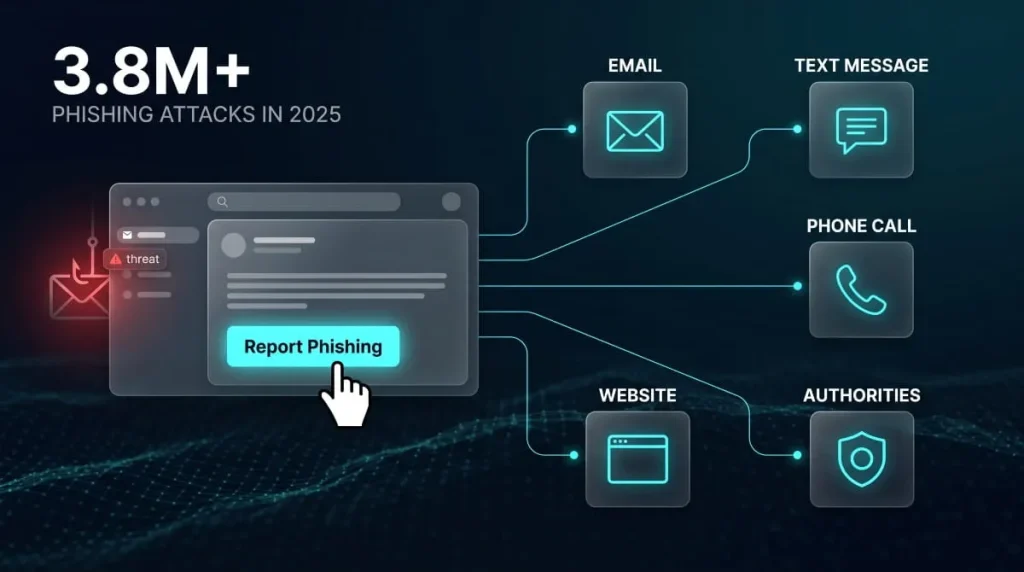
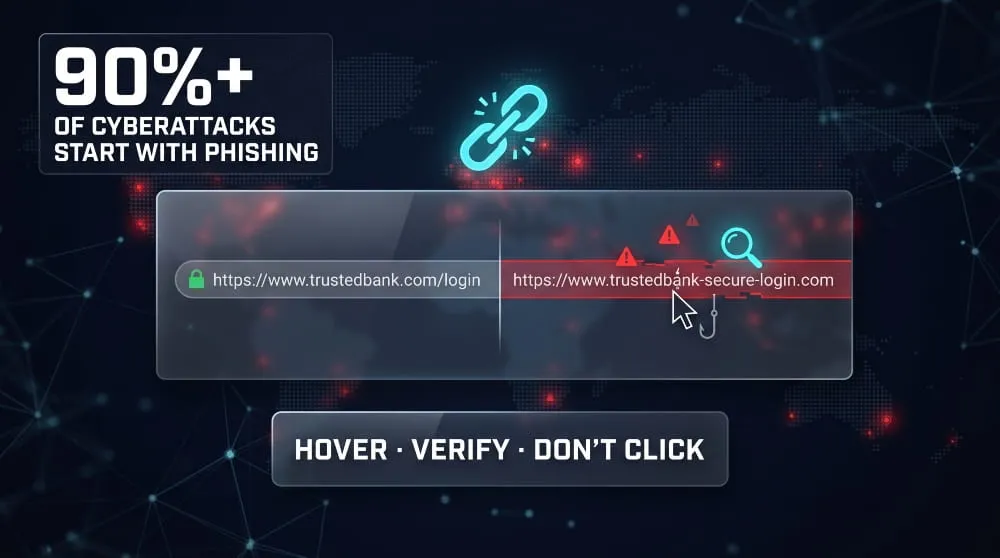
A phishing link is a URL designed to look legitimate, often mimicking a bank, retailer, or well-known app, but built to steal your credentials, install malware, or trick you into handing over personal information the moment you click it. It’s the delivery mechanism behind the vast majority of phishing attempts: phishing emails are associated with more than 90% of successful cyberattacks, and nearly all of them rely on a malicious link to do the damage.
Phishing links show up everywhere, in emails, text messages, DMs on Instagram or Snapchat, and even Discord invites, and they’re built to exploit trust and urgency rather than technical vulnerabilities. This guide walks through how to recognize one, how to check a suspicious link before you click, and exactly what to do if you’ve already clicked one.
What Is a Phishing Link?
A phishing link is a URL crafted to impersonate a trusted website or service to trick you into entering sensitive information, downloading malware, or authorizing a fraudulent transaction. Unlike a broken or spammy link, a phishing link is deliberately engineered to look safe, often copying a real brand’s logo, domain structure, and page design almost exactly.
How Phishing Links Work
Phishing links work by exploiting the gap between how a link looks and where it actually goes. Attackers register domains that closely resemble a legitimate brand (swapping a letter, adding a hyphen, or using a different top-level domain), then wrap that address in familiar branding, a spoofed sender name, or a shortened URL to mask the destination. Once clicked, the link typically leads to a fake login page that harvests whatever you type, or it silently triggers a malware download in the background. These campaigns move fast and evolve constantly to dodge detection; of the roughly 100 million phishing emails Google blocks every day, 68% belong to campaigns that had never been seen before, which is why static blocklists alone rarely catch every threat.
Phishing Link vs. Spam Link vs. Fake Website Link
A phishing link, a spam link, and a fake website link are related but not identical. A spam link is simply unsolicited; it might point to a real (if low-quality) product page or ad, with no intent to steal information. A fake website link is broader still, covering any site built to deceive, whether that’s a knockoff store or a scam giveaway page. A phishing link is the most targeted of the three: it’s specifically designed to impersonate a trusted entity and capture credentials or personal data, making it the version worth taking most seriously.
How to Spot a Phishing Link (Red Flags & Examples)
You can spot a phishing link by looking closely at the domain itself rather than the branding wrapped around it; the biggest tells are misspelled or altered domain names, urgent or threatening language, and a destination that doesn’t match the sender it claims to be from. Most phishing links don’t need to fool an expert; they just need to fool someone moving quickly.

Common Phishing Link Examples
Phishing links tend to cluster around a handful of familiar disguises. A common example impersonates a shipping notification, “Your package couldn’t be delivered, click here to reschedule,” leading to a fake tracking page that asks for payment details. Another mimics a security alert from a major platform, warning that an account will be suspended unless the recipient “verifies” their login within 24 hours. A third imitates an invoice or payment request, often targeting employees on behalf of a vendor or executive. These templates work precisely because they borrow the visual identity of brands people already trust. In Q1 2025, Microsoft alone accounted for 36% of all brand-phishing incidents, followed by Google and Apple. Hence, the logo at the top of the page is rarely a reliable signal of safety.
Telltale Signs a Link Isn’t Legit
A few consistent signs separate a phishing link from a legitimate one, even when the page design looks convincing. The visible link text and the actual destination URL don’t match when you hover over it. The domain includes extra words, hyphens, or a different extension than the real site (a bank’s domain ending in “.security-check.com” rather than its actual domain, for instance). The page asks for information a legitimate service would never request over email or text, such as a full password or one-time verification code. And the message creates pressure to act immediately: a locked account, a missed delivery, a limited-time refund, because urgency is what stops people from checking the link first.
How to Check if a Link Is Phishing
The fastest way to check if a link is phishing is to inspect the actual destination URL before clicking, either by hovering over it or running it through a dedicated link checker, rather than trusting how the link looks or where it claims to be from.

Using a Phishing Link Checker Tool
A phishing link checker scans a URL against databases of known malicious domains, flags suspicious patterns like lookalike spelling or newly registered domains, and often previews the page’s content without exposing your device to it. This is the most reliable option when a link arrives from an unfamiliar sender or when the destination isn’t obvious from the text alone. Paste the full URL into the checker rather than a shortened version, since shortened links are frequently used specifically to hide the real destination. These tools matter because habits alone aren’t foolproof: even security-aware employees still click convincing phishing attempts, though awareness training has been shown to cut phishing simulation click-through rates by 32% compared with untrained staff; a checker tool closes the gap that training doesn’t.
Manual Verification Steps (Hover, Preview, Domain Check)
Manual verification starts with hovering over the link on desktop (or long-pressing on mobile) to preview the actual URL in a tooltip or status bar, without clicking through. From there, check the domain itself: read it right to left, since attackers often bury the real brand name inside a longer, unrelated domain (like “microsoft-login.secure-verify.net” rather than an actual Microsoft address). Look for HTTPS and a valid certificate, though note this only confirms an encrypted connection, not that the site is legitimate, since phishing pages can carry valid certificates too. Finally, cross-check the sender: if an email claims to be from your bank but the link points to a domain unrelated to that bank, that mismatch alone is enough to treat the link as unsafe.
I Clicked on a Phishing Link, What Do I Do Now?
If you’ve clicked on a phishing link, the priority is to stop before entering any information, disconnect from the internet, and then work through a short checklist based on what you did next, whether you entered data, closed the page immediately, or aren’t sure. Clicking alone rarely causes damage; what happens after the click is what determines the outcome.

Immediate Steps (Disconnect, Don’t Enter Credentials)
The moment you realize a link is phishing, close the page without typing anything into it, and disconnect the device from Wi-Fi or cellular data if you haven’t already navigated away. This limits any malware on the page from communicating with an attacker’s server or downloading further payloads. Don’t enter a username, password, verification code, or payment detail even if the page looks legitimate; a phishing page’s entire purpose is to capture whatever you type, and once submitted, that data is typically out of your control within seconds.
What to Do If You Entered Personal Information
If you entered a password, verification code, or financial details, change that password immediately from a separate, trusted device, not the one you clicked the link on, and do the same for any other account reusing that password. Enable two-factor authentication if it isn’t already active, contact your bank or card issuer if payment information was involved, and monitor the affected account closely for unrecognized activity over the following days. If a work account was involved, report it to your IT or security team right away; delayed reporting is often what turns a contained incident into a wider breach.
What to Do If You Clicked But Closed the Page Immediately
Closing the page immediately without entering information is a low-risk outcome, but it’s not automatically a safe one. Some phishing pages attempt a drive-by malware download the instant they load, before you’ve typed anything. It’s worth running a security scan on the device as a precaution, keeping an eye on account activity for the next week or two, and treating any follow-up messages from the same sender with extra suspicion; a second attempt often follows the first.
iPhone- and Android-Specific Steps
On iPhone, clicking a phishing link rarely installs malware directly, since iOS sandboxes apps and browser sessions tightly. However, you should still update to the latest iOS version, check Settings for any unfamiliar configuration profiles, and change any passwords entered on the page. On Android, the risk is higher if the link led to a prompt to install an app or profile outside the Play Store; decline any such install, and if one already went through, uninstall it immediately and run a mobile security scan, since Android’s more open app-installation model makes it a more common target for link-based malware than iOS.
Phishing Links on Specific Platforms
Phishing links adapt their disguise to whatever platform they’re sent through, but the underlying goal stays the same: impersonate something the recipient trusts enough to click without thinking. The tactics differ slightly by platform because the trust signals people rely on- a verified badge, a friend’s account, a familiar game invite- differ too.

Social Media (Instagram, Facebook, Snapchat, TikTok, Twitter)
On social platforms, phishing links most often arrive through direct messages from compromised or cloned accounts, fake “someone shared a post about you” notifications, or comments promising followers, giveaways, or verification badges. Instagram and Facebook phishing links frequently mimic a copyright-strike or account-suspension warning to pressure a quick login; Snapchat and TikTok versions lean more on prize giveaways or “who unfollowed you” curiosity hooks. Because these messages often come from a real friend’s hacked account rather than an obvious stranger, they tend to bypass the skepticism people apply to email; brand impersonation in phishing overall has climbed steadily, with a 30% jump in unique brands targeted from one quarter to the next as scammers diversify beyond the usual suspects.
Gaming & Chat Apps (Roblox, Discord, Steam, Fortnite)
Gaming and chat platforms see phishing links dressed up as free in-game currency, item trades, or “double your skins” offers, usually sent through direct messages or posted in public servers. Roblox phishing links commonly promise free Robux in exchange for logging into a fake site; Discord versions often mimic a “free Nitro” gift link sent from a compromised friend’s account; Steam and Fortnite phishing attempts frequently pose as trade offers or account-recovery requests. These links target account credentials and linked payment methods specifically, since gaming accounts often carry real monetary value through skins, currency, or saved purchase details.
Email & Messaging (Gmail, WhatsApp, Telegram)
Email and messaging apps remain the most common delivery channel for phishing links, typically disguised as security alerts, delivery notifications, or messages from a known contact. Gmail phishing links often imitate a “suspicious sign-in” warning designed to capture the actual Google password in the process of “verifying” it. WhatsApp and Telegram phishing links tend to spread through forwarded messages claiming a prize, a job offer, or an urgent request from a contact whose account has already been compromised, since a message arriving from someone already in your contacts list carries far more built-in trust than a cold email ever would.
How to Protect Yourself From Phishing Links
Protecting yourself from phishing links comes down to two things: building habits that make you naturally suspicious of unexpected links, and backing those habits up with tools that catch what attention alone will miss. Neither one is sufficient on its own; habits slip under time pressure, and tools can’t stop you from typing a password into a page you never checked.

Safe Link-Checking Habits
The strongest habit is treating every unexpected link as unverified until proven otherwise, regardless of who it appears to come from. That means hovering before clicking, typing a company’s URL directly into the browser instead of clicking a link in an email or text, and pausing on any message that creates urgency around an account, payment, or deadline. Enabling multi-factor authentication is one of the highest-leverage habits available, since it limits the damage even when a phishing link succeeds. Microsoft reports that MFA blocks more than 99.2% of account compromise attempts, which means a stolen password alone usually isn’t enough to get an attacker in.
Tools and Extensions Worth Using
Beyond manual habits, a handful of tools add a consistent safety net: browser extensions that flag known malicious domains before a page loads, email and messaging filters that catch phishing attempts before they reach an inbox, and password managers that refuse to autofill credentials on a lookalike domain, a quiet but effective signal that something’s off. For anyone managing multiple accounts or a business’s exposure, dark web monitoring adds another layer by alerting you if credentials tied to a phishing link ever surface in a breach dump, closing the loop between a click that already happened and the fallout it could still cause.
Frequently Asked Questions (FAQ’s)
What should I do if I clicked a phishing link but didn’t enter any information?
Close the page, disconnect from Wi-Fi briefly, and run a quick malware scan. The risk is low, but not zero, since some pages attempt a silent download on load.
How do I know if a link is fake before clicking it?
Hover over it to preview the actual destination, and check whether the domain matches the sender it claims to be from.
Can clicking a link alone get my device hacked?
It’s possible but uncommon; most damage comes from what happens after the click, entering credentials or approving a malicious download, rather than the click itself.