
Malware Protection | The Complete 2026 Guide to Protecting Your Devices, Data and Network
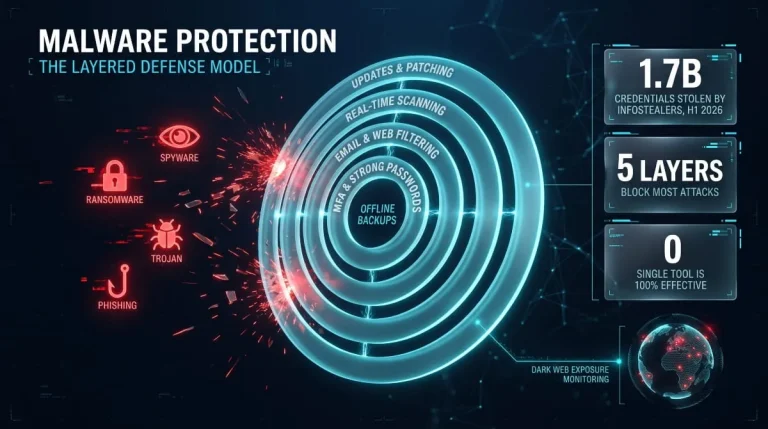
Malware protection combines software, settings, and habits to detect, block, and remove malicious programs before they steal data, lock files, or take control of a device. No single tool covers everything, so effective protection works in layers: real-time scanning, regular updates, safe browsing, strong authentication, and backups.
Quick checklist: keep your operating system and apps updated, keep real-time protection on, treat unexpected links and attachments with suspicion, use unique passwords with multi-factor authentication, and keep an offline or cloud backup.
What Is Malware Protection?
Malware protection is any security control that prevents malicious software from running on a device or network, or finds and removes it if it does. The term covers antivirus engines, built-in operating system defenses, firewalls, web and email filtering, and enterprise endpoint tools.
What does malware protection actually do?
It inspects files, processes, downloads, and network traffic for signs of malicious behavior, then blocks, quarantines, or removes what it finds. Good protection also reports what it caught so you can see where an infection attempt came from.
How malware protection works
Modern tools combine four detection methods. Signature matching compares files to known malware fingerprints. Behavioral analysis watches what a program does, such as mass-encrypting files or injecting code into other processes. Sandboxing runs suspicious files in an isolated space before they reach your system. Cloud intelligence shares new threats across millions of devices within minutes. Signatures catch known threats quickly, while behavior and cloud analysis are what catch new ones.
Real-time vs on-demand protection
Real-time protection scans files and activity as they open, download, or run, so it should always stay on. On-demand scans check what is already stored on a device and are useful for periodic second looks or after you suspect an infection.
Where it fits in cybersecurity
In security frameworks, malware protection is a baseline preventive control, not a complete strategy. It sits alongside patch management, access control, backups, and monitoring, and it works best when those controls support it.
Why Malware Protection Matters
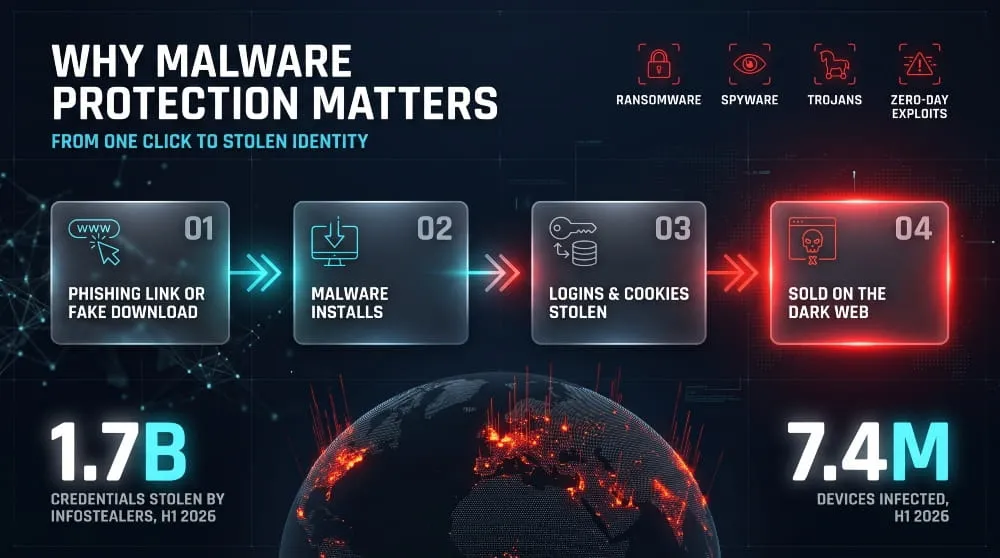
Malware protection matters because malware delivers most modern attacks, including ransomware, banking fraud, account takeover, and espionage. A single infected device can expose passwords, financial data, and every account logged into it.
Threats it defends against
Ransomware encrypts files and demands payment. Spyware records activity and keystrokes. Trojans pose as legitimate software to open a door for other threats. Adware floods devices with unwanted ads and can carry hidden payloads. Fileless malware runs in memory and leaves little on disk for scanners to find. Zero-day exploits abuse flaws vendors haven’t patched yet.
Phishing, malicious downloads, and drive-by infections
Most infections begin with a person, not a software flaw. Malware usually gets in through a phishing email, a fake software update, a cracked app, or a compromised website. Protection that scans downloads and blocks known malicious sites closes the most common routes.
Is malware protection necessary?
Yes, for every internet-connected device, though what “protection” means differs by platform. A Windows laptop may rely on built-in defenses plus good habits, while a business needs managed endpoint protection, email filtering, and monitoring. Skipping protection entirely leaves you exposed to cheap, automated, constantly updated commodity malware.
The infostealer connection
Infostealer malware is built to steal saved passwords, browser cookies, and session tokens, then ship them to criminals who sell or reuse them. Flashpoint’s 2026 midyear threat intelligence report found that infostealers harvested about 1.7 billion credentials in the first six months of 2026. A stolen login often matters more than the infection itself because attackers can use it long after removing the malware.
Layers and Types of Malware Protection
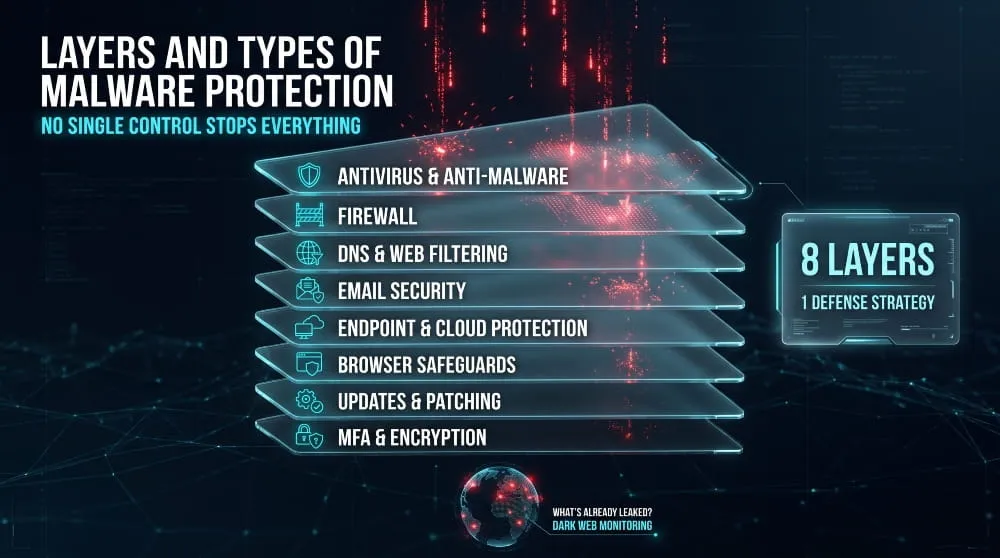
Malware protection comes in layers because no single control stops every threat. The main layers are antivirus software, firewalls, DNS and web filtering, email security, endpoint and cloud protection, browser safeguards, patching, and strong authentication.
Antivirus and anti-malware software
These programs scan files and processes for malicious code and remove what they find. Most current products detect all malware types, not just classic viruses, whether they are marketed as antivirus or anti-malware.
Firewalls and network-based protection
A firewall filters traffic in and out of a device or network based on rules. It blocks unauthorized connections and can stop malware from contacting its operators, but it does not inspect a file you download and run yourself.
DNS filtering and web protection
DNS filtering blocks connections to domains known for malware, phishing, or command-and-control activity before a page even loads. It is a lightweight layer that protects every device on a network, including ones that cannot run security software.
Email malware and phishing protection
Email remains a leading delivery route, so filters that scan attachments, rewrite or check links, and flag impersonation attempts are essential, especially for businesses. Cloud email platforms such as Microsoft 365 and Google Workspace include built-in filtering that you can tighten with additional policies.
Endpoint and cloud-based protection
Endpoint protection secures individual devices with behavioral detection and central management. Cloud-based protection sends analysis to a vendor’s servers, speeding detection and reducing the load on the device.
Browser protection and safe-browsing features
Browsers warn about dangerous sites and downloads, sandbox web content, and can block malicious extensions. Keeping the browser updated and removing unused extensions reduces the attack surface.
Updates, patching, and zero-day protection
Patching removes the vulnerabilities malware exploits. Zero-day flaws have no patch at the time of attack, so behavioral detection, exploit mitigation, and prompt updates once a fix ships are practical defenses.
What MFA, encryption, and VPNs do and do not stop
Multi-factor authentication limits the damage of a stolen password but does not stop malware from running. Encryption protects data at rest and in transit but does not prevent an infected device from reading it once unlocked. A VPN hides your traffic from the network but does not scan files. These tools complement malware protection; they do not replace it.
Malware Protection vs Antivirus vs Virus Protection
Malware protection is the broader category, and antivirus is one tool within it. A virus is only one type of malware, so “virus protection” is a narrower, older term that most modern products have outgrown.
Is malware protection the same as virus protection?
Not exactly. Viruses are programs that replicate by attaching to other files. Malware includes viruses plus ransomware, spyware, trojans, worms, and more. Today, a product sold as virus protection usually covers all of these, but the terms are not strictly interchangeable.
Antivirus vs anti-malware
Historically, antivirus targeted viruses with signature scanning while anti-malware tools focused on newer threats such as spyware and adware. The two categories have largely merged, and most reputable products now combine both.
How the main controls compare
| Control | Main Job | What It Does Not Do |
|---|---|---|
| Antivirus / anti-malware | Detects and removes malicious files and behavior | Does not secure accounts or network traffic |
| Firewall | Filters network connections | Does not scan downloaded files |
| VPN | Encrypts traffic and hides your IP address | Does not detect malware |
| Endpoint protection | Behavioral detection and central management for devices | Does not replace email or identity security |
Do you need both antivirus and malware protection?
If your product detects viruses, ransomware, spyware, and other malware, you do not need a second program for the same job. Running two real-time scanners can cause conflicts and slow your device. Instead, add complementary layers, such as DNS filtering, a password manager, and backups.
How to Protect Yourself from Malware (Step-by-Step)
The best way to protect against malware is to combine updated software, real-time protection, and cautious behavior. Software stops most commodity threats, and habits cover the gap where an attack depends on you clicking.
- Keep everything updated. Turn on automatic updates for your operating system, browser, and apps so known vulnerabilities are patched quickly.
- Turn on real-time protection and scheduled scans. Confirm your protection is active and that definitions update automatically.
- Spot phishing and malicious attachments. Be wary of urgency, unexpected invoices, shipping notices, and links that do not match the sender’s real domain.
- Download from trusted sources only. Use official app stores and vendor sites, and avoid cracked software, which is a common malware carrier.
- Secure your router and network. Change default admin passwords, update firmware, and use WPA2 or WPA3 encryption.
- Back up your data. Keep at least one copy offline or in versioned cloud storage so ransomware cannot encrypt every copy.
- Use unique passwords and MFA. A password manager and multi-factor authentication limit what an attacker can do with a stolen login.
What provides the most protection against malware?
Layered defense provides the most protection: updated software, real-time protection, cautious user behavior, and tested backups working together. No single tool, including the best antivirus, matches that combination.
Malware Protection by Device and Operating System
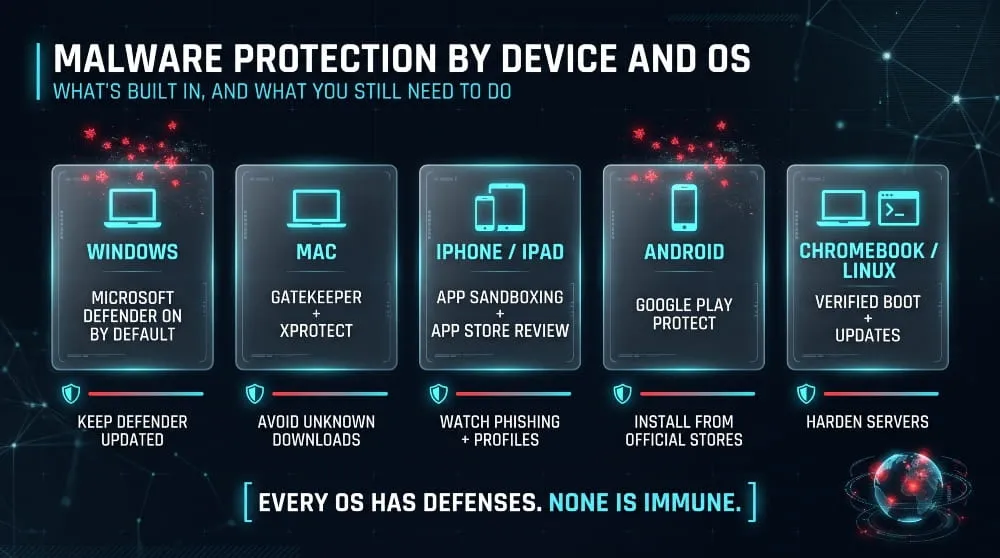
Every major operating system includes built-in malware defenses, but protection levels and the need for extra software vary by platform. Windows and Android face the most commodity malware, while macOS and iOS rely more on platform controls.
Windows 10 and 11
Windows includes Microsoft Defender Antivirus, which provides real-time protection, cloud-delivered detection, and ransomware safeguards by default. For most home users, it is a solid baseline when kept updated, and you can confirm it is active in the Windows Security app.
Mac and macOS
Macs include built-in protections such as Gatekeeper, app notarization, and XProtect malware scanning. Macs can still be infected, mainly through malicious downloads and phishing, so careful installation habits and updates matter more than adding heavy software. However, some users choose a third-party tool for extra detection.
iPhone and iPad
iPhones and iPads restrict apps through sandboxing and App Store review, which makes traditional malware rare. They are not immune: phishing, malicious profiles, risky sideloaded apps in some regions, and targeted spyware remain risks. Keep iOS updated, avoid unknown profiles, and be cautious with links.
Android and mobile devices
Android includes Google Play Protect, which scans apps from Google Play and checks apps installed from elsewhere. Risk rises sharply with sideloaded apps and modified APK files, so install from official stores, review app permissions, and keep Android updated.
Chromebook and Linux
Chromebooks use verified boot, sandboxing, and automatic updates, which limit malware risk, mainly to malicious extensions and phishing. Linux desktops are less commonly targeted, but Linux servers are heavily targeted and benefit from hardening, patching, and scanning.
Free vs Paid Malware Protection: How to Choose
Free malware protection is often enough for many individuals when it includes real-time scanning and automatic updates, as built-in tools like Microsoft Defender do. Paid products add extras such as identity monitoring, VPNs, parental controls, support, and, for businesses, central management.
What free protection includes and lacks
Free tools typically cover core scanning and basic web protection. They often lack advanced ransomware rollback, multi-device management, dedicated support, and bundled privacy features, and some free third-party products push upgrades or collect data.
What paid protection adds.
Paid tiers commonly add extra layers of web and email protection, device coverage across several platforms, identity and breach alerts, and technical support. Businesses pay mainly for centralized visibility, policy control, and response tools.
How to evaluate a product
Look at detection rates in independent lab tests such as AV-Comparatives and AV-TEST, device performance impact, false positive rates, privacy practices, and update frequency. Prefer vendors that publish test results and clear data policies over those that only advertise.
How to test your malware protection
Confirm protection is active by checking that real-time scanning is on and definitions are up to date. The harmless EICAR test file, created by security researchers, triggers antivirus alerts without any real malicious code. Never test with real malware.
How much does malware protection cost?
Built-in protection costs nothing. Consumer suites usually run from tens of dollars per year, depending on the number of devices and features, while business protection is typically priced per user or device each month.
Malware Protection for Businesses and Enterprises
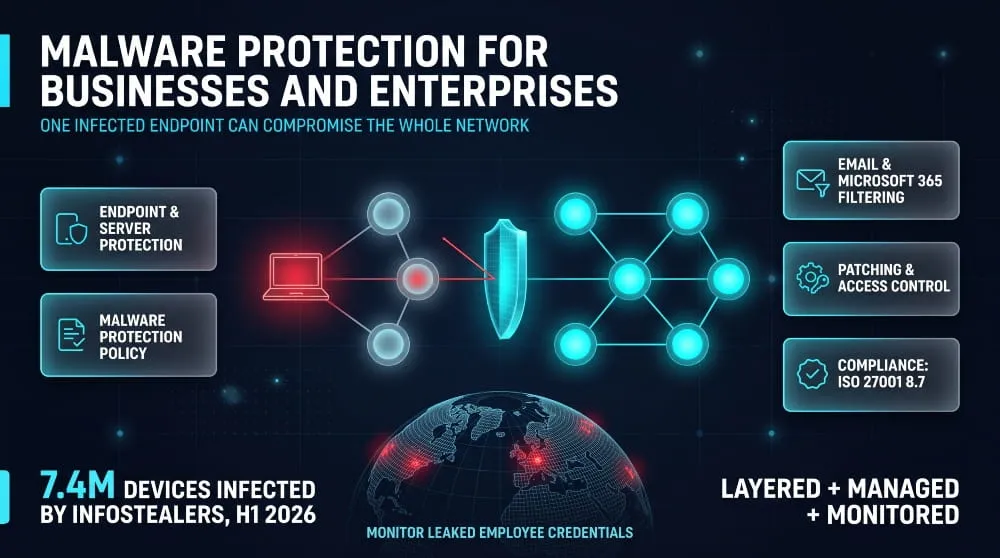
Businesses need managed, layered malware protection because one infected endpoint can lead to network-wide compromise, data loss, and regulatory exposure. Effective business protection combines endpoint security, email filtering, patching, access control, and monitoring under a written policy.
Small business checklist
Small teams should enforce automatic updates, deploy managed endpoint protection, filter email attachments and links, require MFA on every account, restrict admin rights, back up critical data offline and train staff to report suspicious messages.
Enterprise endpoint, server and cloud protection
Larger environments protect endpoints, servers and cloud workloads with behavioral detection, network segmentation, central logging and response tooling. Servers and cloud storage need uploaded files scanned, not just device-level protection.
Email and Microsoft 365 protection
Microsoft 365 includes baseline anti-malware and anti-phishing filtering, and administrators can strengthen it by tuning policies for attachments, links, and impersonation. Review settings regularly rather than relying on defaults.
Malware protection policy essentials
A solid policy states which protection must be installed on which assets, how often updates and scans occur, who responds to detections, how removable media and downloads are handled, and how users report incidents.
Compliance
ISO/IEC 27001:2022 includes a dedicated control for malware protection (Annex A 8.7), and regulated sectors such as finance and healthcare commonly expect documented, tested malware defenses as part of broader security requirements.
How to Protect Your Website from Malware
Protect a website from malware by keeping its software updated, limiting who can log in, scanning regularly, and maintaining clean backups. Website infections usually come from outdated plugins, weak or stolen credentials, and vulnerable themes rather than exotic attacks.
Common infection routes
Outdated CMS and plugins, reused admin passwords, insecure file permissions, and compromised hosting accounts cause most site infections. Attackers often inject hidden redirects or spam into pages.
WordPress essentials
Update core, themes, and plugins promptly; remove anything unused; install extensions only from reputable sources; enforce strong admin passwords with MFA; and limit login attempts.
Monitoring, scanning and hardening
Use scheduled malware scans, file integrity monitoring, and a web application firewall. Keep off-site backups so you can restore a clean version quickly if you are compromised.
Malware Protection Myths and Limitations
No malware protection is 100 percent effective. Every product misses some threats, which is why layered defense, patching, and backups matter alongside any single tool.
Is any malware protection 100% effective?
No. New malware, targeted attacks, and social engineering regularly slip past automated detection. The goal is to reduce risk and limit damage, not to reach perfection.
Are new smartphones protected against malware and viruses?
New phones ship with strong built-in protections, but they are not fully protected. Phishing, malicious apps outside official stores, and unpatched software can still compromise a device.
Why traditional antivirus can miss modern threats
Signature-only scanning struggles with new, modified, and fileless malware. Many modern attacks also avoid malware entirely by using stolen credentials, which no scanner can detect on its own.
Fake malware protection pop-ups and scareware
A browser pop-up claiming your device is infected and urging you to call a number or install a cleaner is almost always a scam. Close the tab, don’t call or download anything, and run a scan with software you already trust.
What to Do If Protection Fails
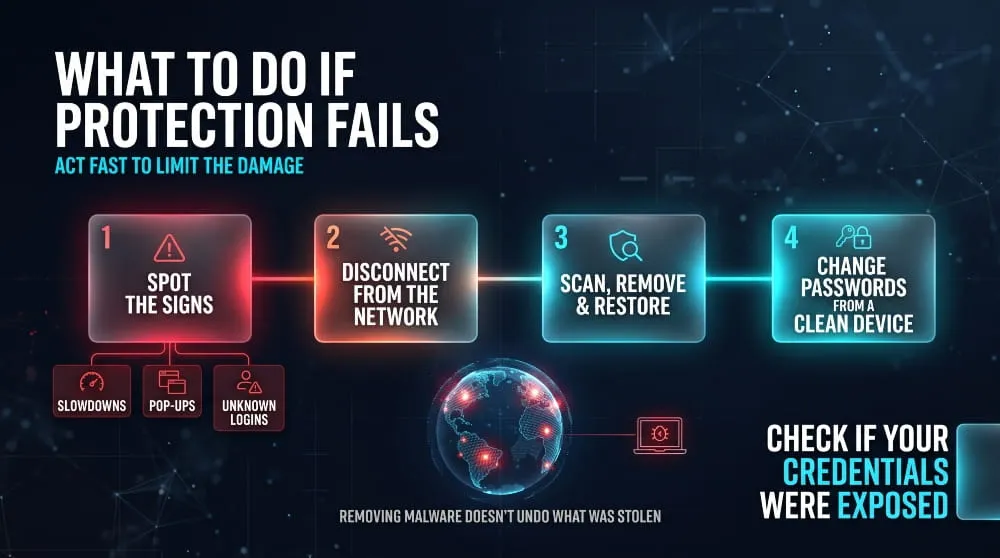
If you suspect an infection, disconnect the device from the internet, run a full scan with trusted security software, and change your passwords from a different, clean device. Fast containment limits how much an attacker can take.
Signs your device is infected
Warning signs include sudden slowdowns, unexpected pop-ups, unfamiliar programs or browser extensions, disabled security software, unexplained network activity, and accounts showing logins you do not recognize.
Immediate containment steps
Disconnect from Wi-Fi or unplug the network cable, stop using the device for banking or sensitive accounts, and avoid entering passwords on it. On a work device, alert your IT or security team immediately.
Malware removal and recovery
Run a full scan, remove or quarantine what it finds, and, if the device stays unstable, restore from a clean backup or reset the operating system. Update everything before reconnecting accounts.
Checking whether your credentials were exposed
Removing the malware does not undo what it already stole. Change passwords and sign out of active sessions from a clean device, and check whether your email addresses or company domains appear in leaked data.
Go Beyond Malware Protection with DeXpose
Malware protection stops infections on devices, but it cannot show you what has already leaked. Stolen logins from infostealers are traded on dark web markets and in private channels, often before the victim knows anything happened.
How infostealer malware leaks logins to the dark web
An infostealer collects saved passwords, cookies, and session data from a device and uploads the bundle to its operator. Attackers then sell or share the data, which they can use for account takeover, fraud, or ransomware access.
Why endpoint protection alone leaves a gap
Endpoint tools see what happens on your devices. They don’t see what is circulating on criminal marketplaces, where your exposure becomes visible. Combining both closes the gap between prevention and awareness.
Monitor your exposure with DeXpose.
DeXpose is a dark web monitoring and threat intelligence platform that helps you see whether your credentials, domains, and data are exposed so you can act before attackers do. Check your exposure with DeXpose.
Malware Protection Checklist and Key Takeaways
Malware protection works best as a layered habit rather than a single product. Keep devices updated, leave real-time protection on, be skeptical of unexpected links and downloads, secure accounts with unique passwords and MFA, and back up your data. Monitor for leaked credentials, because stolen logins can outlast any infection, and DeXpose can help you see that exposure early.
Frequently Asked Questions (FAQ)
What is malware protection?
Malware protection is the set of tools and practices that detect, block, and remove malicious software such as ransomware, spyware, and trojans. It includes antivirus software, firewalls, web and email filtering, and safe user habits.
Do I need malware protection on my phone, Mac or iPhone?
Yes, in a practical sense. iPhones and Macs have strong built-in defenses and lower malware rates, so extra software is optional for many users, but updates and cautious behavior are still essential. Android devices benefit from Google Play Protect plus careful app installation.
Does a firewall, VPN, or Windows Defender protect against malware?
Windows Defender does, because it includes antivirus and anti-malware protection. A firewall helps by blocking unauthorized connections but does not scan files. A VPN encrypts traffic but does not detect malware.
Is free malware protection good enough?
For many individual users, yes, as long as it offers real-time scanning and automatic updates. Businesses and users who want identity monitoring, multi-device management, or support usually need a paid solution.
How do I turn on malware protection?
On Windows, open Windows Security, select Virus & threat protection, and turn on real-time protection. On Android, open Google Play Store settings and enable Play Protect. On Mac, keep macOS updated so built-in protections stay current.
What is the best way to protect against malware?
Use layers: automatic updates, real-time protection, cautious clicking, unique passwords with multi-factor authentication, and regular backups.
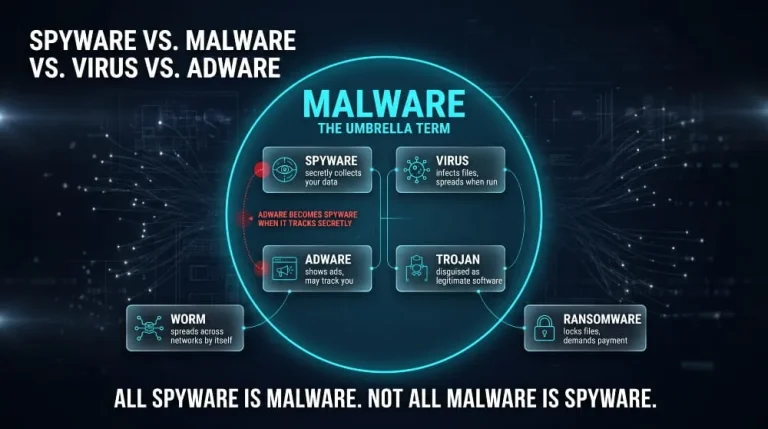
Spyware vs. Malware vs. Virus vs. Adware | What’s the Difference? (Complete Guide)
Malware is the umbrella term for any malicious software. Spyware is one type of malware, a virus is another, and adware is a third; what separates…
Read more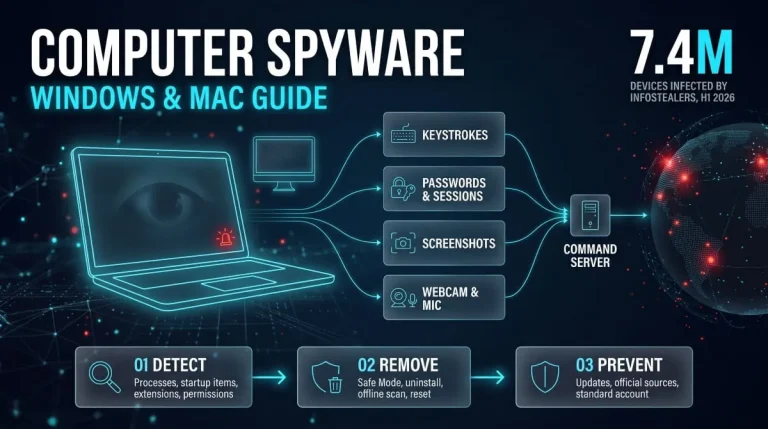
Computer Spyware | What It Is, How to Detect It and How to Remove It (Windows & Mac Guide)
Computer spyware is malicious software that secretly runs on a PC, laptop, or Mac, records your activity, and sends that data to someone else. To detect…
Read more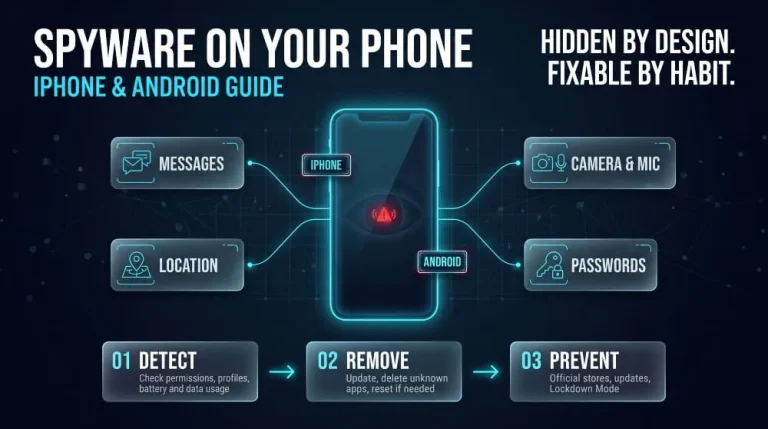
Spyware on Your Phone | How to Detect, Remove, and Prevent It (iPhone & Android Guide)
Yes, phones can get spyware. Spyware on a phone is hidden software that secretly collects your messages, calls, location, photos, and passwords and sends them to…
Read more