
Computer Spyware | What It Is, How to Detect It and How to Remove It (Windows & Mac Guide)
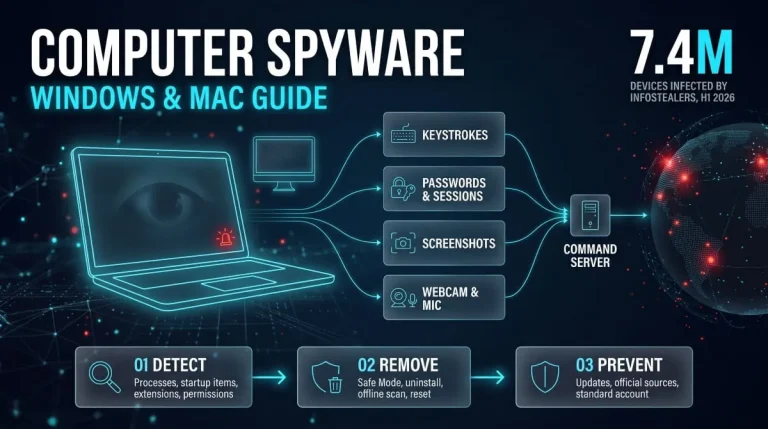
Computer spyware is malicious software that secretly runs on a PC, laptop, or Mac, records your activity, and sends that data to someone else. To detect spyware, check running processes, startup items, browser extensions, and permissions, then run a full security scan; to remove it, boot into Safe Mode, delete the unknown software, scan again, and change your passwords from a clean device. This guide covers Windows and Mac, including the common question of whether Windows itself is spyware.
What Is Computer Spyware?
Computer spyware is software that gathers information about a user or their activity without informed consent and reports it to a third party. Its defining trait is secrecy, which separates it from ordinary programs that collect usage data and report it to you.
Computer Spyware Definition in Simple Words
Computer spyware is a hidden program that watches what you type, visit, and store, and sends the details to its operator. In computer science terms, it is a category of malware built for covert surveillance and data theft rather than damage.
What Spyware Does to a Computer
Spyware can log keystrokes, capture screenshots, copy saved passwords and browser sessions, track browsing, change browser settings, and, in some cases, use the webcam or microphone. Because it runs in the background, it can also slow a computer down and use network bandwidth.
Is Spyware a Computer Virus? Spyware vs. Virus vs. Malware
Spyware is not a virus in the strict sense. A virus replicates by attaching itself to other files, while spyware is defined by what it does: spy. Both are malware, which is the umbrella term for malicious software, and a single infection can combine several types.
Common Types and Examples of Computer Spyware
The main types include keyloggers, infostealers, browser hijackers, behavior-tracking adware, and remote-access tools used for surveillance. Infostealers are the most active today: Flashpoint recorded 7.4 million infected devices worldwide in the first half of 2026, a 27% rise from the previous six months. See DeXpose’s guide to infostealer malware for the families behind this.
How Does Spyware Get on a Computer?
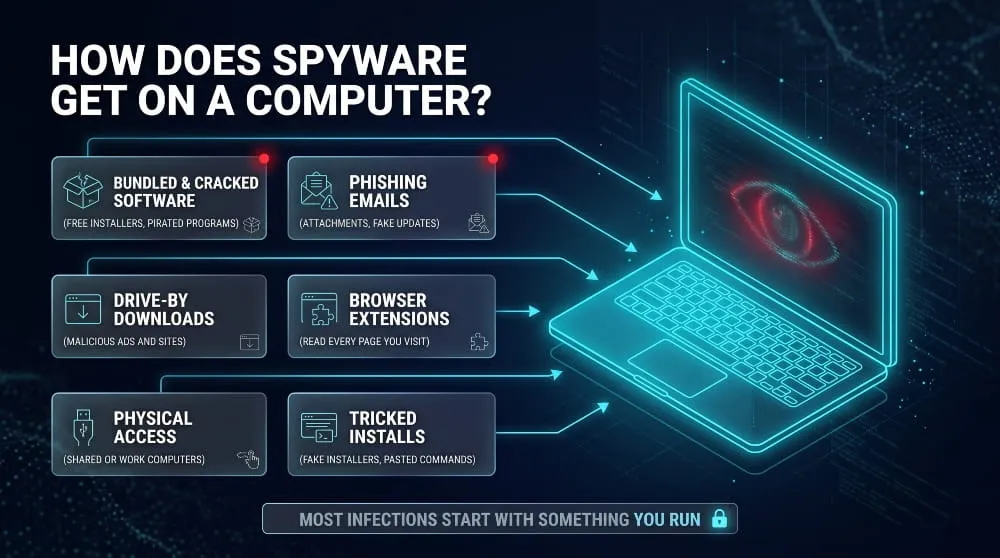
Spyware gets on a computer through bundled or cracked software, phishing emails and fake updates, malicious ads and websites, harmful browser extensions, or physical access. Most infections happen when a user runs something they shouldn’t.
Bundled Software and Cracked Programs
Free software installers often bundle extra programs, and cracked or pirated software is a leading carrier for infostealers. Choosing a Custom install, reading each screen, and avoiding cracks removes much of the risk.
Phishing Emails, Attachments and Fake Updates
Phishing emails carry attachments or links that install spyware when opened, and fake browser or software update prompts trick people into running installers. Verify updates through the application itself rather than a pop-up or email link.
Drive-By Downloads and Malicious Ads
Some malicious websites and ads try to download software or exploit an unpatched browser without any click beyond visiting the page. Keeping the browser and operating system updated closes most of these paths.
Malicious Browser Extensions
Extensions can read every page you visit, so a malicious or newly sold extension can act as effective spyware. Install only the ones you need, check the permissions they request, and remove any you no longer use.
Physical Access, Shared and Work Computers
Someone with brief access to an unlocked computer can install monitoring software in minutes. On work computers, employers may also install monitoring software, which is legal in many places if they disclose it.
Can a New PC or Mini PC Come With Spyware?
Mainstream computers from reputable sellers rarely do, though they ship with manufacturer apps that can look like bloat. Security researchers have occasionally reported preinstalled malware on very cheap, off-brand, or imported mini PCs, so buy from trusted sellers and reinstall the operating system on any used machine.
Can Pegasus and Mercenary Spyware Infect a Computer?
Pegasus is designed mainly for phones, and its documented targets are mobile devices. Other surveillance products, such as the FinSpy tool sold by FinFisher, had Windows and Mac versions, so government-grade spyware on a computer is possible but rare and aimed at high-risk targets.
Signs Your Computer Has Spyware
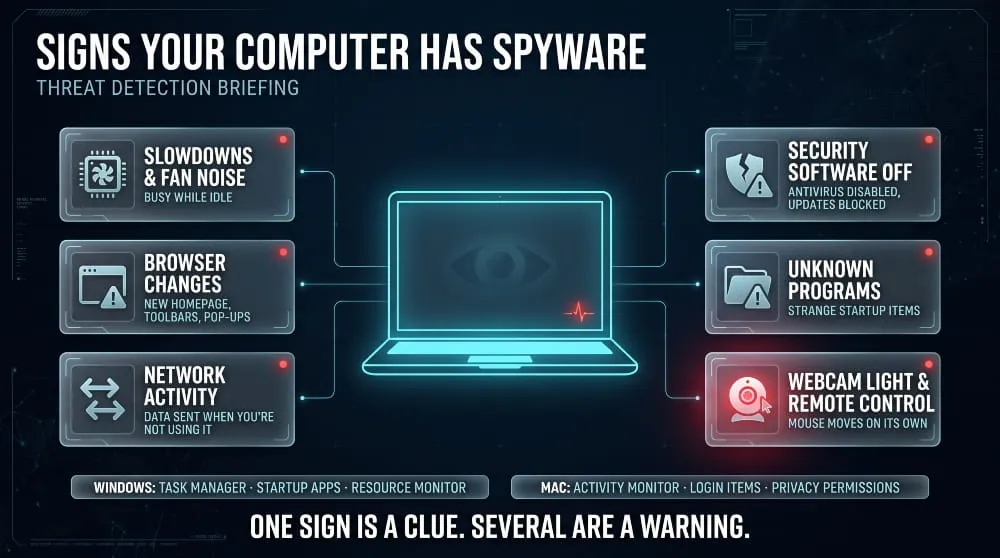
The main signs of spyware on a computer are unexplained slowdowns, browser changes and pop-ups, disabled security software, unknown programs, and webcam or network activity you cannot explain. One sign is a clue, and several together are a warning.
Slowdowns, Fan Noise and Network Activity
Spyware works in the background, so a computer may run slower, spin its fans while idle, or show network activity when you are not using it. Spyware can slow down a computer, but so can many ordinary problems, so look for several signs together.
Browser Changes, Pop-ups and Redirects
A changed homepage or search engine, new toolbars, constant pop-ups, and redirected searches all point to a browser hijacker or adware that tracks browsing. Check extensions first, since most browser-based spyware lives there.
Disabled Security Software, Unknown Programs and Startup Items
Many infections try to switch off antivirus or block updates. Programs you do not remember installing, or startup entries with random names, are common footprints.
Webcam Light, Microphone and Remote-Access Clues
A webcam light that turns on unprompted, a mouse that moves on its own, or remote-access software you didn’t install are serious warning signs. Never accept a sudden prompt asking for screen sharing or remote control unless you started the session.
Spyware or Just a Slow Computer?
A full disk, too many startup programs, an aging battery, or a pending update causes most slowdowns. Suspect spyware when symptoms start suddenly, appear with unfamiliar software, or involve account activity you didn’t initiate.
How to Check a Windows PC or Laptop for Spyware
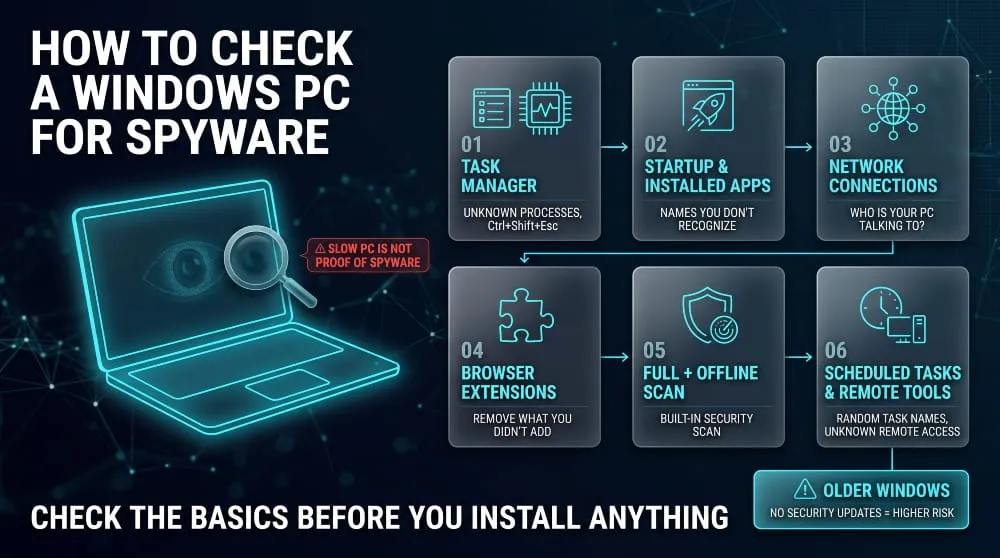
To check a Windows PC for spyware, review Task Manager and startup apps, installed programs, network connections, browser extensions, and scheduled tasks, then run a Windows Security scan, including the offline scan. The same steps work on a laptop.
Task Manager, Startup Apps and Installed Programs
Press Ctrl+Shift+Esc to open Task Manager, then look at Processes and the Startup apps tab for names you do not recognize. Next, open Settings > Apps, review the installed list, and search for unfamiliar names before removing them.
Resource Monitor and Network Connections
Open Resource Monitor and go to the Network tab to see which processes send data and where. A program that is constantly sending data to unfamiliar addresses, or one you cannot identify, deserves investigation.
Browser Extensions and Settings Review
Open the extensions page in each browser and remove anything you did not intentionally install. Then check the homepage, default search engine, and any proxy settings for unexpected changes.
Windows Security Scan and Offline Scan
Does Windows Defender detect spyware? Yes, Windows Security with Microsoft Defender Antivirus detects many known spyware and malware families. Run a full scan under Virus & threat protection, and use the Microsoft Defender Offline scan to catch threats that hide while Windows is running.
Scheduled Tasks and Remote-Access Tools
Open Task Scheduler and look for tasks with random names or ones that launch unknown programs. Also check for remote-access tools you didn’t set up, such as AnyDesk, TeamViewer, or Quick Assist.
Older Windows Versions (XP, 7, 8): Why They Are Riskier
Windows XP, 7, and 8.1 no longer receive security updates, and Windows 10 reached end of support in October 2025. Unpatched systems are easier to infect, so move to a supported version and avoid using an outdated system for banking or email.
Laptops: Same Steps, Plus Webcam and Battery Clues
On laptops, also watch for the camera indicator light, a battery that drains quickly while idle, and fans that run with nothing open. Run the same Windows checks, then confirm the system is fully updated.
How to Check a Mac for Spyware
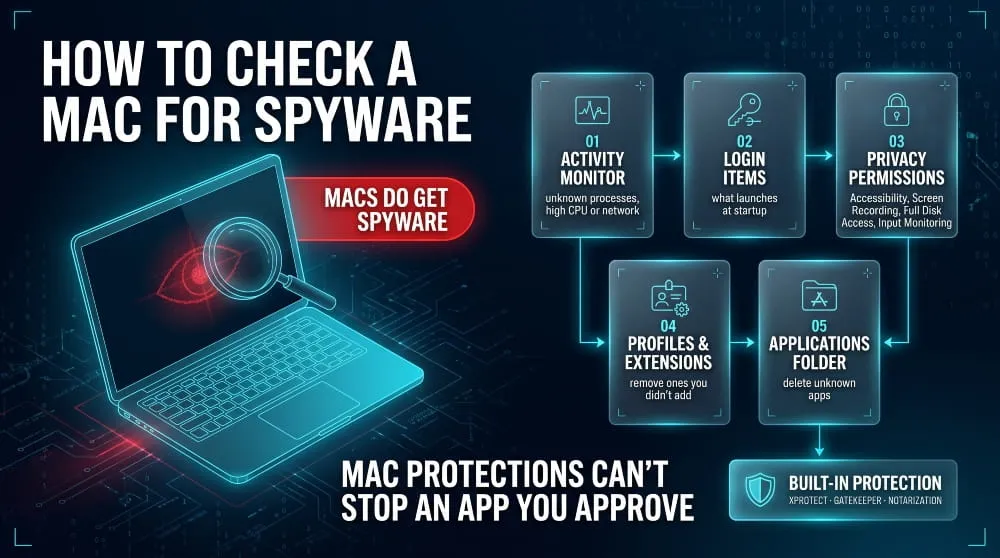
To check a Mac for spyware, review Activity Monitor, login items, installed applications, configuration profiles, privacy permissions, and browser extensions. Macs have strong built-in protection, but they are not immune.
Activity Monitor, Login Items and Applications
Open Activity Monitor to look for unfamiliar processes using high CPU, memory, or network. Then go to System Settings > General > Login Items & Extensions to review what launches at startup, and check the Applications folder.
Profiles, Extensions and Privacy Permissions
In System Settings, Privacy & Security, check which apps have Accessibility, Full Disk Access, Screen Recording, and Input Monitoring, since spyware needs those to watch you. Remove anything you don’t recognize, and check for configuration profiles you didn’t install.
Built-In Protection: XProtect, Gatekeeper and Malware Removal
macOS includes XProtect, which scans for known malware, and Gatekeeper, which checks apps you download and blocks unsigned or unnotarized ones. They reduce risk, but they work on known threats and cannot stop you from approving a malicious app yourself.
“Macs Don’t Get Spyware”: Myth vs. Reality
Macs do get spyware. Infostealers such as Atomic Stealer spread through fake installers and pages that trick users into pasting commands into Terminal, so Mac users should treat unexpected downloads and installation instructions with the same caution as Windows users.
Is Windows Spyware? Telemetry, Recall, Copilot and Privacy Settings
Windows isn’t spyware in the malware sense, but it collects diagnostic data, and some features raise real privacy questions. You can reduce what it collects through Settings, without third-party tools.
Is Windows 10 or Windows 11 Spyware? (Telemetry vs. Spyware)
Windows collects required diagnostic data and, if you allow it, optional diagnostic data, and it is documented and controllable. Spyware is secret and gives you no control, so telemetry is a privacy concern, not malware. Home and Pro editions cannot turn required diagnostic data off completely.
Windows Recall and Copilot: What They Collect and Who Controls It
Recall is a Copilot+ PC feature that takes snapshots of your screen so you can search past activity. After backlash, Microsoft made it opt-in, required Windows Hello, and encrypted the snapshots; you can manage it under Privacy & security > Recall & snapshots. Researchers have still questioned its protections, including a March 2026 tool that read snapshots after the user had authenticated. Copilot features similarly process what you choose to share.
How to Turn Off Diagnostic Data, Ad ID, Activity History and Location Tracking
Open Settings, Privacy & security. Turn off optional diagnostic data under Diagnostics & feedback, turn off the advertising ID under General, review Location, and turn off anything you don’t need. These steps limit data collection without breaking Windows.
Why “Windows Spyware Removal Tools” Are Usually a Bad Idea
Third-party tools that claim to strip spyware from Windows often use aggressive scripts that can break updates or system features, and some are scams or malware. The built-in privacy settings do the useful part safely.
How to Remove Spyware From a Computer
To remove spyware from a computer, disconnect from the internet, restart in Safe Mode, uninstall the unknown software, run a full and offline scan, reset browser settings, and change your passwords from a different device. If it persists, reset the system.
Before You Remove It: Disconnect, Back Up Safely, and Check Who Installed It
Disconnect from the internet to stop data from leaving, and back up only personal files such as documents and photos, not programs. If a partner or someone close to you may have installed it, removing it could alert them, so consider safety and support options before you act.
How to Remove Spyware From Windows 10 and 11
- Restart in Safe Mode so the spyware is less likely to run.
- Uninstall unfamiliar programs from Settings> Apps.
- Remove unknown browser extensions and reset browser settings.
- Run a full scan and a Microsoft Defender Offline scan.
- Install all Windows updates.
- If symptoms continue, use Reset this PC from Settings> System> Recovery.
How to Remove Spyware From a Mac
- Start in Safe Mode, then open Login Items and remove unknown entries.
- Delete suspicious apps and remove unknown configuration profiles.
- Remove browser extensions you did not install.
- Revoke Accessibility, Screen Recording, and Full Disk Access for unknown apps.
- Update macOS.
- If the problem remains, erase the Mac and reinstall macOS from Recovery.
Does Resetting or Reinstalling the Operating System Remove Spyware?
A full reset or clean reinstall removes almost all consumer spyware because it replaces the system and installed software. Restore only your files afterward, since restoring a full system backup can bring the problem back.
After Removal: Passwords, MFA, Browser Data and Bank Alerts
Treat everything typed or saved on the computer as exposed. From a clean device, change your passwords, starting with email and banking, turn on multi-factor authentication, sign out of all sessions, clear saved browser passwords and cookies, and tell your bank if financial details may have been captured.
Fake Spyware Alerts on Windows and Mac
Many “spyware detected” warnings are scams, not alerts from your computer. Real alerts come from security software already installed on your system, never from a web page that tells you to call a number or pay.
Fake “Trojan Spyware Alert” Pop-ups Imitating Windows Security
Fake alerts imitate Windows Security or Microsoft with flashing warnings, sirens, and a support number. Microsoft does not ask you to call a phone number from a browser pop-up, so close the tab and clear site notification permissions if the pop-ups continue.
Fake “Your Mac Is Infected” Warnings
Mac scareware claims your Mac is infected and pushes you to download a cleaner or call support. macOS does not warn about infection through a browser tab, so these are scams, and the downloaded “cleaner” is often the real malware.
How to Tell a Real Alert From a Fake One
A real alert appears inside your security app or as a system notification, names a specific file or action, and doesn’t demand payment or a call. If you’re unsure, close the browser, open your security app, and run a scan there.
Do You Need Anti-Spyware or Antivirus on Windows and Mac?
Most people are well protected by built-in tools plus safe habits. Windows Security covers Windows, and macOS has built-in protection, so a second product is optional, not required.
What Windows Security Covers
Windows Security provides real-time antivirus, a firewall, browser protection, offline scanning, and spyware protection. If it shows an error, such as definitions failing to update, fix it first by checking your network connection and running Windows Update.
What macOS Built-In Protection Covers
macOS protects with XProtect, Gatekeeper, and notarization checks, which block known malware and unsigned apps. They work well against common threats but won’t catch everything you approve yourself.
When a Second Scanner Helps (and What Scanners Cannot Catch)
A reputable second-opinion scanner can help when you suspect an infection, and running two real-time antivirus products at once can cause conflicts. No scanner reliably catches advanced, targeted spyware.
Endpoint Protection for Businesses
Organizations should use managed endpoint detection and response with central patching and policies, since personal tools provide no fleet-wide visibility. These tools also help detect credential-stealing malware early.
How to Protect Your Computer From Spyware
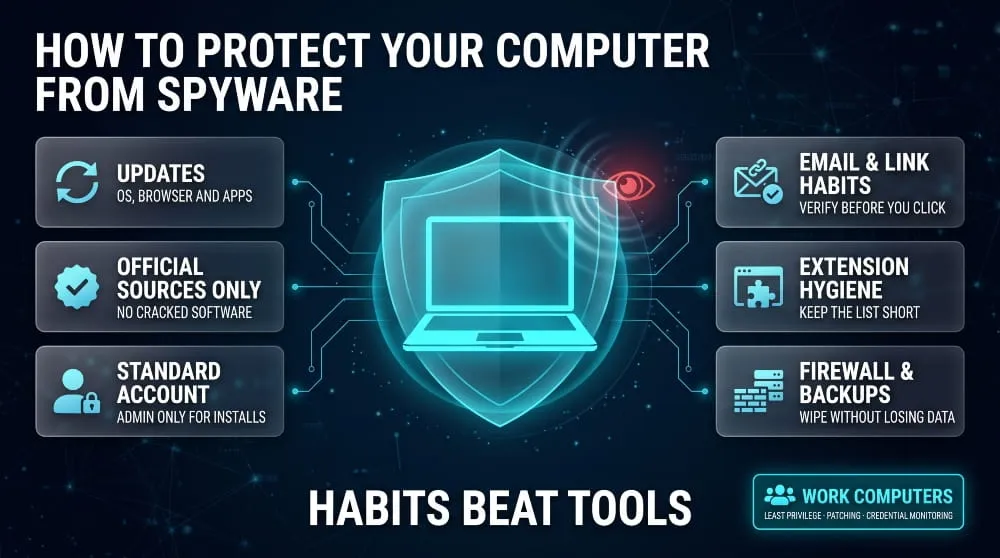
You can protect a computer from spyware by keeping the system and browser updated, installing software only from official sources, using a standard account, being careful with email and links, and limiting extensions. Habits matter more than any single tool.
Keep the Operating System and Browser Updated
Enable automatic updates for your operating system, browser, and key apps. Most spyware exploits known flaws that updates already fix.
Install Only From Official Sources (No Cracked Software)
Download software from the vendor’s site or the official store, and avoid cracked programs, keygens, and random mirror sites, which commonly carry spyware.
Use a Standard Account Day to Day
Use a standard user account for everyday work and keep the administrator account for installs. Spyware that cannot get admin rights is much harder to install and hide.
Email, Link and Attachment Habits
Do not open unexpected attachments or follow links in unsolicited messages, even from known contacts. Confirm through another channel before you run anything.
Browser Extension Hygiene
Keep extensions to a minimum, review their permissions, and remove any you no longer use, since extensions can be a quiet spyware route.
Firewall and Backups
Keep the built-in firewall on and keep regular offline or versioned backups of your files. Backups let you wipe a compromised system without losing your data.
Work Computers: Policy, Least Privilege and Monitoring
Businesses should enforce least privilege, restrict software installs, patch quickly, and monitor for exposed employee credentials, because one infected work computer can open the door to company systems.
Spyware on Work Computers: Is It Legal?
Employers may monitor company-owned computers in many places when they disclose it, but secretly installing spyware on someone else’s computer without consent is generally illegal. This is general information, not legal advice, and laws vary by location.
What Employers Can Monitor on Company-Owned Computers
Employers commonly monitor email, web use, and activity on devices they own, usually with an acknowledged policy. Disclosure and a legitimate business purpose are what make it lawful in most places.
When Monitoring Becomes Illegal Spyware
Monitoring becomes illegal spyware when it is hidden, installed on a personal computer without agreement, or used to capture private accounts. In the United States, laws such as the Wiretap Act, the Stored Communications Act, and the Computer Fraud and Abuse Act can apply.
How to Tell If Someone Installed Spyware on Your Computer
Look for unknown programs, remote-access tools, startup items, browser extensions, and privacy permissions you didn’t grant. Note the installation dates, and keep notes or screenshots before you remove anything.
What Happens to Data Stolen From a Computer?
Spyware operators use stolen data or sell it, and much of it ends up on the dark web. Flashpoint estimated that infostealers harvested 1.7 billion credentials from infected devices in the first half of 2026 alone.
How Infostealer Logs Reach the Dark Web
Infostealers package stolen passwords, cookies, and system details into logs. Criminal marketplaces sell those logs and share them in underground forums and Telegram channels, then use them for account takeover, fraud, and as an entry point for larger attacks.
How to Check Whether Your Credentials Were Exposed
After you clean your computer, check whether your details are already circulating. DeXpose’s Free Dark Web Report gives an instant exposure report covering dark web markets, malware logs, and public breaches, and the Email Data Breach Scan shows whether your email address appears in known breaches. Change any password that turns up.
Continuous Monitoring for Organizations
For companies, one infected work computer can expose company logins and open the way to internal systems. DeXpose dark web monitoring and breached-credentials monitoring alert security teams when company credentials appear in criminal sources, so they can reset accounts before attackers abuse them.
Frequently Asked Questions (FAQ)
Is spyware a computer virus?
No. A virus replicates by attaching itself to other files, while spyware is malware designed to collect information secretly. Both fall under the broader term malware.
Can spyware slow down my computer?
Yes. Spyware runs in the background and uses processing power, memory, and network bandwidth, which can slow a computer down. Slowness alone doesn’t prove spyware, since many ordinary problems can cause it.
Does Windows Defender detect spyware?
Yes. Windows Security with Microsoft Defender Antivirus detects many known spyware and malware families. It works best when kept up to date, and offline scans help catch threats that hide while Windows runs.
Do Macs get spyware?
Yes. Macs have strong built-in protection, but infostealers and other spyware target them, usually through fake installers and tricked users. The same cautious habits apply as on Windows.
Can someone install spyware on my computer remotely?
Yes, if they can get you to run something through a phishing link, a fake update, or a malicious download, or if they have your credentials or remote-access software on the machine. Keeping the system patched and being careful about what you run blocks most remote installs.
Collectively, programs such as viruses and spyware are called what?
Malware, short for malicious software. It is the umbrella term for viruses, worms, trojans, ransomware, spyware, and other harmful programs.
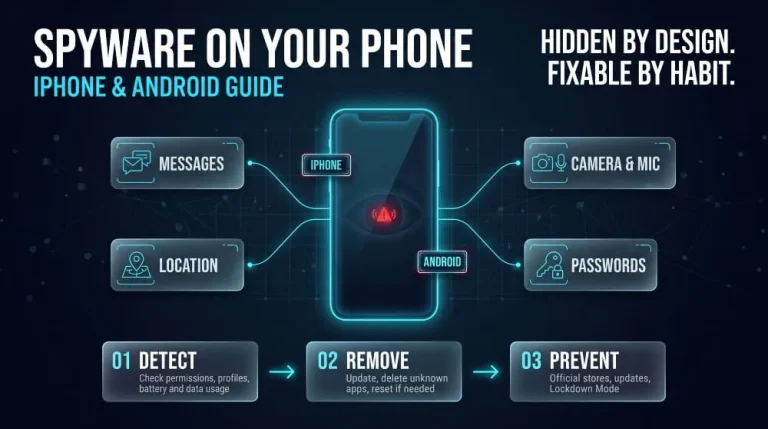
Spyware on Your Phone | How to Detect, Remove, and Prevent It (iPhone & Android Guide)
Yes, phones can get spyware. Spyware on a phone is hidden software that secretly collects your messages, calls, location, photos, and passwords and sends them to…
Read more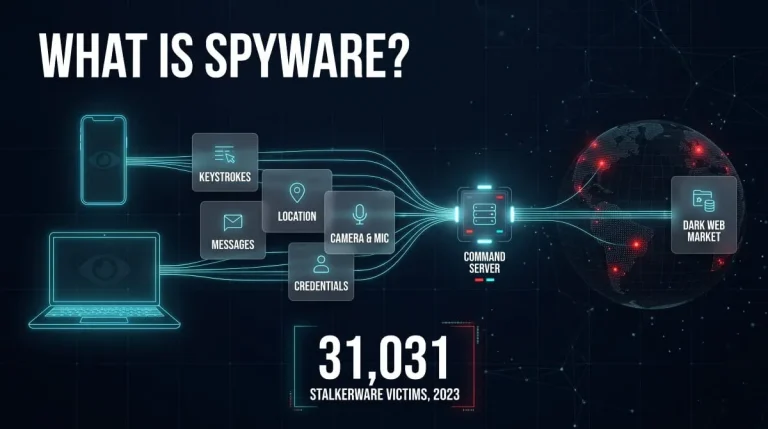
Spyware | What It Is, How It Works, Types, Examples & How to Remove It (Complete Guide)
Spyware is malicious software that secretly installs itself on a phone or computer, collects information about you, such as passwords, messages, browsing activity, and location, and…
Read more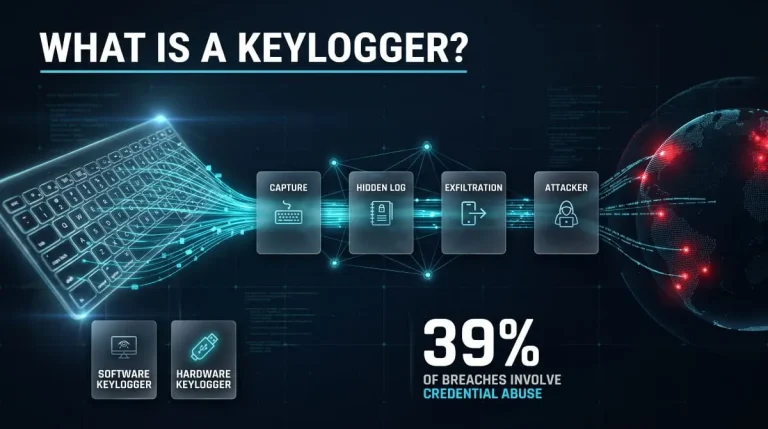
What Is a Keylogger? Definition, Types, Detection and Removal (Complete 2026 Guide)
A keylogger is software or hardware that records every keystroke typed on a device, usually without the user knowing. Attackers use keyloggers to steal passwords, card…
Read more