
How to Access the Dark Web Safely in 2026 (Step-by-Step Guide)
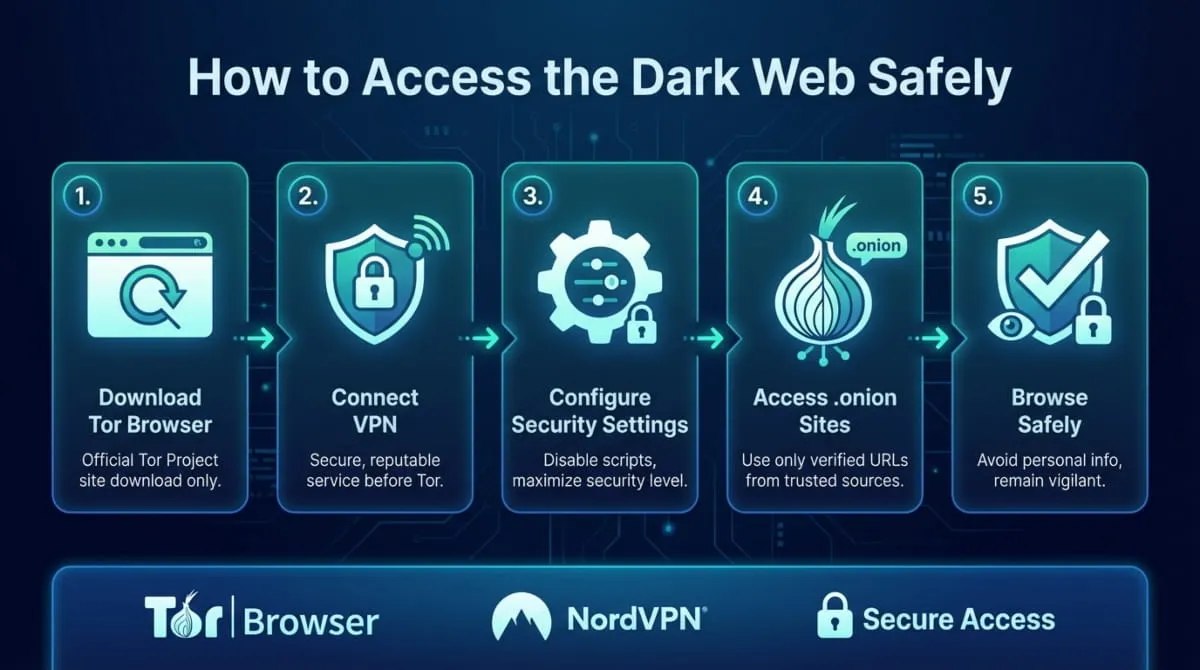
Accessing the dark web is legal in the US, UK, Canada, and Australia. To do it safely, you need two things: the Tor Browser (free, from torproject.org) and a no-logs VPN. Connect the VPN first, then open Tor. That’s the foundation of every safe dark web setup in 2026. Everything else in this guide builds on it.
You can’t access the dark web through Chrome, Safari, or any standard browser. It doesn’t appear in Google search results. It requires specific software, primarily the Tor Browser, and a clear understanding of how to use it without exposing yourself.
This guide covers all of it. Whether you’re a complete beginner who just heard the term for the first time, a researcher setting up a secure environment, a journalist who needs to operate anonymously, or someone who received an alert that their personal data was found on the dark web, this is the step-by-step Tor guide you need.
What you’ll learn in this guide:
- What the dark web actually is, and how it differs from the deep web
- Whether accessing the dark web is legal in the US, UK, Canada, Australia, and India
- The exact tools required: Tor Browser, VPN, and when to use Tails OS
- Step-by-step dark web access instructions for desktop (Windows & Mac), iPhone, Android, and Chromebook
- How to stay anonymous and avoid the most common tracking mistakes
- How to find safe .onion sites and use dark web search engines
- The real risks of dark web access, and how to manage each one
- What to do if your personal data is already on the dark web
Before you read further, here’s what this guide is and isn’t:
This is a safety guide, not a directory. It does not list illegal marketplaces, provide links to prohibited content, or encourage activity that violates the law in any jurisdiction. The dark web itself is a neutral technology. What you do on it is governed by the same laws that apply everywhere else online. This guide helps you access it correctly, anonymously, and legally.
One more thing: this guide is written for 2026, using current Tor Browser versions, current VPN recommendations, and current best practices. If you’ve read older guides that reference Tor 9 or discontinued tools, ignore them. The setup has changed, and outdated advice creates real security gaps.
What Is the Dark Web? (And How Is It Different from the Deep Web?)
Most people use the terms “dark web” and “deep web” interchangeably. They don’t, and the difference is more than technical; it changes what you’re actually dealing with when you hear either term used in a news story, a security alert, or an IT briefing.
The short version: the deep web is vast and mostly boring. The dark web is a small, deliberately hidden corner of the internet that requires specific software to reach. Understanding the distinction is the foundation of understanding how to access the dark web safely and why anyone would want to.
Surface Web vs. Deep Web vs. Dark Web: The Three Layers Explained
The internet is structured in three distinct layers, and most people only ever touch the first one.
The Surface Web is everything search engines index and anyone can reach through a standard browser with no login required, including news sites, e-commerce stores, social media platforms, YouTube, and Wikipedia. Despite its enormous size, the surface web represents only a small fraction of total internet content, widely estimated at under 5%.
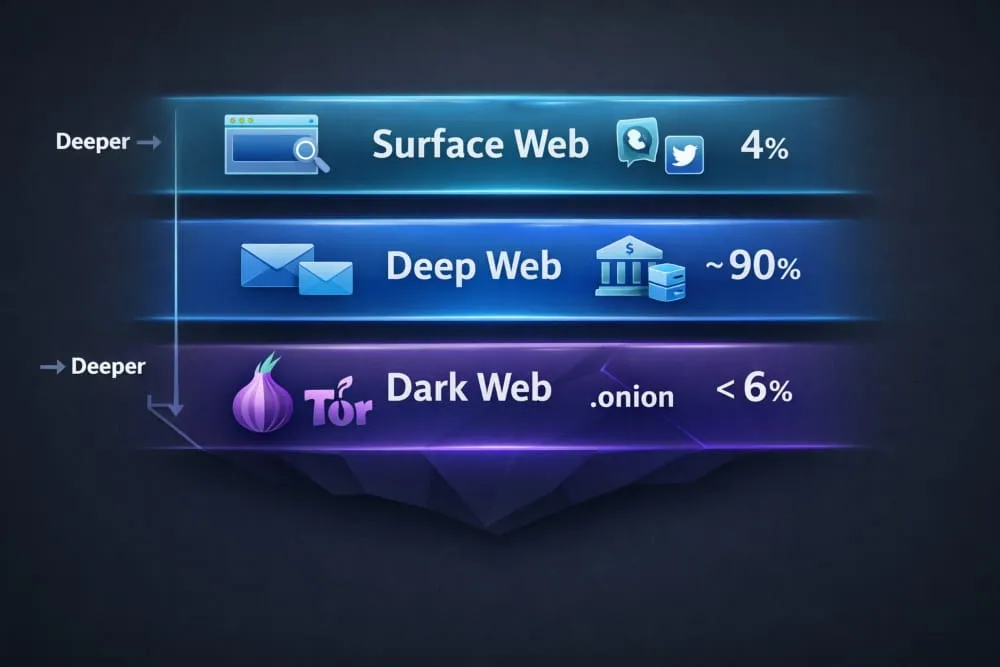
The Deep Web is everything search engines cannot index. Not because it’s hidden or dangerous, but because it sits behind authentication walls, paywalls, or form submissions. Your online banking dashboard is the deep web. So is your Gmail inbox, your company’s internal intranet, a hospital’s patient records system, and the subscription content behind a paywall. The deep web is the largest layer of the internet by a wide margin, and virtually everyone who uses the internet accesses it daily without thinking about it.
The Dark Web is a specific, intentionally concealed subset of the deep web. No search engine indexes it. It cannot be reached through Chrome, Safari, Firefox, or any conventional browser. To access dark websites, which use the .onion domain extension instead of .com or .org, users must connect through the Tor network. This system encrypts and anonymizes internet traffic by routing it through multiple volunteer-operated servers worldwide.
The rule to remember: all dark web content is part of the deep web, but the deep web is not the dark web. One is simply unindexed; the other is deliberately engineered to be unreachable without the right tools.
| Layer | Accessible via | Indexed by Google? | Examples |
|---|---|---|---|
| Surface Web | Any browser | Yes | News sites, Wikipedia, YouTube |
| Deep Web | Any browser + login | No | Online banking, email, intranets |
| Dark Web | Tor Browser only | No | .onion sites, darknet markets, privacy services |
What .onion Sites Are and Why They Can’t Be Googled
When you type a URL into Chrome, your browser sends a request to your ISP, which forwards it to a public DNS server, which resolves the domain name to an IP address and returns the content. The entire process is traceable; your IP address, the Site you visited, and when you visited it are all visible at multiple points along the chain..onion sites don’t work that way. They are hosted entirely inside the Tor network, with no exposure to the public internet. Their addresses, long, seemingly random strings like
duckduckgogg42xjoc72x3sjasowoarfbgcmvfimaftt6twagswzczad.onion
, are cryptographic identifiers, not traditional domain names. They cannot be registered, bought, or sold through any domain registrar. Any standard DNS server cannot resolve them. And they cannot be opened in any browser except the Tor Browser.
This is why they can’t be Googled: Google’s crawlers operate on the public internet. They cannot enter the Tor network. They have no mechanism to discover, reach, or index .onion addresses. Even if you paste a .onion URL directly into Google’s search bar, Google cannot retrieve the content; it simply doesn’t have a route to it.
The v3 .onion addresses used today are 56 characters long. That length is not arbitrary; it encodes a public key, a version number, and a checksum that together make each address cryptographically verifiable. When your Tor Browser connects to a .onion site, it verifies cryptographic proof at connection time, which is part of what makes dark web communication resistant to impersonation.
What this means practically: To visit any dark web site, you need to know its .onion address already. You get those addresses from dark web directories, verified publisher lists (major news organizations publish their .onion addresses publicly), or dark web search engines accessed through Tor. There is no shortcut through Google.
Who Actually Uses the Dark Web (And Why)
The popular image of the dark web, criminals trading stolen data and drugs in the shadows, is real but radically incomplete. It describes one layer of a network that serves a much wider range of people and purposes.
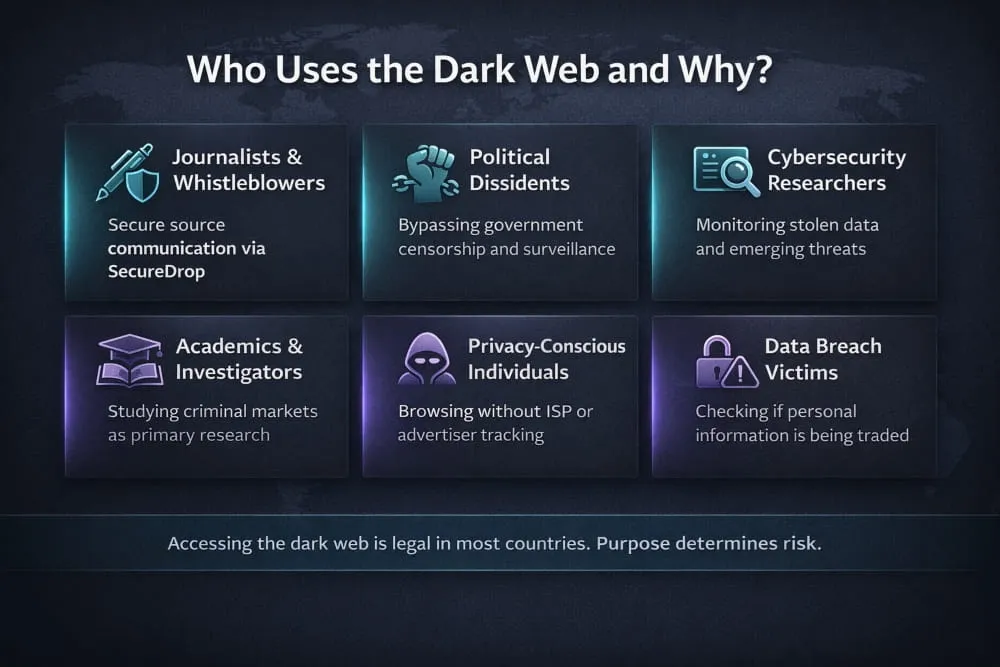
Journalists and whistleblowers use the dark web to communicate securely with sources in environments where surveillance is constant. SecureDrop, the encrypted submission platform used by dozens of major news organizations, runs on the dark web. The New York Times, The Washington Post, The Guardian, and the BBC all operate .onion mirrors specifically to enable readers and sources in censored or surveilled regions to contact them safely.
Political dissidents and activists in countries with repressive governments use the dark web to organize, share information, and communicate across borders without government interception. In countries where Signal, WhatsApp, and Twitter are blocked at the network level, Tor-based tools are sometimes the only option available.
Cybersecurity professionals and threat intelligence researchers use the dark web as part of their work, monitoring dark web forums for stolen credentials, tracking the activities of ransomware groups, and identifying compromised data from dark web marketplaces. Organizations like DeXpose run continuous dark web monitoring operations precisely because this intelligence has direct security value.
Privacy-conscious individuals use Tor and the dark web simply because they don’t want their browsing activity logged, sold to advertisers, or accessible to data brokers. Not every privacy concern stems from criminal motives; in an era of widespread surveillance capitalism, anonymity has legitimate value.
Curious beginners make up a substantial portion of dark web traffic. Most people who access the dark web for the first time do so once, look around, and leave. The dark web is far less sensational in practice than media coverage suggests.
People checking their own data exposure represent a fast-growing segment. If you’ve received a notification that your email address, password, or personal information was found on the dark web, you may want to understand what that means, what’s actually being traded, and what to do about it. That’s a legitimate use case, and this guide covers it directly.
What these groups share is the tool, the Tor Browser, not the purpose. The dark web is infrastructure. The range of people using it reflects the full spectrum of reasons anyone might value privacy or need to operate outside the reach of conventional surveillance.
Is the Dark Web the Same as the Darknet?
These terms are often used interchangeably, but they describe slightly different things.
The darknet is the broader infrastructure: any network overlay that requires specialized software, configurations, or authorization to access and is not reachable through the standard internet. Tor is a darknet. I2P (Invisible Internet Project) is another. Freenet is a third. Each is a separate anonymizing network with its own architecture, tradeoffs, and communities.
The dark web refers specifically to the web content accessible via darknets, primarily via Tor. It’s the websites, forums, marketplaces, and services hosted on .onion addresses within the Tor network.
So technically, the dark web is the content layer, and the darknet (specifically Tor) is the infrastructure layer that makes it accessible. In practice, when people say “darknet” in a security context, they usually mean the Tor network. When they say “dark web,” they mean the sites and services reachable through it.
For this guide, “dark web” and “darknet” are used interchangeably unless the distinction affects the instructions. Still, the underlying differences are worth knowing if you encounter both terms in security reporting or threat intelligence.
The dark web is a hidden portion of the internet accessible only with the Tor Browser. Google does not index it, uses .onion domains, and is used by journalists, researchers, privacy advocates, and yes, criminals, often on the same infrastructure. Knowing what it is and isn’t is the prerequisite for accessing it safely.
Is Accessing the Dark Web Legal?
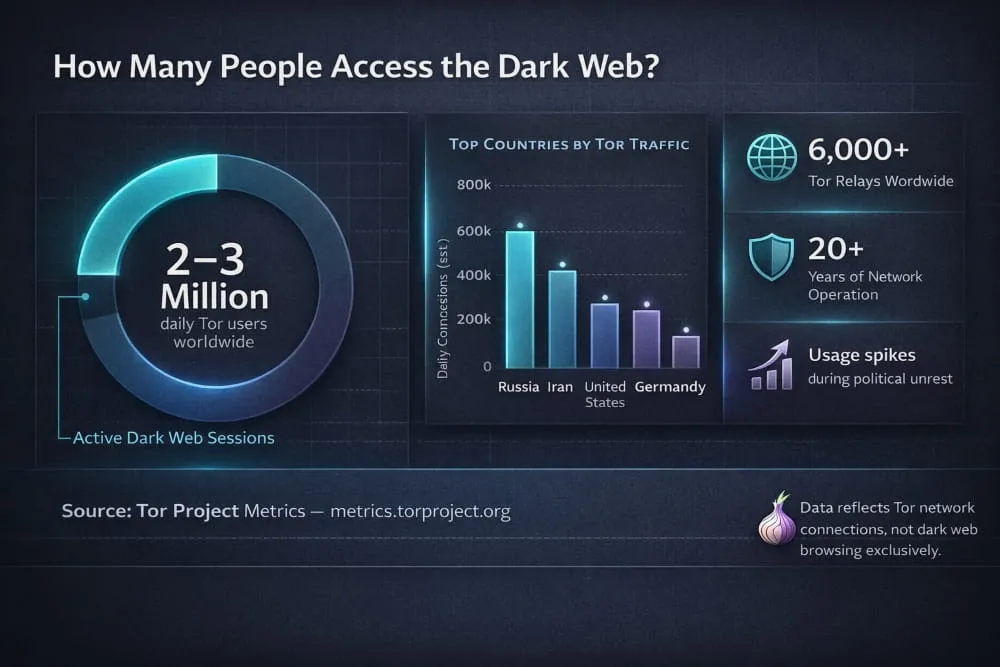
Yes, in most countries, accessing the dark web is completely legal.
Connecting to the Tor network and browsing .onion sites is a lawful activity in the United States, the United Kingdom, Canada, Australia, and the vast majority of Europe. No law in any of those jurisdictions makes the Act of connection itself a criminal offense. What determines legality isn’t which network you’re on; it’s what you do while you’re there.
This distinction matters enormously, and it’s widely misunderstood. The dark web is infrastructure. Tor is a tool. Neither is inherently criminal, any more than owning a car is illegal, even though cars can be driven recklessly or used to flee crime scenes. The legal exposure begins with specific conduct: purchasing prohibited goods, accessing illegal content, participating in cybercrime, or facilitating harm to others. Simply being on the network, browsing, reading, researching, carries no legal penalty in most jurisdictions.
That said, the law is not identical everywhere, and the details matter depending on where you are. Here’s the breakdown by jurisdiction.
Is Accessing the Dark Web Illegal in the USA?
No. Accessing the dark web is entirely legal in the United States.
There is no federal statute that prohibits using the Tor Browser, connecting to the Tor network, or visiting .onion websites. The Department of Justice, the FBI, and other federal agencies are fully aware that millions of people access the dark web; they actively monitor it. However, accessing the dark web alone is not a criminal offense and has never been prosecuted as such.
The US government’s relationship with Tor is more complicated than most people realize. The Tor Project was originally funded by the US Naval Research Laboratory. The State Department has long funded internet freedom tools, including Tor, as part of its efforts to support free expression in countries that censor the internet. American intelligence personnel use the Tor network for secure communications. The US government simultaneously funds and monitors the same infrastructure, which gives you some sense of how it views the technology itself.
What is illegal in the United States on the dark web is identical to what is illegal everywhere else online:
- Purchasing controlled substances or illegal weapons
- Trafficking in stolen financial data, credentials, or identity documents
- Accessing, distributing, or possessing child sexual abuse material
- Engaging in cybercrime, deploying malware, conducting ransomware attacks, and selling hacking services
- Laundering money through cryptocurrency mixers or dark web financial services
- Transacting with sanctioned individuals or entities
Federal agencies, including the FBI, DEA, and Homeland Security Investigations, have conducted extensive operations on the dark web. In virtually every publicized arrest, the prosecution rested on the illegal transaction or conduct, not on the fact that the defendant had accessed the dark web.
Dark Web Legal Status in the UK, Canada, Australia, and India
The pattern across these jurisdictions is consistent: access is legal, conduct is regulated. Here is how each country specifically handles it.
United Kingdom
Accessing the dark web is not a criminal offense under UK law. The Computer Misuse Act 1990, the primary legislation governing unauthorized computer access, does not apply to simply browsing the dark web through the Tor Browser. The Act targets unauthorized intrusion into systems, not anonymous browsing of publicly reachable content (within Tor).
What the UK does criminalize and actively prosecutes: purchasing illegal drugs, weapons, or counterfeit documents through dark web markets; involvement in cybercrime operations; and the distribution of prohibited content, including child sexual abuse material. The National Crime Agency maintains a dedicated unit for dark web investigations and has participated in multiple international operations that have resulted in UK arrests.
Canada
Accessing the dark web is legal in Canada. The Criminal Code applies to illegal activity conducted through any medium, including the dark web, but the Act of connecting to Tor is not regulated. Canada’s cybercrime framework primarily targets unauthorized computer access, fraud, and the distribution of harmful content, none of which are triggered by using the Tor Browser.
Australia
Australian law does not prohibit access to the dark web. The Criminal Code Act and the Telecommunications (Interception and Access) Act address illegal interception and specific cybercrime categories, but neither makes using Tor a criminal act. The Australian Federal Police has conducted numerous dark web investigations, all focused on illegal marketplace activity, drug trafficking, and fraud, not on access itself.
India
India presents a less clear-cut picture. Accessing the dark web is not explicitly prohibited under Indian law, but the Information Technology Act 2000 and its amendments grant authorities broad investigative powers over online activity deemed harmful, obscene, or a threat to national security. The legal framework is less precisely defined than in Western jurisdictions, and enforcement has been inconsistent.
Indian users accessing the dark web for research or privacy purposes exist in a greyer legal zone than their counterparts in the US, UK, or Australia. The practical risk for a researcher or curious individual remains low, but the regulatory environment is less predictable and warrants awareness.
What Is Illegal on the Dark Web (vs. What Isn’t)
The dark web does not exist outside the law. Any activity that is illegal in the physical world is equally illegal when conducted through the dark web. Anonymity may complicate detection and attribution, but it does not create a legal exemption.
Legal on the dark web:
- Browsing and reading content, including news, forums, and research materials
- Communicating anonymously through privacy-focused email and messaging services
- Accessing .onion versions of mainstream sites (BBC, New York Times, ProPublica)
- Conducting cybersecurity research and threat intelligence work
- Using SecureDrop or similar platforms for secure whistleblowing
- Accessing the dark web for journalistic or academic purposes
- Privacy-conscious browsing without surveillance or tracking
Illegal on the dark web (in most jurisdictions):
- Purchasing or selling controlled substances, prescription drugs without authorization, or illegal weapons
- Trafficking in stolen personal data, compromised credit card numbers, or fraudulent identity documents
- Accessing, distributing, or possessing child sexual abuse material is one of the most aggressively prosecuted categories of dark web crime internationally.
- Deploying or purchasing malware, ransomware, or hacking tools for offensive use
- Operating or participating in cybercriminal forums offering services for hire
- Money laundering through cryptocurrency tumblers or dark web financial platforms
- Hiring or soliciting services for illegal acts
The clearest framing: the dark web is a medium, not a jurisdiction. Using it does not grant legal immunity or create new laws. The same conduct that would be illegal on the surface web is illegal on the dark web. The same conduct that is legal on the surface web, reading, communicating, researching, is legal on the dark web.
Can You Get Tracked or Arrested Just for Accessing the Dark Web?
No, not for accessing it. There is no legal mechanism in the US, UK, Canada, or Australia to arrest someone simply for connecting to the Tor network or visiting .onion sites. Law enforcement in these jurisdictions focuses on illegal conduct, not on the Act of connection.
That said, the question of whether you can be tracked is separate from whether you can be arrested, and both deserve a direct answer.
Can Tor be broken?
Tor’s encryption has not been publicly broken. Your ISP can see that you are connecting to the Tor network; they cannot see what you are doing inside it. The Tor exit node can see the destination of unencrypted traffic; it cannot see who sent it. No known technique allows a passive observer to simultaneously see both ends of a Tor connection and reliably link them together.
However, Tor’s anonymity has limits, and those limits matter:
| Tracking Method | Risk Level | How to Mitigate |
|---|---|---|
| ISP detecting Tor connection | Medium | Use Tor bridges (like obfs4) or a reliable VPN before connecting to Tor. |
| Exit node traffic monitoring | Low–Medium | Always use end-to-end encryption (HTTPS-only); avoid entering credentials on unencrypted HTTP sites. |
| Browser fingerprinting | Medium | Keep Tor Browser maximized at its default canvas size; avoid installing external extensions or add-ons. |
| JavaScript exploits | High if enabled | Set Tor Browser’s Security Level to “Safest” to globally disable JavaScript on untrusted sites. |
| Account logins | High | Never log into surface-web accounts (Google, Facebook, personal banking) that link back to your real identity. |
| Reused usernames | High | Never reuse standard handles, nicknames, or avatars associated with your clearnet profiles. |
| Cryptocurrency transaction trails | High | Avoid public public-ledger coins (like Bitcoin) without privacy protocols; understand public chains are fully traceable. |
| Operational security failures | Very High | Maintain strict behavioral boundaries. Most real-world deanonymization stems from human error, not mathematical vulnerabilities in Tor. |
How people actually get caught
The overwhelming majority of dark web prosecutions do not involve breaking Tor’s encryption. They involve operational security failures: a reused username linking a dark web forum account to a Reddit profile; a shipping address entered into a marketplace order; a cryptocurrency transaction traced back to an exchange that had completed identity verification; an undercover law enforcement agent operating within a market.
The takedown of AlphaBay and Hansa in 2017, one of the largest coordinated dark web enforcement actions in history, resulted in hundreds of arrests. Tor was not defeated. Users were identified through metadata, behavioral patterns, and the careless personal details that anonymity tools cannot protect against unless users maintain consistent operational discipline.
The direct answer: Accessing the dark web will not get you tracked or arrested. Engaging in illegal conduct through the dark web exposes you to the same legal risk as engaging in that conduct anywhere else, possibly more, since dark web marketplaces are heavily monitored by law enforcement. The network offers anonymity. It does not offer impunity.
Accessing the Dark Web Is Illegal, True or False?
False. In most countries, accessing the dark web is entirely legal.
This includes the United States, the United Kingdom, Canada, Australia, and the majority of Europe. The Act of connecting to Tor and browsing .onion sites carries no criminal penalty in any of these jurisdictions. It has not been prosecuted. It is not under legislative consideration for criminalization in any major Western democracy.
The confusion persists for two reasons. First, media coverage of the dark web is dominated by crime stories, marketplace busts, ransomware groups, and data breaches traced to dark web forums. The journalists, researchers, activists, and privacy-conscious individuals using the same infrastructure generate no headlines. Second, the association between dark web access and criminal activity has become so ingrained in public perception that many people assume the access itself must be prohibited.
It isn’t. The dark web is a neutral technology. Tor is a neutral tool. The postal system has been used to send drugs, weapons, and threatening letters; nobody concludes from this that mailing a letter is a crime.
Access is legal. Conduct is what the law governs. That line is the only one that matters.
What You Need to Access the Dark Web Safely
Before any step-by-step instructions, you need to know exactly what tools are required, what each one does, and why cutting corners on any of them creates real security gaps.
The good news: accessing the dark web safely doesn’t require technical expertise or expensive software. The core toolkit is free, widely available, and straightforward to set up. What it does require is using the right tools in the right order and understanding what each one protects you against.
Here’s what you need, in order of importance.
The Tor Browser, What It Is and How It Works
The Tor Browser is the only browser that can access the dark web. Chrome cannot do it. Firefox cannot do it. Brave has partial Tor support, but cannot reliably reach .onion sites the way Tor can. Safari, Edge, and every other mainstream browser cannot do it at all. If you want to access dark websites, the Tor Browser is non-negotiable.
What Tor actually is
Tor stands for The Onion Router. It’s a free, open-source browser built on a hardened version of Firefox, maintained by the nonprofit Tor Project, and used by millions of people worldwide, journalists, researchers, activists, privacy advocates, and ordinary users who simply don’t want their browsing activity tracked.
The name comes from how it works. When you send a request through Tor, your data is encrypted in multiple layers, like the layers of an onion, and routed through a series of at least three volunteer-operated servers called relays or nodes. Each relay strips one layer of encryption and learns only two things: where the data came from and where to send it next. No single relay knows both the origin and the destination of the traffic. By the time your request reaches its destination, the path back to your real IP address has been fragmented, so no single point in the network can reassemble it.
This is what makes .onion sites reachable and what makes dark web browsing anonymous by default, as long as you don’t undermine it through browser configuration or behavior.
How Tor’s relay system works, step by step
| Step | What Happens | Who Can See It |
|---|---|---|
| Your device | Encrypts data in 3 layers, sends to Entry Node | Your ISP sees a Tor connection. Nothing else. |
| Entry Node (Guard) | Strips outer layer, forwards to Middle Node | Knows your IP. Does not know destination. |
| Middle Node | Strips second layer, forwards to Exit Node | Knows Entry Node. Does not know you or destination. |
| Exit Node | Strips final layer, sends request to destination | Knows destination. Does not know your IP. |
| Destination site | Receives request, sends response back through chain | Sees Exit Node IP only. Never sees yours. |
The result: the destination site sees the exit node’s IP address, not yours. Your ISP sees a connection to Tor, not what you’re doing inside it. No single relay has enough information to de-anonymize you on its own.
Is the Tor Browser safe to download?
Yes, if and only if you download it from the official source. The only legitimate download location is torproject.org. The Tor Browser is free. There is no paid version, no premium tier, no legitimate reason to download it from any other website, app store (for desktop), or third-party repository.
Third-party Tor Browser downloads have been used repeatedly to distribute modified versions containing malware, keyloggers, and surveillance tools. Several campaigns specifically targeting dark web users have distributed fake Tor Browsers that route traffic through attacker-controlled nodes before passing it to the real Tor network, giving the attacker a complete view of everything the user does. Always verify you are on torproject.org before downloading.
After installing, the most important setting
Once installed, open the Tor Browser and click the shield icon in the top-right corner. Set the Security Level to Safest. This disables JavaScript on non-HTTPS sites, blocks certain media formats, and turns off a range of browser features that can be exploited to reveal your real IP address. Some sites will render differently at this setting; that’s the correct tradeoff. Do not browse the dark web on Standard or Safer mode.
What Tor does not protect against
Tor anonymizes your network traffic. It does not:
- Protect you if you log into personal accounts (Gmail, Facebook, anything tied to your real identity)
- Prevent malware in files you download from executing and phoning home through your regular connection
- Stop you from being identified through behavioral patterns or reused usernames
- Encrypt traffic between the exit node and the destination if the Site doesn’t use HTTPS
These are not weaknesses in Tor’s design; they’re the boundaries of what a browser-level anonymity tool can do. The VPN and the behavioral practices in the sections below address what Tor leaves uncovered.
Do You Need a VPN With Tor? (Tor-over-VPN Explained)
Technically, you can access the dark web using the Tor Browser without a VPN. Practically, for any use case where your anonymity matters, you should not.
Here’s why.
The gap Tor leaves
When you connect to the Tor network without a VPN, your ISP can see that you are connecting to Tor. They cannot see what you are doing inside Tor, but the connection itself is visible. In most countries, this is not illegal, but it is a data point: your ISP knows you use Tor, and that fact is logged. In countries where Tor usage draws regulatory attention, or in any professional context where Tor activity could be flagged, that log entry is a problem.
A VPN fills that gap. When you connect to a VPN before opening Tor, your ISP sees only encrypted traffic going to a VPN server, not a Tor connection. The Tor entry node sees the VPN server’s IP address, not yours. You’ve added a layer of separation at both ends.
Tor-over-VPN: the correct configuration
The sequence matters and is non-negotiable:
Your device → VPN → Tor network → .onion site
VPN first. Tor second. Always.
Connecting in the wrong order, Tor first, then VPN, routes your Tor exit traffic through the VPN instead, which means the VPN provider can see your Tor exit traffic. This is called VPN-over-Tor, and it’s the wrong configuration for accessing the dark web. It reduces anonymity rather than increasing it, because you’re now trusting your VPN provider with visibility into exit nodes.
What to look for in a VPN for dark web use
Not all VPNs are appropriate for this use case. The minimum requirements:
| Feature | Why It Matters |
|---|---|
| Audited no-logs policy | If the VPN doesn’t log your activity, there’s nothing to hand over if subpoenaed by law enforcement or third parties. |
| Kill switch | Cuts your internet connection entirely if the VPN drops unexpectedly, preventing Tor or other traffic from leaking through your real IP. |
| DNS leak protection | Ensures all DNS queries route securely through the encrypted VPN tunnel, instead of exposing the domains you visit to your ISP. |
| No WebRTC leaks | Prevents web browsers from exposing your real local and public IP addresses through WebRTC communication protocols. |
| Jurisdiction | Providers based in privacy-friendly legal frameworks (such as Switzerland, Iceland, or Panama) face less compulsory data disclosure laws and operate outside major intelligence-sharing alliances. |
Recommended VPNs for dark web access in 2026:
- Mullvad, no email required to sign up, accepts cash and cryptocurrency, independently audited, minimal data collection by design
- ProtonVPN, a Swiss-registered company, is independently audited and offers a Tor-accessible version with a transparent track record.
- NordVPN has an independently audited no-logs policy and dedicated Onion-over-VPN servers that automatically handle the Tor connection.
- ExpressVPN, independently audited, strong DNS leak protection, fast speeds that offset Tor’s inherent latency
Free VPNs: a hard no for this use case
Free VPN providers monetize their services. The most common monetization method is data collection and sale, precisely what you are trying to avoid. Several well-documented cases have shown that free VPNs log and sell user browsing data while advertising a no-logs policy. A free VPN for dark web access is not a cost-saving measure; it is a direct security risk. Use a paid, audited provider.
Does a VPN alone give you access to the dark web?
No. A VPN encrypts and reroutes your traffic, but lacks mechanisms to resolve .onion addresses or connect to the Tor network’s internal relay system. A VPN without Tor gets you a different IP address. Tor without a VPN gives you access to the dark web. Both together give you dark web access with the ISP visibility gap closed.
Tails OS: When and Why to Use It
Tails is a live operating system, a complete, privacy-hardened version of Linux that runs entirely from a USB drive, routes every connection through Tor by default, and leaves zero trace on the computer after shutdown. No browsing history. No cached files. No logs. No evidence that the session ever happened.
For most people reading this guide, beginners exploring the dark web out of curiosity, researchers doing general work, and professionals running occasional threat intelligence checks, Tails is not necessary. The Tor Browser, plus a reputable VPN, is adequate for the vast majority of dark web use cases.
When Tails is the right tool:
- You are a journalist whose source’s safety depends on the connection being untraceable
- You are a whistleblower operating in an environment where the device could be physically seized and examined
- You are an activist in a country where Tor usage itself draws government attention
- You are accessing the dark web from a shared or untrusted device
- You need a guarantee that nothing persists on the machine after the session ends
What Tails protects against that Tor Browser does not:
| Risk | Tor Browser (on Host OS) | Tails OS (Amnesic Incognito System) |
|---|---|---|
| Browser history on device | Clears automatically on exit (if default privacy settings are kept) | Nothing written to disk |
| Malware persistence | Depends heavily on host OS security; malware can survive a reboot | Resets completely on reboot (stateless environment) |
| Non-Tor app traffic leaking | Only the Tor Browser traffic uses the network; other apps use your real IP | All traffic routes through Tor (system-wide firewall block) |
| RAM artifacts after shutdown | Residual data may persist briefly in standard RAM modules | RAM wiped automatically on shutdown to prevent cold-boot attacks |
| Device seizure forensics | Traces and metadata may exist across registry files, pagefile, or temporary caches | No persistent storage by default (leaves no physical trace behind) |
Quick setup overview:
- Download the Tails OS image from tails.boum.org, the only legitimate source
- Verify the cryptographic signature against the published key (instructions on the Tails site)
- Write the image to a USB drive using Balena Etcher or the Tails Installer
- Reboot your computer and boot from the USB (you may need to change BIOS/UEFI boot order)
- Tails boots into a clean session with Tor Browser pre-installed and all traffic pre-routed through Tor
First-time setup takes 30–45 minutes. Subsequent sessions boot in under two minutes.
The key point: Tails raises the floor significantly for high-stakes anonymity needs. If your reason for accessing the dark web poses personal, professional, or physical risks, Tails is the right tool. For everyone else, it is an option, not a requirement.
What NOT to Do Before You Start (Common Mistakes)
The majority of dark web security failures don’t happen because Tor was broken. They happen because users made preventable mistakes before or during their session. These are the most common ones; understand them before you start, not after.
Downloading Tor from anywhere other than torproject.org
This is the single most dangerous mistake a first-time user can make. Unofficial Tor Browser downloads have been used to distribute surveillance malware, credential stealers, and modified browsers that route traffic through attacker-controlled nodes. There is no legitimate alternative source. If the URL is not torproject.org, close the tab.
Opening Tor without a VPN active
Without a VPN, your ISP logs a Tor connection. That log exists whether or not you commit any crime. For most users in most jurisdictions, this is inconsequential. Still, for anyone in a sensitive professional context, a country with restrictive internet laws, or a situation where Tor usage could be flagged, it is a meaningful exposure. Establish the VPN connection first, confirm it is active, then open Tor.
Leaving JavaScript enabled
The Tor Browser ships with the Security Level set to Standard, which allows JavaScript. JavaScript is the primary attack vector for browser exploits that can de-anonymize Tor users. Several documented attacks on dark web users have used malicious JavaScript to phone home to an attacker-controlled server and reveal the user’s real IP address. Set the Security Level to Safest before visiting any site. Do it before you type your first URL.
Resizing the Tor Browser window
This sounds trivial. It isn’t. Browser window dimensions are one of the data points used in fingerprinting, building a unique profile of a user based on browser characteristics. Tor Browser opens at a specific default size that thousands of other Tor users share, making it harder to single you out. Resizing to full-screen or any custom size reduces that protection. Leave the window at its default size.
Installing browser extensions
Browser extensions alter your browser’s fingerprint. They can also introduce their own security vulnerabilities and, in some cases, leak data outside the Tor tunnel. The Tor Browser is specifically configured with the optimal privacy setup; adding extensions almost always reduces protection rather than increasing it. If you think you need an extension, you almost certainly don’t.
Using the same device you use for work or sensitive accounts
If the device you plan to use for dark web browsing is also your work laptop, connected to corporate VPNs, logged into your company email, or used for any sensitive personal accounts, don’t use it. Use a separate device, a clean user account, or at minimum boot from a Tails USB so the session is completely isolated from your regular environment.
Skipping the VPN kill switch check
Before starting any dark web session with a VPN active, confirm the kill switch is enabled in your VPN settings. A kill switch disconnects you from the internet if the VPN drops unexpectedly, preventing your real IP from being exposed to the Tor entry node. VPN connections drop without warning. A session that starts behind a VPN and continues without one after a drop has the protection of neither.
The principle behind all of these: Tor protects your network traffic. It doesn’t protect against your own behavior. Every item on this list is a way a user can hand over identifying information that Tor successfully hid. The tools do their job; your job is not to undo them.
How to Access the Dark Web on Desktop (Windows & Mac), Step by Step
This is the safest and most capable way to access the dark web. Desktop gives you full Tor Browser functionality, complete security controls, and the broadest compatibility with .onion sites. If you have a choice of devices, start here.
The instructions below apply to Windows 10/11, macOS Ventura and later, and Linux. The process is nearly identical across all three; differences are noted where they exist.
Before you begin, confirm you have:
- The Tor Browser downloaded from torproject.org (done in the previous section)
- An active subscription to a reputable no-logs VPN (covered in the previous section)
- Five to ten minutes for the first-time setup
Step 1: Download and Verify the Tor Browser
If you haven’t downloaded Tor yet, go to torproject.org now. The Site automatically detects your operating system and surfaces the correct Download. Select your language, click Download, and wait for the file to complete.
On Windows, the download is an .exe installer. Run it, choose your installation directory, and follow the prompts. Installation takes under two minutes. When complete, you’ll have a Tor Browser shortcut on your desktop or in your chosen folder.
On macOS, the download is a .dmg disk image. Open it, drag the Tor Browser into your Applications folder, and launch it from there. On newer macOS versions with Gatekeeper, you may see a warning that the app is from an unidentified developer; this is expected for Tor. Right-click the app, select Open, and confirm. You only need to do this once.
On Linux, the Download is a .tar.xz archive. Extract it to your preferred directory and run ./start-tor-browser.desktop from the terminal or double-click the launcher file in the extracted folder.
Verifying the Download
Verification is not optional if your privacy matters. The Tor Project publishes a cryptographic signature alongside every Download that lets you confirm the file hasn’t been tampered with between their server and your device. A modified Tor Browser that passes a visual inspection but fails signature verification has been used in documented malware campaigns.
To verify on any platform:
- Download both the Tor Browser file and the accompanying .asc signature file from torproject.org
- Import the Tor Project’s signing key: gpg –keyserver keys.openpgp.org –search-keys torbrowser@torproject.org
- Verify the signature: gpg –verify tor-browser-[version].tar.xz.asc tor-browser-[version].tar.xz
- Look for a good signature from “Tor Browser Developers” in the output; any other result means the file is not verified and should not be used.
If command-line verification isn’t available, the Tor Project’s website includes a browser-based verification tool that uses a JavaScript checksum. It’s less rigorous than GPG verification but better than skipping verification entirely.
The rule: Only download Tor from torproject.org. Only run a version that passes signature verification. There is no legitimate reason to download the Tor Browser from any source other than GitHub mirrors, third-party download aggregators, or sites that require you to create an account to access the Download.
Step 2: Connect Through a VPN First
Before opening the Tor Browser, open your VPN application and establish an active connection. This order is deliberate, connecting your VPN before Tor ensures your ISP sees only encrypted traffic going to a VPN server, not a Tor connection.
The correct sequence, every time:
1. Open VPN app → connect to server → confirm connection active
2. Open Tor Browser → connect to the Tor network
3. Browse .onion sites
Never reverse this. Opening Tor before your VPN connects means your ISP logs a Tor connection before the VPN tunnel is established; even if the VPN connects a moment later, that window of exposure exists in your ISP’s logs.
Choosing a server location
Connect to a server in a country with strong privacy legislation. Switzerland, Iceland, and Panama are frequently recommended because their legal frameworks place high evidentiary requirements on data disclosure requests from foreign governments. Avoid connecting to servers in countries that are part of intelligence-sharing alliances (Five Eyes, Nine Eyes, Fourteen Eyes) if operational security is a priority.
Confirming the connection is clean.
Before opening Tor, run a DNS leak test. A DNS leak occurs when your device sends domain resolution requests outside the VPN tunnel, directly to your ISP’s DNS servers, even while the VPN is active. This is a common misconfiguration that exposes your browsing activity even through a VPN.
With your VPN connected, visit dnsleaktest.com and run the extended test. Every DNS server listed in the results should belong to your VPN provider, not your ISP. If your ISP’s servers appear, your VPN has a DNS leak and needs to be reconfigured or replaced before proceeding.
Also, confirm your kill switch is enabled in your VPN settings. If the VPN drops mid-session, the kill switch cuts your internet connection entirely rather than letting Tor fall back to your real IP. This is not a theoretical concern; VPN connections drop without warning, and a Tor session that continues through your real IP has no protection at the point of entry.
Step 3: Configure Security Settings Before Browsing
With your VPN active and connected, open the Tor Browser. The first connection screen gives you two options: Connect and Configure.
For users in countries where Tor is not blocked, the US, UK, Canada, Australia, and most of Western Europe, click Connect. Tor will establish a connection to the network within 15–30 seconds and open a browser window that resembles Firefox.
If Tor fails to connect, your ISP or network may be blocking Tor connections. In that case, click Configure and select Use a bridge. Bridges are unlisted Tor relays that are harder for network censors to detect. The Tor Browser includes several built-in bridge options; Obfs4 is the most reliable in most censored environments. If built-in bridges don’t work, request new bridges from bridges.torproject.org or email bridges@torproject.org.
Setting the Security Level: Do this before you type anything
Once Tor is connected, locate the shield icon in the top-right corner of the browser window. Click it. Click Change. Set the Security Level to Safest.
What Safest mode does:
JavaScript is the primary vector for browser-based de-anonymization attacks. Several documented cases involve malicious .onion sites running JavaScript that make outbound requests to attacker-controlled servers, thereby revealing the visitor’s real IP address. Safest mode closes that attack surface. Some sites will render partially or differently; this is correct behaviour, not a malfunction.
Additional configuration steps:
- Do not resize the browser window. Tor opens at a specific default size shared by millions of users. Custom window dimensions narrow your fingerprint. Leave it at the default.
- Do not install extensions. Every extension changes your browser fingerprint and may introduce its own data leaks. The Tor Browser is already configured optimally; additions reduce protection.
- Block location, camera, and microphone access. Safest mode handles this, but confirm in Privacy & Security settings that no site has been granted these permissions.
- Disable automatic updates within sessions. Tor can notify you of updates, apply them between sessions, not during an active one.
Step 4: Navigate to .onion Sites Safely
Your VPN is active. Tor is connected. Security is set to Safest. You’re ready to navigate.
Entering .onion addresses
Type or paste the full .onion address directly into the Tor Browser’s address bar, exactly as you would a standard URL. Current v3 .onion addresses are 56 characters long, followed by .onion, for example:
duckduckgogg42xjoc72x3sjasowoarfbgcmvfimaftt6twagswzczad.onion
These addresses are case-sensitive and must be entered precisely. A single-character error returns a connection failure, not a different site, by design. Typosquatting (registering near-identical addresses to intercept traffic) is a known dark web attack vector, and the length of v3 addresses makes accidental matches essentially impossible.
Starting points for safe dark web navigation
If you don’t have a specific destination, begin with verified institutional addresses that are publicly documented:
These are legitimate, maintained .onion sites operated by well-known organizations. Visiting them first confirms your Tor setup is working correctly before you navigate anywhere else.
Reading the address bar signals
Even on the dark web, the Tor Browser’s address bar gives you useful security information:
- A padlock icon indicates that the connection uses HTTPS, an additional layer of encryption between your browser and the Site, in addition to Tor’s own encryption. Not all .onion sites use HTTPS, and its absence doesn’t automatically mean the Site is dangerous. Tor traffic is already encrypted end-to-end within the network. But HTTPS adds protection against a compromised exit node reading your traffic on non-HTTPS.onion destinations.
- The “Onion Available” notification means that a site you’re visiting via the surface web has a verified .onion version; Tor Browser will prompt you to switch to the more private .onion address.
- A broken padlock or certificate warning on an HTTPS .onion site is a red flag. Unlike the surface web, legitimate .onion sites rarely have certificate errors. Treat certificate errors on .onion sites with more suspicion than you would on the regular web.
Finding additional .onion sites safely
Beyond the verified addresses above, there are two reliable methods for finding dark web content:
Dark web search engines accessed through Tor:
- Ahmia (address above) indexes legitimate content, filters illegal material
- Torch, broader index, less filtering; use discretion with results
- DuckDuckGo’s .onion version returns primarily surface web results, but through Tor
Curated directories: The Hidden Wiki and similar link directories exist in multiple versions, varying in reliability. Treat any directory link as unverified until confirmed, and cross-reference addresses against multiple sources before trusting a link you haven’t used before.
The core rule for navigating: If you didn’t get a .onion address from a verified source, a publicly documented publisher address, a link from a trusted directory, or an address you’ve used before, treat it as unverified. Dark web phishing sites use near-identical addresses to mimic credential-stealing pages that look like legitimate services.
Step 5: What to Avoid on Your First Session
The most common first-session mistakes aren’t technical; they’re behavioral. These are the specific things to avoid from the moment Tor connects.
Don’t log into any personal account.
This is the highest-risk action a new dark web user takes. Logging into Gmail, Facebook, Reddit, or any account linked to your real identity through the Tor Browser connects your identity to your Tor session, regardless of how well Tor is configured. The account login is the identifying Act. If you need to communicate on the dark web, use an account created specifically for that purpose, from within Tor, using a separate email address not linked to your real name.
Don’t download files unless you have a specific, verified reason
Files downloaded through Tor, PDFs, Word documents, executables, and archives can contain malware that makes outbound connections through your regular internet connection the moment the file is opened, completely bypassing Tor. If you download something and open it while connected to the internet, that connection uses your real IP address.
If you must open downloaded files, do it in a virtual machine with no internet access, or wait until you can examine them in an isolated environment. Tails OS handles this correctly by design; files opened in Tails cannot make persistent outbound connections.
Don’t use your real name, email, or any identifying details.
Any information you type, usernames, email addresses, contact details, biographical information in forum profiles, should have zero connection to your real identity. Usernames reused from surface web accounts (Reddit handles, forum names, gaming tags) have been the direct cause of multiple dark web identity exposures. If a username exists anywhere on the public internet under your real identity, do not use it on the dark web.
Don’t click links from unverified sources.
On the surface web, an unknown link takes you to an unknown site. On the dark web, an unknown link can take you to a phishing page, a honeypot operated by researchers or law enforcement, or a site serving malicious content. The higher density of untrustworthy links on the dark web makes link discipline more important than on the regular web. Navigate by direct address entry rather than clicking.
Don’t use a full-screen browser window.
Covered in Step 3, but worth repeating in the behavioral context: full-screen mode exposes your screen resolution as a fingerprinting data point. Keep Tor at its default window size for the entire session.
Don’t stay connected longer than necessary.
The longer a Tor circuit stays active, the more traffic correlation data accumulates that could theoretically be used to link your entry and exit points. The Tor Browser periodically renews its circuit automatically. You can also do this manually by clicking the broom icon in the toolbar labeled “New Tor Circuit for this Site.” For sensitive sessions, requesting a new circuit after visiting each distinct Site is a reasonable practice.
Don’t assume Tor is running after you close the browser.
The Tor Browser does not leave a background process running after you close it. Your connection to the Tor network ends when the browser closes. This is correct behaviour, but it means that if you reopen the browser later and connect to your VPN after opening Tor, you’ve made the sequencing mistake covered in Step 2. Establish the habit: VPN first, Tor second, every session, without exception.
How to Access the Dark Web on iPhone and iOS Devices
Accessing the dark web on an iPhone is possible. Still, iOS imposes real constraints that don’t exist on desktop, and understanding them before you start is what separates a reasonably private session from one that leaks data you didn’t know you were sharing.
The short version: the official Tor Browser is not available on iOS. Apple’s App Store policies require all browsers to use Apple’s WebKit rendering engine, which is incompatible with how the Tor Browser is built. The correct alternative is the Onion Browser, free, open-source, and officially endorsed by the Tor Project as the recommended iOS option. Any other app claiming to be “Tor Browser for iPhone” is not legitimate.
This section covers exactly what Onion Browser can and can’t do, how to set it up correctly, and what iPhone-specific risks to manage before your first session.
Can You Use Tor on iPhone?
Yes, with an important clarification. You cannot run the Tor Browser itself on an iPhone. You can access the Tor network through the Onion Browser, which routes your traffic through Tor and supports .onion address resolution. For most dark web browsing use cases, this is functionally equivalent. For high-stakes anonymity requirements, the gap between Onion Browser on iOS and the full Tor Browser on desktop matters, and this section explains exactly where it lies.
Why the official Tor Browser isn’t on the App Store
The Tor Browser is built on a modified version of Firefox using the Gecko rendering engine. Apple’s App Store guidelines mandate that all third-party browsers on iOS use WebKit, the same engine that powers Safari. The Tor Project cannot port the Tor Browser to WebKit without stripping out the privacy and security architecture that makes it what it is. So rather than release a compromised version, the Tor Project officially endorses Onion Browser as the iOS alternative.
What Onion Browser actually does
Onion Browser is built on WebKit but runs an embedded Tor binary that handles traffic routing. When you open a site in Onion Browser, the request travels through the Tor relay network before reaching its destination, using the same three-relay onion routing architecture as the desktop Tor Browser. Your real IP address is not exposed to the destination site. Onion addresses resolve correctly.
What Onion Browser cannot do that the desktop Tor Browser can:
| Capability | Desktop Tor Browser (via Tails OS) | Onion Browser (iOS) |
|---|---|---|
| Access .onion sites | Full support | Full support |
| Route traffic through Tor | Full Tor network (Gecko/Firefox core with integrated proxy controls) | Embedded Tor binary (Orbot integration optional) |
| JavaScript controls | Granular per-site (Standard, Safer, Safest configurations completely disable JS scripts) | Security levels only (Bronze/Silver/Gold tiers; WebKit limitations prevent total script stripping) |
| System-wide Tor routing | Via Tails OS (System firewall forces all outbound OS connections through Tor) | Browser only (Standalone app container; rest of phone connects normally unless using Orbot globally) |
| Non-browser app traffic | Isolated by OS (Non-Tor apps are blocked completely by default) | Uses regular connection (Background apps use clear, non-anonymized internet paths) |
| iCloud, Apple services | Not present on Tails (Zero connection to commercial identities) | Run outside Tor entirely (System-level push notifications and Apple services skip the Tor tunnel) |
| RAM and storage isolation | Via Tails (Amnesic environment; clears RAM on shutdown, writes nothing to disk) | iOS manages memory (Data caches, snapshots, and memory management are handled by host iOS) |
| Background app data | Controlled (Processes are killed or tightly sandboxed when inactive) | Apps connect normally (System processes, multitasking updates, and telemetry remain active) |
The critical limitation: Onion Browser only routes traffic from within the browser itself through Tor. Every other app on your iPhone, iCloud, Mail, background processes, push notifications, and Apple’s telemetry continue to use your regular internet connection with your real IP address. If you open a link in another app, or if an app in the background makes a network request while you’re browsing, that traffic goes out unprotected.
This doesn’t make Onion Browser useless; it makes it appropriate for specific use cases with clear boundaries around what it protects and what it doesn’t.
Onion Browser for iOS, Setup Guide
The complete setup takes under ten minutes. Follow these steps in order.
Step 1: Connect your VPN
Before opening Onion Browser, activate your VPN. The same logic that applies on desktop applies on iOS: your ISP and mobile carrier can see that you’re connecting to Tor if no VPN is active. With a VPN running first, they see only an encrypted connection to a VPN server.
Open your VPN app, connect to a server, and confirm the connection is active before proceeding. Check that your VPN is set to use its kill switch. On iOS, most VPN apps expose this in their settings under names like “Network Lock” or “Always-On VPN.” Enable it.
One iOS-specific consideration: iOS has a VPN disconnect behaviour that triggers when the screen locks or the device sleeps, depending on your VPN app and iOS version. Before a session, go to your iPhone’s Settings → VPN and confirm the configuration is set to reconnect automatically. Some VPN providers also offer an iOS app setting to maintain the connection during screen lock. Enable this if available.
Step 2: Download Onion Browser from the App Store
Search for Onion Browser in the App Store. The developer is Mike Tigas. The app is free and requires no account registration. Download and install it.
Do not download any other app claiming to be a Tor browser for iPhone. The App Store contains several apps named “Tor Browser,” “Dark Web Browser,” or “Onion Browser VPN” that are not affiliated with the Tor Project and are not safe alternatives. The correct app has a simple white onion icon and is developed by Mike Tigas. If in doubt, go directly to the Tor Project’s website; they link to the correct App Store listing.
Step 3: Open Onion Browser and connect to Tor
Launch Onion Browser. On first open, it will display a connection screen and begin establishing a Tor circuit. This takes 15–45 seconds, depending on network conditions. When the connection is established, the browser opens to its home screen.
If the connection fails or takes more than two minutes, you may be on a network that blocks Tor connections. Tap the settings gear icon and select Use Bridges. Choose obfs4 from the built-in bridge options; this is the most reliable bridge type in most restricted network environments. Reconnect.
Step 4: Set the Security Level to Gold
Onion Browser uses three security levels that correspond roughly to the Tor Browser’s Standard, Safer, and Safest settings:
| Onion Browser Level | Tor Browser Equivalent | JavaScript | Best For |
|---|---|---|---|
| Bronze | Standard | Fully enabled | Avoid, highest risk |
| Silver | Safer | Enabled on .onion only (Disabled on standard HTTP/HTTPS sites) | Balanced usability |
| Gold | Safest | Disabled everywhere (All scripts stripped for maximum defense-in-depth) | Maximum protection |
Set this to Gold before visiting any site. Tap the settings icon, then Security Level, and select Gold. Some sites will not render fully at the Gold level; this is the correct tradeoff. JavaScript is the primary attack vector for browser-based de-anonymization on both desktop and iOS. Do not drop to Bronze for convenience.
Step 5: Verify your connection
Before navigating to any .onion site, confirm Tor is routing your traffic correctly. In Onion Browser, navigate to:
check.torproject.org
The page should return a green confirmation: “Congratulations. This browser is configured to use Tor.” If it returns a warning or a red message, your traffic is not routing through Tor correctly. Do not proceed until this check passes.
Step 6: Navigate to .onion sites
Enter .onion addresses directly into the address bar. The same verified starting addresses that work on desktop also work in Onion Browser, DuckDuckGo’s .onion version, and the New York Times .onion mirror are reliable first destinations that confirm your setup is working before you navigate further.
Do not tap links from iMessage, email, or any other app to open .onion addresses; iOS will attempt to open them in Safari, which cannot resolve .onion addresses and will leak the request to your DNS provider. Copy the address and paste it directly into Onion Browser’s address bar instead.
iPhone-Specific Risks and Precautions
iOS introduces risks that don’t exist in the same form on a desktop. These are not theoretical; they’re structural features of iOS, and managing them is part of accessing the dark web safely on iPhone.
iCloud and Apple services run outside Tor
This is the most significant iOS-specific risk. When Onion Browser is routing your traffic through Tor, iCloud, Apple’s analytics, push notification services, Siri suggestions, Spotlight Search, and every other Apple background service, they are simultaneously making network requests through your regular connection with your real IP address. These requests occur continuously and are not affected by whether Onion Browser is open.
This doesn’t expose what you’re doing inside Onion Browser, but it does mean your device’s real IP address is actively visible to Apple’s servers during your session. If you’re accessing the dark web in a context where your IP address being associated with Tor usage is a risk, iOS cannot fully protect you at the device level.
Mitigation: Use a VPN that protects system-wide traffic, not just browser traffic. This routes your iCloud and background app traffic through the VPN tunnel, rather than exposing your real IP address. It doesn’t route those services through Tor, but it does prevent Apple from seeing your real IP address during your session.
Other apps can make requests using your real connection
Any app running in the background on your iPhone, social media apps, email clients, news apps, anything with background refresh enabled, can make network requests through your regular internet connection while Onion Browser is open. These requests go out with your real IP and are completely independent of what Onion Browser is doing.
Mitigation: Before a sensitive session, disable Background App Refresh entirely. Go to Settings → General → Background App Refresh → Off. This stops background apps from making network requests while you’re not actively using them. Re-enable after your session if needed.
Screen recording and screenshots
iOS’s screenshot and screen recording functions work across all apps, including Onion Browser. If you use iCloud Photos with automatic upload enabled, screenshots taken during a session may sync to Apple’s servers.
Mitigation: Disable iCloud Photos sync before a session, or turn off automatic screenshot upload in iCloud settings. Better practice: don’t take screenshots during a dark web session.
Onion Browser session persistence
Unlike the desktop Tor Browser, which clears session data on close if configured correctly, iOS apps handle memory management differently. Onion Browser has a Close All Tabs and Clear Data option in its settings. Use this explicitly at the end of every session rather than just closing the app. Simply pressing the Home button or swiping the app away does not guarantee all session data has been cleared.
Mitigation: At the end of every session, go to Onion Browser settings → Clear All Data, confirm, then close the app. Do this as a fixed habit, not an occasional one.
Carrier-level visibility
On a desktop with a home broadband connection, your ISP sees your Tor connection (or VPN connection if you’re using one). On iPhone, both your mobile carrier and any Wi-Fi provider you’re connected to can see your activity. If you’re on cellular data, your carrier can see that a VPN connection is active. On public Wi-Fi, the network operator can see the same.
Mitigation: Use your own mobile data connection rather than public Wi-Fi for dark web sessions on iPhone. Public Wi-Fi introduces an additional party, the network operator, with visibility into your connection metadata. Your mobile carrier already has that visibility by default, but at least it’s a single known party rather than an unknown one.
Is It Safe to Access the Dark Web on iPhone?
The honest answer is: safer than most people assume, but less safe than a desktop, with specific limitations you need to accept before you start.
Onion Browser correctly routes your .onion traffic through Tor. Your real IP address is not exposed to dark websites you visit. Your traffic inside Tor is encrypted. If you’re using a VPN before connecting, your ISP and carrier can’t see a Tor connection. For general research, curiosity-driven browsing, and most legitimate dark web use cases, this is adequate protection.
What iPhone cannot match on a desktop:
- No system-wide Tor routing. Background apps, Apple services, and iCloud all use your real connection. On a desktop running Tails, every network request from the device goes through Tor, including those from the operating system.
- No hardware isolation. On a desktop, you can use Tails OS on a USB drive and leave no trace on the physical machine. On iPhone, even with careful session management, you’re relying on iOS’s memory management rather than the guaranteed clean slate that Tails provides.
- WebKit dependency. Onion Browser is built on WebKit rather than Gecko. The full suite of privacy-preserving modifications the Tor Project has made to the Firefox/Gecko engine cannot be replicated in WebKit. This results in a marginally larger browser fingerprint and a slightly different attack surface compared to the desktop Tor Browser.
- No Tails equivalent on iOS. There is no iOS equivalent of booting from a Tails USB drive. By design, every iOS session leaves more potential traces than a Tails session.
The appropriate use cases for iPhone dark web access:
- General dark web research and reading
- Accessing .onion versions of legitimate news sites and communication platforms
- Checking whether a specific service has a dark web presence
- Situations where a desktop isn’t available, and the use case doesn’t require maximum anonymity
Where iPhone is not the right tool:
- Journalism involving sources whose safety depends on perfect operational security,
- Whistleblowing or activist work in high-surveillance environments,
- Any use case where device seizure and forensic examination is a realistic risk,
- Situations where iOS background services connecting with your real IP during the session is unacceptable
For those use cases, the desktop Tor Browser, or better yet, Tails OS on a dedicated USB drive, is the right tool. The iPhone is capable and convenient for a wide range of legitimate dark web use cases. It is not the ceiling of what’s available.
How to Access the Dark Web on Android Safely (2026)
Android is meaningfully different from iPhone when it comes to accessing the dark web, and in most respects, it’s the better mobile option. Unlike iOS, Android supports the official Tor Browser directly. There’s no workaround app, no WebKit restriction, no endorsed alternative. The same Tor Browser you’d install on a Windows or Mac desktop runs natively on Android, with the same relay architecture, security controls, and .onion address resolution.
That said, Android is still a phone. It still has background apps, carrier-level visibility, and system services that run outside the Tor Browser’s protection. The ceiling of what Android can offer is higher than iPhone’s, but it’s not as high as desktop Tor’s, and it’s not as controlled as Tails OS’s. This section covers exactly what you get, how to set it up correctly, and the limits.
Installing Tor Browser on Android
The official Tor Browser for Android is available from two sources: the Google Play Store and the Tor Project’s website. Both are legitimate. The Play Store version is convenient; the direct download from torproject.org lets you verify the APK signature before installing, which is the more rigorous approach.
Method 1: Install from the Google Play Store
- Open the Play Store and search for Tor Browser.
- The Tor Project publishes the correct app; verify the developer name before installing.
- Download and install the free app that requires no account and has no in-app purchases.
- Ignore any other apps in the Play Store using “Tor” in their name that The Tor Project does not publish; several exist, and none are legitimate alternatives.
Method 2: Install directly from torproject.org (recommended for verification)
- On your Android device, open a browser and go to torproject.org/download
- Select the Android download to get a signed .apk file.
- Before installing, enable installation from unknown sources: go to Settings → Apps → Special App Access → Install Unknown Apps and allow your browser to install APKs
- Download the .apk and the accompanying .asc signature file.
- Verify the signature using a GPG verification app (OpenKeychain works well on Android) against the Tor Project’s published signing key.
- Install the verified .apk
- After installation, re-disable the “Install Unknown Apps” permission; there’s no reason to leave it enabled.
Never download the Tor Browser APK from any source other than torproject.org or the official Google Play listing published by The Tor Project. Third-party APK sites have distributed modified Tor Browser builds containing surveillance malware. The extra five minutes spent on verification is not optional if your privacy matters.
Orbot + Tor Browser Setup for Android
Installing the Tor Browser alone gives you a Tor-routed browser. Combining it with Orbot gives you something more powerful: a system-wide Tor proxy that routes traffic from any app on your Android device, not just the Tor Browser, through the Tor network.
What Orbot is
Orbot is the Tor Project’s official proxy app for Android. It runs a full Tor client on your device and can route traffic from other apps through it using Android’s VPN API. Unlike the Tor Browser, which only protects browser traffic, Orbot extends Tor’s protection to messaging apps, email clients, and any other app you configure it to work with.
This makes the Orbot + Tor Browser combination meaningfully stronger than Tor Browser alone, and it’s what sets Android apart from iPhone for accessing the dark web. On iOS, there’s no equivalent of Orbot. On Android, you can build something that approaches system-wide Tor routing.
Setup: Orbot + Tor Browser
Step 1: Install Orbot
Download Orbot from the Google Play Store. The developers are The Guardian Project and The Tor Project. It’s free. Install it.
Alternatively, download the APK directly from guardianproject.info and verify the signature the same way you would for the Tor Browser APK.
Step 2: Connect your VPN first
Before opening Orbot, activate your VPN. The same sequence that applies to desktop and iPhone applies here:
VPN active → Orbot connected → Tor Browser open → browse
Your mobile carrier and any Wi-Fi network you’re connected to should see only a VPN connection, not a Tor connection. Confirm your VPN’s kill switch is enabled before proceeding.
Step 3: Configure Orbot
Open Orbot. On first launch, it will walk you through a brief setup. Key settings to configure:
- VPN Mode: Enable this. When VPN Mode is active, Orbot uses Android’s VPN API to route all device traffic through Tor, not just browser traffic. This is the configuration that approaches system-wide Tor routing.
- Apps using Tor: In Orbot’s app list, you can select which specific apps route through Tor. At a minimum, select the Tor Browser. If you want messaging apps or email to route through Tor as well, add them here.
- Auto-start: Enable this so Orbot starts automatically when your device boots, reducing the chance of accidentally browsing without Tor active.
Step 4: Start Orbot
Tap the Start button on Orbot’s main screen. The onion logo will animate as it establishes a Tor circuit. When the animation stops and the button shows a green connected state, Orbot is active and routing.
Step 5: Open the Tor Browser
With Orbot connected and your VPN active, open the Tor Browser. Because Orbot is already managing the Tor connection, the Tor Browser may detect this and offer to use Orbot as its proxy; accept this if prompted. It avoids running two separate Tor circuits simultaneously, which would add unnecessary latency.
On the Tor Browser’s connection screen, tap Connect. The browser should connect quickly, since Orbot has already established the Tor circuit.
Step 6: Set Security Level to Safest
In the Tor Browser on Android, tap the shield icon in the address bar area. Set Security Level to Safest. This disables JavaScript, blocks potentially harmful media content, and closes the primary attack vectors for browser-based de-anonymization, identical to the desktop setting.
| Security Level | JavaScript | Best For |
|---|---|---|
| Standard | Enabled | Avoid entirely for dark web use |
| Safer | Disabled on non-HTTPS sites (Performance and features optimized, fonts/icons disabled on some pages) | Acceptable for very low-risk browsing |
| Safest | Disabled everywhere by default (All scripts, images, audio, and video formats stripped) | Required for all dark web sessions |
Step 7: Verify your connection
In the Tor Browser, navigate to check.torproject.org. Confirm you see the green “Congratulations. This browser is configured to use Tor.” message before proceeding to any .onion site.
Using Orbot without the Tor Browser
Orbot in VPN Mode can route any Android app through Tor, but this has a significant caveat. Apps that don’t support .onion addresses (which are most apps) won’t be able to reach dark web sites. Orbot’s value here is in anonymizing the traffic of apps that don’t have their own Tor support, messaging apps, email clients, and browsers you use for surface web browsing. For dark web access specifically, the Tor Browser remains the correct tool. Orbot extends the protection umbrella; the Tor Browser is what actually reaches .onion sites.
Android Dark Web Safety Tips
Android gives you more control than iPhone, but more control also means more ways to misconfigure things. These are the Android-specific safety practices that matter most.
Keep both Tor Browser and Orbot updated.
Both apps receive regular security updates. On a desktop, keeping Tor Browser up to date is the primary maintenance task. On Android, you have two separate apps to maintain. Enable automatic updates for both in the Play Store, or check manually before each session. An outdated Tor Browser on Android has the same vulnerability exposure as an outdated one on a desktop; the mobile context doesn’t reduce the risk.
Disable location permissions for all apps before a session
Android’s location permission system is more granular than iOS’s, which means you have better control, but you actually need to use it. Before a dark web session, go to Settings → Location and either turn off location entirely or review which apps have “Always On” location access and revoke it temporarily. The Tor Browser itself doesn’t request location permissions, but other apps running simultaneously might be reporting your location to third-party services.
Disable Google’s advertising ID
Android devices have a unique advertising identifier that apps use to track you across sessions. While this doesn’t affect Tor Browser traffic, it’s part of the broader device fingerprint that can link your activity across apps. Turn it off: go to Settings → Privacy → Ads → Delete Advertising ID. On older Android versions, this is Settings → Google → Ads → Opt out of Ads Personalization.
Use airplane mode to cut background traffic, then re-enable Wi-Fi only.
Before starting a sensitive session, switch to airplane mode, then manually re-enable Wi-Fi only (leave cellular disabled). This prevents your mobile carrier from having any visibility into your network activity during the session; they can’t log what they can’t see. All traffic goes through your Wi-Fi connection, which your VPN then protects. This is an optional step for most users but a meaningful one for higher-stakes sessions.
Close all background apps before starting.
On Android, background apps continue to make network requests even when you’re actively using another app. Before opening Orbot and the Tor Browser, close all open apps from the recent apps screen. This minimises the number of simultaneous network connections your device is making, reducing the noise around your Tor session and limiting the data available to any party monitoring your connection.
Never grant the Tor Browser microphone, camera, or contacts permissions
If any app or site accessed through the Tor Browser on Android requests microphone, camera, contacts, or storage permissions, deny it immediately. These permissions are never required for legitimate dark web browsing and represent significant de-anonymization risks. Tap Deny and treat the request as a red flag about the site you’re visiting.
Use a dedicated Android device for sensitive sessions if possible.
The safest Android setup for dark web access is a secondary device used exclusively for that purpose, no personal accounts, no work apps, no social media logged in, and no Google account if you can manage it. This is not practical for most users, but it’s the correct target configuration for anyone whose use case requires serious operational security. Even a budget Android device used only for Orbot + Tor Browser sessions is meaningfully more isolated than using your primary phone.
Risks of Using a Phone vs. a Desktop for Dark Web Access
Both Android and iPhone introduce risks and limitations that don’t apply to desktop dark web access. Understanding the comparison helps you make the right tool choice for your specific situation.
What phones can’t do that a desktop can
| Capability | Desktop (Tor Browser) | Desktop (Tails OS) | Android (Orbot + Tor) | iPhone (Onion Browser) |
|---|---|---|---|---|
| Official Tor Browser | Full (Maintained directly by Tor Project) | Pre-installed (Optimized system app) | Full Android version (Official native app) | Not available (Onion Browser endorsed, but independent) |
| System-wide Tor routing | Partial (browser only) (Only traffic inside the browser is routed) | All traffic (Kernel-level firewall drops non-Tor packets) | Via Orbot VPN Mode (Forces selected or all apps over Tor) | Browser only (iOS sandbox restricts it to Onion Browser app) |
| No trace after session | Depends on settings (Host OS can store swap, RAM, or temp artifacts) | Guaranteed (Amnesic state; strictly runs in RAM) | Depends on settings (Device cache and storage log local metrics) | Depends on settings (iOS snapshots app states to flash memory) |
| JavaScript controls | Full Safest mode (Global NoScript configuration) | Full Safest mode (Global NoScript configuration) | Full Safest mode (Integrated browser configurations) | Gold mode only (WebKit constraints limit deep engine blocking) |
| Hardware isolation | None (Shares hardware IDs and MAC of host OS) | USB-based (Independent boot skips primary host drives) | None (Bound to IMEI, baseband, and device serials) | None (Bound to unique Apple hardware identifiers) |
| Background app isolation | Manageable (Depends on host machine processes) | Tails controls all (No ambient desktop tracking apps) | Manageable via settings (Background processes can be restricted) | Limited control (iOS background services run simultaneously) |
| iCloud / Apple telemetry | N/A | N/A | Not present (Google leaks exist unless using de-Googled ROM) | Always active (System-level push notifications bypass Tor) |
| Carrier visibility | ISP sees connection (Requires bridges or local VPN to obscure Tor protocol) | VPN masks via Tails (Bridges configured directly at boot) | Carrier + ISP (Cell tower pings occur regardless of proxy layer) | Carrier + ISP (Baseband logging persists alongside browsing) |
The risks are specific to all mobile dark web access
Carrier-level metadata logging. Your mobile carrier logs connection metadata, timestamps, data volumes, and IP addresses contacted. A VPN prevents the carrier from seeing the destination, but the fact of a VPN connection is still logged. On a home broadband connection on a desktop, only your ISP has this visibility. On mobile, your carrier adds a second party with access to connection metadata.
SIM-based identity linkage. Your SIM card links your network connection to your real identity in a way that a home broadband connection typically doesn’t. Your carrier knows who you are by default, whereas ISPs in many jurisdictions require a subpoena before disclosing subscriber information. Mobile carriers may have lower evidentiary thresholds for disclosure in some jurisdictions.
Physical device risk. A phone is more likely to be lost, stolen, or seized than a desktop. If a device is seized with Tor Browser still installed, session artifacts, cached content, or recently visited addresses may be recoverable from the device’s storage, depending on your encryption settings. Enable full-device encryption on Android (Settings → Security → Encryption) and use a strong device PIN, not biometrics alone, since biometric unlocking can be compelled more easily than a PIN in some jurisdictions.
Sensor access. Mobile devices have sensors, GPS, accelerometer, gyroscope, proximity, and ambient light, which desktop computers typically don’t have. While Tor Browser doesn’t request access to these sensors, other apps running simultaneously can. These sensor readings can be correlated with timing data to build a device fingerprint that is harder to anonymize than a desktop browser fingerprint.
When to use Android over a desktop:
- Desktop access isn’t available, and the use case is general research or reading.
- You need mobility, and the anonymity requirements are moderate
- You’re accessing .onion versions of legitimate news sites or communication platforms
- You’re running Orbot in VPN Mode for a session that doesn’t require maximum operational security
When to choose a desktop over Android:
The use case requires the highest level of anonymity available. You need a guaranteed no-trace session (use Tails OS on a desktop). You’re a journalist, whistleblower, or activist in a high-surveillance environment. The session involves content or communication where device seizure is a realistic risk. You need full system-wide Tor routing with hardware isolation.
Android is the stronger mobile platform between the two; full Tor Browser support and Orbot’s system-wide routing give it a meaningful edge over iPhone. But for use cases where anonymity is the primary concern rather than convenience, a desktop with Tails OS remains the correct choice.
How to Access the Dark Web on Chromebook and MacBook Pro
Mac and Chromebook users are often left out of dark web guides that focus on Windows and Linux. Both platforms support the Tor Browser, but with different constraints, different setup paths, and different things to watch out for. This section covers both completely.
How to Access the Dark Web on MacBook Pro (macOS)
The MacBook Pro is one of the cleaner desktop setups for accessing the dark web. macOS is a Unix-based operating system with strong default security controls, and the Tor Browser runs natively on it without any workarounds or compatibility issues. The setup process is almost identical to Windows, with a few macOS-specific steps to navigate.
What you need before starting:
- A reputable no-logs VPN is installed and active
- macOS Ventura or later (older versions work but may receive delayed Tor Browser support)
- 10–15 minutes for first-time setup
Step 1: Download Tor Browser for macOS
Go to torproject.org/download and select the macOS version. The download is a .dmg disk image file. Click the download link and wait for it to complete.
As with any Tor Browser download, verify the cryptographic signature before installing. The Tor Project publishes .asc signature files alongside every download. On macOS, GPG verification requires installing GPG Suite from gpgtools.org, importing the Tor Project’s signing key, and then running verification against both the .dmg and .asc files. If the verification returns a good signature from “Tor Browser Developers”, the file is clean.
Step 2: Handle macOS Gatekeeper
Open the downloaded .dmg file. Drag the Tor Browser into your Applications folder.
When you first try to open it, macOS Gatekeeper will block the launch with a warning: “Tor Browser cannot be opened because it is from an unidentified developer.” This is expected, the Tor Browser is not notarized through Apple’s developer program by design. It is not a sign that the file is unsafe.
To open it for the first time:
- Go to System Settings → Privacy & Security
- Scroll down, and you’ll see a message that Tor Browser was blocked
- Click Open Anyway
- Confirm in the dialog that appears
After this first approval, Tor Browser opens normally each time thereafter. You will not need to repeat this step.
Step 3: Connect your VPN first
Before clicking Connect in Tor Browser, confirm your VPN is active. Open your VPN app, connect to your chosen server, and verify the connection is live. On macOS, a quick check: open System Settings → Network and confirm the VPN interface shows as Connected.
Run a DNS leak test at dnsleaktest.com with the VPN active. All DNS servers in the results should belong to your VPN provider. If your ISP’s servers appear, your VPN has a DNS leak; fix this before opening Tor.
Step 4: Open Tor Browser and configure security settings
Launch Tor Browser from your Applications folder. Click Connect on the connection screen. Tor establishes a circuit within 15–30 seconds.
Once connected, click the shield icon in the top-right corner and set the Security Level to Safest. This is the same step covered in the desktop Windows guide; it disables JavaScript and closes the primary browser-based de-anonymization vectors. Do this before typing any URL.
Step 5: macOS-specific privacy settings to configure before browsing
macOS runs several system services simultaneously that are worth addressing before a dark web session:
| macOS Feature | Privacy / Security Risk | Required Remediation Action |
|---|---|---|
| Spotlight Search | Automatically parses, extracts metadata from, and localizes persistent indexes of files—including target documents downloaded via the Tor Browser. | Exclude your target folders from automated parsing: Go to System Settings → Siri & Spotlight → Spotlight Privacy (at the bottom) and add your sensitive research directories to the exclusion matrix. |
| iCloud Drive | May silently background-sync newly created directory paths, images, or downloaded assets directly to Apple’s cloud infrastructure, bypassing your local boundary. | Completely turn off iCloud Drive sync parameters for your destination research folders, or strictly handle volatile assets in a local, un-synced volume during investigative sessions. |
| Screen Time / Parental Controls | Generates continuous execution logs, application runtime metrics, and usage tracking analytics that persist inside the local system database. | Typically non-applicable on standalone administrative profiles. Verify status via System Settings → Screen Time to ensure tracking options are fully turned off. |
| AirDrop | Continuously broadcasts your customized host machine name, hardware signatures, and device presence across localized physical radio networks. | Suppress wireless discoveries during sensitive sessions: Open the Control Center → Click AirDrop → Toggle to “No One” to drop off nearby bluetooth/Wi-Fi scanning grids. |
| System Firewall | The native application socket packet firewall is configured to be completely deactivated by default on stock installations. | Activate blocking protocols: Navigate to System Settings → Network → Firewall and toggle the state to “On” to drop unexpected inbound connection requests. |
macOS Firewall note: Enable the macOS application firewall before your first session if it isn’t already on. Set it to block all incoming connections. This doesn’t affect Tor’s outbound traffic but prevents unexpected inbound connection attempts to your device during a session.
Step 6: Verify and browse
In Tor Browser, navigate to check.torproject.org. Confirm the green “Congratulations. This browser is configured to use Tor” message before visiting any .onion site. If the check fails, quit Tor Browser, verify your VPN is active, and reconnect.
macOS-specific consideration: FileVault
If you’re accessing the dark web on a MacBook Pro that could be subject to physical access or seizure, enable FileVault disk encryption if it isn’t already active. Go to System Settings → Privacy & Security → FileVault → Turn On. FileVault encrypts your entire startup disk, making it unreadable without your account password. Tor Browser session artifacts, cached data, and any downloaded files are protected by FileVault encryption at rest.
Chromebook Dark Web Access: What’s Possible
Chromebook dark web access is more constrained than Mac or Windows, but it’s more capable than most people realise. The correct approach depends on which method your Chromebook supports, which varies by device and Chrome OS version.
The three methods, from most to least capable:
Method 1: Linux environment on Chromebook (Recommended)
Most Chromebooks released after 2019 support a built-in Linux development environment called Crostini. This runs a lightweight Debian Linux container inside ChromeOS and gives you full access to Linux applications, including the Tor Browser for Linux.
Check if your Chromebook supports it: go to Settings → Advanced → Developers → Linux development environment. If the option exists, your device is compatible.
Setup:
- Enable Linux: Go to Settings → Advanced → Developers → Linux development environment → Turn On. ChromeOS will download and install the Linux container; this takes 5–10 minutes, depending on your connection speed.
- Open the Linux terminal from your app launcher once setup completes.
- Download the Tor Browser for Linux:
bash
wget https://www.torproject.org/dist/torbrowser/[version]/tor-browser-linux64-[version]_ALL.tar.xz
Replace [version] with the current version number shown on torproject.org/download.
- Verify the signature before extracting, download the .asc file, and verify using:
bash
gpg --keyserver keys.openpgp.org --search-keys torbrowser@torproject.org
gpg --verify tor-browser-linux64-[version]_ALL.tar.xz.asc
- Extract and launch:
bash
tar -xf tor-browser-linux64-[version]_ALL.tar.xz

cd tor-browser

./start-tor-browser.desktop
- The Tor Browser opens inside the Linux environment. Connect, set Security Level to Safest, and verify at check.torproject.org.
This method gives you the full desktop Tor Browser experience, identical to Windows and macOS, inside Chrome OS. It is the recommended approach for any Chromebook that supports Linux.
Method 2: Android app (Tor Browser for Android)
If your Chromebook has the Google Play Store enabled, you can install the Tor Browser for Android directly, the same app covered in the Android section of this guide. It runs in Chrome OS’s Android compatibility layer and provides full .onion access with the same security controls as the Android version.
To check Play Store availability: open the Launcher and look for the Play Store app. If it’s present, your Chromebook supports Android apps.
Install Tor Browser from the Play Store (developer: The Tor Project), configure the security level to Safest, and verify at check.torproject.org before browsing. The experience is slightly less optimal than the Linux method; the Android interface is designed for touchscreen and can feel cramped on a Chromebook’s larger display, but it works correctly and provides full Tor protection.
Method 3: Developer mode and Crouton (Advanced only)
Developer mode turns off ChromeOS’s verified boot process and allows installation of a full Linux environment alongside ChromeOS. This is the most capable configuration but comes with significant tradeoffs: it turns off ChromeOS’s security sandboxing, requires a full device reset to enable, and is irreversible without another wipe. It is not recommended for users who aren’t already comfortable with Linux administration.
If your use case genuinely requires a full Linux environment on a Chromebook rather than the Linux container provided by Crostini, the Crouton project (available on GitHub) documents the process. For the vast majority of users, Method 1 provides everything needed with none of the security tradeoffs.
Device-Specific Security Considerations for Mac and Chromebook
Beyond the setup steps, both platforms have hardware and software characteristics that specifically affect dark web security.
Mac-specific considerations
Apple Silicon vs. Intel: Tor Browser runs natively on both Apple Silicon (M1/M2/M3/M4) and Intel Macs. The Apple Silicon version is provided directly by the Tor Project; no Rosetta translation layer is needed, and none should be used. If you downloaded a version that requires Rosetta, you have the wrong build.
T2 and Apple Silicon secure enclaves: Modern MacBooks include dedicated security chips (T2 on Intel, Secure Enclave on Apple Silicon) that handle encrypted storage, secure boot, and biometric data. These chips operate independently of the operating system and cannot be accessed or modified by software running on the main processor, including Tor Browser. This is a security asset, not a concern.
Touch ID and login security: Touch ID is convenient, but biometric authentication can be compromised more easily than a PIN or password in certain legal situations. For devices used for sensitive dark web sessions, consider disabling Touch ID as your primary unlock method and using a strong alphanumeric password instead.
RAM and swap files: macOS uses encrypted swap files on Apple Silicon devices by default. On Intel Macs, swap encryption depends on whether FileVault is enabled, another reason to turn FileVault on before using the device for dark web access.
Chromebook-specific considerations
ChromeOS’s security model is a genuine asset. ChromeOS uses verified boot (each boot checks system integrity cryptographically), process sandboxing, and automatic system updates. This baseline security is higher than that of a default Windows installation and comparable to that of a hardened macOS setup. The Tor Browser running inside the Linux container inherits this sandboxed environment.
The Linux container is isolated from ChromeOS. Files inside the Linux environment don’t automatically share with ChromeOS, and vice versa. Tor Browser downloads stay inside the Linux container unless you explicitly move them. This is the correct default, don’t change it.
Chromebooks store most data in the cloud by default. Google Drive sync and ChromeOS cloud integration mean that files saved to non-Linux locations may automatically sync to your Google account. During a dark web session, ensure any files or notes are saved in the Linux environment rather than the ChromeOS filesystem; they won’t sync to Google Drive from there.
Automatic updates. ChromeOS updates automatically and restarts to apply them. If an update is applied during a session, your device may restart, closing your Tor Browser and VPN sessions simultaneously. Check for pending updates before starting a session: go to Settings → About ChromeOS → Check for Updates and apply any available updates before you begin.
Guest mode is a session isolation option. ChromeOS’s built-in Guest Mode is a clean, session-scoped environment that doesn’t have access to your Google account, personal files, or saved passwords. Switching to Guest Mode before installing and running the Android Tor Browser provides an additional layer of separation between your dark web session and your personal ChromeOS environment. Guest sessions clear automatically on close; nothing persists.
How to Stay Anonymous on the Dark Web
Anonymity on the dark web is not a binary state. It’s not something you either have or don’t have based on whether you installed Tor. It’s a layered property, built from software configuration, network setup, and behavioral discipline, that can be strengthened or eroded at any point in a session depending on what you do and what you overlook.
The Tor Browser protects your network traffic. A VPN closes the gap at your ISP. Tails OS eliminates traces on the device. But none of these tools protect you from yourself, from the username you reused, the account you logged into, the file you opened while connected, the screenshot you took, or the detail you typed without thinking.
This section covers all three layers: what the tools actually protect, where each one stops, and the behavioral discipline that determines whether the technical protections hold.
How Tor Anonymizes Your Connection (And Its Limits)
Tor’s anonymization model is built on a single principle: no single point in the network should have enough information to identify both who you are and what you’re doing simultaneously.
How the anonymization actually works
When you request Tor, your data is encrypted in three nested layers, like an onion, before it leaves your device. It then travels through a circuit of three relays: an entry node (also called a guard node), a middle relay, and an exit node. Each relay removes one layer of encryption and learns only the two pieces of information it needs to forward the traffic: where it came from and where to send it next. Nothing more.
The result at each point in the chain:
| Node / Entity | What It Knows | What It Doesn’t Know |
|---|---|---|
| Entry (Guard) Node | Your real IP address; that you are connecting to the Tor network. | Your final destination; the data/content you are transmitting; the middle and exit nodes in the circuit. |
| Middle Relay | The IP address of the Entry node; the IP address of the Exit node. | Your real identity/IP; your final destination; the contents of your traffic. |
| Exit Node | The destination site’s IP/address; the unencrypted data payload (if visiting an unencrypted HTTP site). | Your real IP address; your physical identity; the entry node used. |
| Destination Site | The IP address of the Exit node; any application-level credentials you explicitly type into the site. | Your real IP address; your physical location; your identity (unless voluntarily provided via a login). |
For this model to break down, an attacker would need to simultaneously observe both the entry node (to see your real IP) and the exit node (to see your destination) and correlate the timing of traffic entering and leaving the Tor circuit. This is called a traffic correlation attack or end-to-end timing attack, and it is the most serious known theoretical vulnerability in Tor’s design.
Traffic correlation is difficult but not impossible. It requires controlling or monitoring a significant portion of the Tor network’s entry and exit capacity simultaneously, a capability that only nation-state-level adversaries are realistically positioned to execute. For the vast majority of users, the threat model does not include a nation-state adversary capable of global-scale passive surveillance. For those it does, journalists working against state intelligence services, for example, Tor combined with Tails OS and careful OpSec is still the recommended baseline, understanding that no tool provides guarantees against this category of adversary.
What Tor protects against:
- Your ISP sees what sites you visit
- Destination sites see your real IP address
- Network-level surveillance sees your browsing content
- Basic tracking by advertisers, data brokers, and passive observers
- Simple IP-based identification
What Tor does not protect against:
You’re logging into an account linked to your real identity, and Malware in downloaded files is connecting out through your regular internet connection. Browser fingerprinting if you’ve changed Tor’s default settings. JavaScript exploits that make outbound connections from your browser, behavioral patterns, reused usernames, or identifying information you type, traffic correlation attacks by a sufficiently resourced adversary, the exit node reads unencrypted traffic between itself and the destination.
The exit node problem
The exit node, the last relay in your Tor circuit, decrypts the final layer of Tor encryption and forwards your request to its destination in plaintext if the destination doesn’t use HTTPS. This means the operator of an exit node can see the content of unencrypted traffic leaving through their relay.
For .onion sites, this isn’t a concern; traffic to .onion addresses never leaves the Tor network and has no exit node. The entire circuit stays within Tor’s encrypted overlay. The exit node problem only applies when using Tor to access regular surface websites over HTTP.
The practical mitigation is simple: only use HTTPS sites when accessing the surface web through Tor, and prefer .onion addresses for any service that offers them. The Tor Browser includes HTTPS-Only Mode, which automatically upgrades connections to HTTPS where possible and warns you before connecting to HTTP sites. Keep this enabled.
Why a VPN Alone Is Not Enough
A VPN is frequently marketed as a privacy solution. For dark web access specifically, a VPN alone is not sufficient, and understanding why matters for configuring the two tools correctly together.
What a VPN does
A VPN creates an encrypted tunnel between your device and a VPN server, routing your traffic through that server before it reaches its destination. Your ISP sees encrypted traffic going to the VPN server. The destination site sees the VPN server’s IP address, not yours. The VPN provider sees everything: your IP address, the sites you visit, when you connect, and how long your sessions last.
That last point is the critical one. A VPN replaces your ISP’s visibility with your VPN provider’s visibility. You are trusting the VPN provider with exactly the information you were trying to hide from your ISP. Whether that’s an improvement depends entirely on whether the VPN provider is more trustworthy and legally protected than your ISP, and whether their no-logs claims are accurate and independently audited.
Why is VPN-only insufficient for dark web access
| Protection Feature | VPN Only | Tor Only | VPN + Tor (Whonix/Bridges) |
|---|---|---|---|
| ISP sees Tor connection | N/A (No Tor traffic present) | Visible (ISP flags Tor consensus/relay pings) | Hidden (ISP sees encrypted tunnel traffic to VPN node only) |
| ISP sees browsing content | Hidden (Encrypted inside VPN tunnel) | Hidden (Encrypted inside 3-layer onion circuit) | Hidden (Double-encrypted within tunnel and circuit) |
| Destination sees real IP | Hidden (Sees VPN datacenter IP) | Hidden (Sees random Tor Exit Node IP) | Hidden (Sees random Tor Exit Node IP) |
| VPN provider sees activity | Fully visible (Sees destination IPs/DNS requests unless no-logs) | N/A (No VPN involved) | Sees Tor use only (Sees packet entry into Tor network; cannot see final destination) |
| Access to .onion sites | Not possible (Cannot resolve onion routing protocol) | Full access (Native dark web path resolution) | Full access (Native dark web path resolution) |
| Traffic correlation resistance | None (Susceptible to simple timing attacks at entry/exit) | Partial (Defends via multi-node routing and cell-padding) | Stronger (Obfuscates initial packet timing across independent entry paths) |
| Multi-hop anonymization | None (Single point of failure at the VPN server) | Three relays (Guard, Middle, and Exit distribution) | Three relays + VPN (Four total hops across distinct organizational boundaries) |
A VPN cannot resolve .onion addresses. It lacks a mechanism to access the Tor network’s internal relay infrastructure. Using a VPN without Tor gets you a different IP address on the regular internet; it does not get you onto the dark web.
The correct combined configuration: Tor-over-VPN
Connect your VPN first, then open Tor. In this configuration:
- Your ISP sees only a VPN connection, not that you’re using Tor
- Your VPN provider sees an encrypted connection to a Tor entry node, not what you do inside Tor
- The Tor entry node sees your VPN server’s IP, not your real IP
- The destination sees the Tor exit node’s IP, not your VPN server, not your real IP
Each layer of the chain sees only what it needs to see, and nothing beyond that that would identify it. This is the correct architecture for dark web access.
Why you should not use VPN-over-Tor
VPN-over-Tor (connecting Tor first, then routing exit traffic through a VPN) reverses the protection model. In this configuration, your VPN provider can see your Tor exit traffic, giving them exit-node-level visibility into your dark web activity. You’ve added a party with full traffic visibility rather than reducing what any single party can see. Avoid this configuration entirely.
What “no-logs” actually means, and what it doesn’t
No-logs VPN providers claim they do not record user activity. The quality of this claim varies enormously:
- Audited no-logs: An independent security firm has reviewed the provider’s infrastructure and confirmed that the claimed no-logs policy is technically implemented. Mullvad, ProtonVPN, and NordVPN have undergone independent audits. This is the minimum standard for dark web use.
- Self-certified no-logs: The provider claims a no-logs policy but has not been independently audited. This claim carries no verifiable weight.
- Legally compelled disclosure: Even an audited no-logs provider can be legally compelled to begin logging a specific user’s traffic if served with a court order. True no-logs providers cannot hand over historical data they don’t have, but they can be forced to collect future data.
For most users, an audited no-logs VPN is adequate. For users whose threat model includes law enforcement investigation or state-level surveillance, the Tor network’s multi-hop architecture provides protection that even a compromised VPN cannot undermine, because the VPN provider sees only that you connected to Tor, not what you did inside it.
Operational Security (OpSec) Basics for Dark Web Browsing
Operational security (OpSec) is the practice of protecting identifying information through deliberate behavioral discipline. It is not a technical control. No software enforces it. It is entirely up to the user.
The overwhelming majority of dark web identity exposures and law enforcement arrests have not involved breaking Tor’s encryption. They have involved OpSec failures: a reused username across platforms, a shipping address, a cryptocurrency transaction trace, a writing style recognized across forums, and a social engineering mistake. Tor protected the network traffic. The user gave themselves away through behavior.
The core OpSec principles for dark web browsing:
Compartmentalize completely
Your dark web identity must have zero overlap with your real identity or any of your surface web identities. This means:
- Separate usernames everywhere. Any username you have used on Reddit, Twitter, gaming platforms, forums, or anywhere else that connects to your real identity should never appear on the dark web. Create new identifiers used exclusively within Tor from the first session onward.
- Separate email addresses. Use a dark-web-native or Tor-accessible email service (ProtonMail via its .onion address or Tutanota) created within Tor Browser for any communication that requires an email. Never use a personal email address.
- No cross-referencing. Do not mention details from your real life, your city, your job, a news event you commented on publicly, or a recent purchase in any dark web communication. Individually harmless details become identifying in combination.
Never share identifying personal details.
This sounds obvious. In practice, it requires active vigilance because the impulse to share relatable context is natural in any conversation. On the dark web, any personal detail, your time zone, your occupation, a health condition you mentioned, the sports team you follow, is a data point that narrows the field of possible identities. Over multiple interactions, a pattern of seemingly casual personal details can be used to de-anonymize you through correlation.
Use cash or privacy-preserving cryptocurrency for any transactions
If you make any purchases or transactions through dark web services, standard payment methods such as credit cards, bank transfers, or PayPal are completely traceable and should never be used. Cryptocurrency is commonly used but is less anonymous than its reputation suggests.
Bitcoin, the most widely used dark web currency, has a public blockchain. Every transaction is permanently recorded and traceable. Suppose your Bitcoin was ever purchased through an exchange that collected your identity (KYC, Know Your Customer verification). That Bitcoin would carry a trail. Law enforcement has successfully traced Bitcoin transactions through blockchain analysis to identify dark web users who believed they were operating anonymously.
Privacy-focused cryptocurrencies (Monero being the most established) are designed to break this transaction trail through cryptographic obfuscation. If any financial transaction on the dark web is necessary, Monero provides meaningfully stronger anonymity than Bitcoin. Even then, the acquisition of Monero itself needs to avoid KYC-linked exchanges.
Maintain consistent session discipline
Every session should follow the same sequence without exception:
1. VPN connected and verified
2. DNS leak test passed
3. Tor Browser opened and connected
4. Security Level set to Safest
5. Session conducted
6. Session data cleared explicitly
7. Tor Browser closed
8. VPN disconnected
Skipping steps because a session seems low-risk is how OpSec failures happen. The habits that protect you in high-stakes sessions only work if they’re habits, meaning they apply consistently, not selectively.
Be aware of writing style as an identifier.
Writing style, vocabulary, sentence structure, punctuation habits, spelling preferences, and idioms are individually distinctive and can be used to link accounts across platforms. This is a well-documented forensic technique called stylometric analysis, and it has been used in documented cases to link pseudonymous online accounts to real identities.
If you maintain any dark web communication that could be compared to your surface web writing, be aware that consistent style is a fingerprint. Changing writing style deliberately and consistently is difficult to maintain, which is why the most reliable OpSec approach is to avoid creating situations where stylometric comparison is possible in the first place.
Avoiding JavaScript, PlBrowser fingerprinting vectors beyond JavaScriptugins, and Tracking Vectors
JavaScript is the single most consequential browser-level attack surface for dark web users. Every other tracking vector discussed in this section is secondary to it.
Why JavaScript is dangerous on the dark web
JavaScript is a programming language that runs inside your browser. On legitimate sites, it powers interactive features, form validation, dynamic content loading, and animations. On malicious or compromised legitimate sites, it can be used to make requests to external servers, probe your browser’s properties, and, in documented cases, establish direct outbound connections that bypass Tor and expose your real IP address.
The most well-known case: in 2013, the FBI compromised a dark web hosting server called Freedom Hosting and deployed JavaScript malware that exploited a Firefox vulnerability to make a direct HTTP request to an FBI-controlled server outside the Tor network. The request contained the victim’s real MAC address and hostname, bypassing Tor entirely. Dozens of users were identified this way. The Tor Browser was configured to allow JavaScript by default at the time.
The fix is simple and covered in the setup sections of this guide: set the Tor Browser Security Level to Safest before visiting any site. This disables JavaScript globally. Sites that don’t function without JavaScript at this setting are not worth the security tradeoff of enabling it.
Plugins and extensions
Browser plugins and extensions modify your browser’s behaviour and fingerprint. They can also introduce their own network requests and data leaks that operate independently of your Tor configuration. The Tor Browser ships with no plugins and is specifically configured to minimise fingerprinting surface. Adding any extension, even one marketed as a privacy tool, increases your fingerprint uniqueness and introduces an additional potential data leak vector.
The rule is absolute: install no extensions in the Tor Browser. If you need a capability that seems to require an extension, find a way to accomplish it without one, or accept that the capability is incompatible with safe dark web browsing.
Browser fingerprinting vectors beyond JavaScript
| Vector | What It Reveals | Tor Browser’s Mitigation |
|---|---|---|
| Window size | Screen resolution, physical monitor layout, and display setup. | Applies Letterboxing (restricts content area dimensions to uniform multiples of 200px x 100px by adding gray margins) to blend users into identical buckets. Do not resize or maximize. |
| Font rendering | Locally installed system fonts and underlying operating system versions. | Restricts font enumeration queries; uses a strictly predefined, standardized bundle of fallback fonts to mask the host OS. |
| Canvas fingerprinting | GPU model, graphic card rendering pipeline, and hardware driver details. | Intercepts programmatic extraction attempts; text/image canvas rendering data is either completely blocked or triggers a warning prompt, forcing uniform white noise output. |
| WebGL | Low-level GPU hardware models, device driver configurations, and performance metrics. | Completely disabled or tightly restricted under higher security configurations (e.g., “Safest” mode) to prevent micro-architectural hardware profiling. |
| User-agent string | Specific browser builds, software revisions, and host platform architectures. | Standardized and frozen across all active Tor Browser instances globally to present an identical software signature to remote web servers. |
| Time zone | Approximate geographical location and regional mapping. | Forces the browser’s JavaScript engine runtime context to report Coordinated Universal Time (UTC), regardless of the user’s localized machine clocks. |
| Language settings | Locale configurations, language preferences, and cultural identity traits. | Spoofs and defaults header and runtime preferences to English (en-US) to maximize anonymity set size and suppress distinct linguistic identifier buckets. |
| WebRTC | Your true, unproxied local and public network IP addresses through direct peer-to-peer hooks. | Hard-disabled at the source code layer inside the application config to eliminate dangerous architectural leaks past proxy tunnels. |
Even without JavaScript, a browser exposes properties that can contribute to fingerprinting:
The Tor Browser’s default configuration addresses all of these. The reason the same fingerprinting vectors appear repeatedly in dark web security failures is that users modify the default configuration by installing extensions, resizing windows, changing language settings, enabling plugins, and making other changes; each change seems harmless individually. Collectively, they narrow the fingerprint from “one of millions of identical Tor Browser instances” to something uniquely identifiable.
The defence against all fingerprinting vectors: don’t change the defaults
This is the counterintuitive aspect of Tor Browser security. The correct approach is to leave the browser exactly as it comes, same window size, same settings, same language, no extensions, no modifications. The anonymity that Tor provides is a crowd: you are hidden among millions of identical-looking instances. Customization sets you apart from the crowd.
Should You Use Tails OS for Maximum Anonymity?
Tails OS provides a layer of protection that no browser configuration can replicate, because it operates at the operating system level rather than the application level. Whether you need it depends on your specific threat model.
What Tails adds that Tor Browser cannot
The Tor Browser secures your network traffic during a session. When the browser closes, it clears cookies, session storage, and browsing history. Still, it cannot control what the underlying operating system has written to disk, what other applications did during the session, or what RAM artifacts remain after shutdown.
Tails addresses all of this:
| Protection Layer | Tor Browser on Standard OS (Windows/macOS/Linux) | Tails OS (The Amnesic Incognito Live System) |
|---|---|---|
| Encrypted network traffic | Tor-routed (Only applications explicitly configured to use the proxy are protected) | All traffic via Tor (System-wide routing drops any non-Tor outbound network packets) |
| Non-browser app traffic | Uses regular connection (Background processes, updates, and other apps bypass Tor and leak your real IP) | All apps route through Tor (Pre-installed communication software is forced into the Tor stream) |
| Files written to disk during session | OS-dependent (Temp files, local caches, crash dumps, and swap space hit the host physical drive) | Nothing written to host disk (Runs completely out of volatile system memory, leaving local drives untouched) |
| RAM contents after shutdown | May persist briefly (Residual operational data remains in RAM modules, vulnerable to cold-boot extraction) | RAM wiped on shutdown (Overwrites memory structures automatically during power-down cycles) |
| Browsing history after session | Cleared on close (The browser purges session identifiers and active cookies on termination) | Session never existed (Because no file state is saved, the environment vanishes entirely) |
| Malware persistence between sessions | Depends on OS security (An active exploit can achieve permanent root access or inject into the host bootloader) | Resets completely on reboot (Every reboot rebuilds the baseline secure cryptographic state from the clean image) |
| OS-level telemetry during session | OS continues reporting (Host diagnostics, vendor tracking services, and application crash reporters still run) | Tails has no telemetry (Stripped of tracking identifiers, commercial diagnostics, and profiling features) |
| Device seizure forensics | Artifacts may exist (Prefetch, registry adjustments, and chronological page records provide timelines for investigation) | No persistent storage by default (Physical examinations show no files or indicators that Tails was even executed) |
Who needs Tails
Tails is the correct tool when:
- You are a journalist whose source’s physical safety depends on the communication being untraceable
- You are a whistleblower or activist operating in a country where device seizure is a realistic risk
- You need a guarantee that a session leaves no recoverable traces on the hardware
- You’re using a shared, untrusted, or potentially compromised device
- Your threat model includes law enforcement investigation with physical device access
Who doesn’t need Tails?
For the majority of dark web use cases, research, curiosity-driven browsing, checking whether your personal data has been exposed, accessing .onion versions of legitimate news sites, the Tor Browser, plus an audited no-logs VPN, provides adequate protection. Tails is not necessary and adds setup time and friction that most users don’t need.
The honest assessment
Tails raises the anonymity floor significantly for high-stakes use cases. For everything else, correctly configured Tor Browser plus VPN is sufficient. The question to ask is not “should I use Tails instead of Tor Browser?” but “does my specific situation involve risks that Tor Browser cannot protect against but Tails can?” If the answer is yes, then device seizure, hardware forensics, OS-level telemetry, and non-browser traffic exposure are the right tools. If the answer is no, Tor Browser is the right tool, and you should use it correctly rather than treating Tails as an optional upgrade that improves every use case.
The goal is to match the tool to the threat model. Overkill creates friction that leads to skipping steps. Underkill creates exposure. The right configuration is the one that addresses your actual risks without adding complexity that causes you to abandon the setup.
Finding .onion Sites Safely: What Exists on the Dark Web
Getting onto the dark web is one problem. Knowing where to go once you’re there is a different one entirely.
The dark web has no Google. There is no universal index, no domain registrar directory, no equivalent of a phone book. .onion addresses are cryptographic strings, not human-readable names, and they change when services move or rebuild. A .onion address that worked six months ago may return a connection error today. A site that looks legitimate may be a phishing clone built to steal credentials. A directory that appeared trustworthy last year may have been compromised or replaced by a honeypot.
Navigating this correctly requires understanding what reliable sources of .onion addresses look like, what legitimate dark web content actually exists, how dark web search engines work and what they can and can’t find, and what specific signals indicate a site is dangerous before you engage with it.
This section covers everything, without linking to anything that shouldn’t be on a cybersecurity platform.
Legitimate .onion Sites Worth Knowing (News, Privacy, Research)
The first thing most people discover when they actually access the dark web is that it’s far less dramatic than they expected. The majority of legitimate dark web content consists of privacy-hardened versions of things that also exist on the surface web: news sites, communication services, research tools, and privacy-focused utilities.Rank Math SEO
These are the categories of legitimate .onion content worth knowing, with verified publishers where addresses are publicly documented.
Major News Organizations
Several of the world’s most prominent news organizations operate official .onion mirrors specifically to serve readers in countries where those publications are censored, and to allow sources to contact them securely. These are verified, maintained by the organizations themselves, and publicly documented on their surface websites.
| Organization | Purpose | How to Verify the Address |
|---|---|---|
| The New York Times | Provides full, uninhibited news site access and mirror services in highly censored or geoblocked regions. | Listed officially on their main clear-web portal at nytimes.com/tips |
| BBC News | Ensures continuous international news access and regional reporting feeds in politically restricted countries. | Listed officially on their main clear-web portal at bbc.com/news/technology |
| The Guardian | Maintains an anonymous SecureDrop submission channel for whistleblowers and confidential source communication. | Listed officially on their main clear-web portal at theguardian.com/securedrop |
| ProPublica | Facilitates secure, non-tracking access to investigative journalism and leak submission endpoints. | Listed officially on their main clear-web portal at propublica.org |
| Deutsche Welle | German public broadcaster providing reliable global news access to counter localized state censorship blocks. | Listed officially on their main clear-web portal at dw.com |
Critical note on .onion addresses: These organizations’ .onion addresses are correct at the time of writing, but change when services are updated or rebuilt. Always verify a .onion address against the organization’s official surface website before using it. Never trust a .onion address from a forum post, a directory you haven’t cross-referenced, or a search result you haven’t verified independently.
Whistleblowing and Secure Source Submission
SecureDrop is the most important tool on the dark web for journalists and sources. It is an open-source whistleblowing platform used by over 75 major news organizations globally to allow sources to submit documents and communicate anonymously. SecureDrop is only accessible through Tor; it has no surface web version by design.
The SecureDrop directory of participating organizations is at securedrop.org/directory on the surface web. Each organization’s SecureDrop .onion address is listed there. This is the verified source; use it, not any other directory.
Other legitimate secure communication platforms accessible via .onion:
- Keybase, identity verification, and encrypted messaging with a .onion presence
- OnionShare, an open-source tool for sharing files, hosting sites, and chatting anonymously over Tor (torproject.org documents it)
Privacy-Focused Search and Communication
- DuckDuckGo operates a verified .onion version that primarily returns results from the surface web. Still, it can be accessed via Tor, which is useful for verifying that your setup is working before proceeding.
- ProtonMail, the privacy-focused email service, operates a .onion address that allows email access entirely within Tor, eliminating the IP exposure that surface web access creates, even with Tor active.
- Riseup, a communication tool for activists and privacy-conscious users, has a long-running .onion presence.
The CIA and US Government Presence
The CIA operates an official .onion site, a tip submission portal for sources who cannot safely contact the agency through conventional channels. It is documented on the CIA’s own website (cia.gov). The existence of a CIA .onion site is frequently cited as the clearest illustration that dark web access itself is considered entirely legitimate by the US government.
Tor Project and Privacy Infrastructure
The Tor Project itself operates .onion services, including a mirror of the Tor Browser download page, useful in countries where torproject.org is blocked. The Electronic Frontier Foundation, Freedom of the Press Foundation, and similar digital rights organizations maintain .onion presences documented on their surface websites.
How to Find Safe Dark Web Sites Without Getting Scammed
The absence of a universal index makes finding legitimate .onion sites harder than navigating the surface web, and makes scams easier to operate. A scam .onion site can look identical to a legitimate one, and there’s no certificate authority system, no Google Safe Browsing, and no WHOIS lookup to cross-reference.
These are the reliable methods for finding .onion addresses, ordered by trustworthiness.
Method 1: Official surface web documentation (most reliable)
The most trustworthy source of any .onion address is the organization that operates it, which publishes it on its own surface website. Every legitimate organization running a .onion service, news outlet, privacy tool, or secure communication platform publishes its .onion address on its regular website.
The workflow: find the organization on the surface web first, locate their published .onion address on their site, then enter that address in Tor Browser. This eliminates the middleman and with it the opportunity for a fraudulent address to be substituted.
If an organization doesn’t have a publicly documented .onion address on its own site, be skeptical of any address attributed to it elsewhere.
Method 2: Dark web search engines (use with caution)
Dark web search engines index .onion content the way surface web search engines index regular sites, but with important differences in scope, reliability, and safety filtering. Covered in detail in the next H3. As a sourcing method, treat search engine results as leads to verify, not as verified destinations.
Method 3: Curated directories (use with significant caution)
Several curated directories of .onion sites exist, the most well-known being various versions of “The Hidden Wiki.” These are community-maintained link lists, which means their quality, accuracy, and safety filtering vary enormously between versions and over time.
The risks with any curated directory:
- Stale addresses: .onion addresses change. A directory entry from six months ago may point to a dead link, a completely different site, or a domain that has been taken over by a different operator.
- Injected scam links: Directories that allow community editing can have fraudulent addresses substituted for legitimate ones, particularly for financial services, where a fake exchange .onion that looks identical to a legitimate one can steal deposits
- Honeypots: Law enforcement has operated dark web directories containing links to monitored sites. Clicking a link doesn’t create legal exposure, but it may put you in contact with monitored infrastructure.
- No quality control: Directory maintainers vary in their diligence. Some directories list illegal content alongside legitimate content without distinction.
If you use a directory, cross-reference any address you plan to use against at least one other independent source before trusting it, particularly for any service involving accounts, login credentials, or financial transactions.
Method 4: Community recommendations from verified sources
Cybersecurity researchers, journalists, and digital rights organizations publish .onion address lists as part of their work. The Electronic Frontier Foundation, the Freedom of the Press Foundation, and the Tor Project all publish resource lists on their surface websites. These sources have reputational accountability that anonymous directory maintainers don’t.
The universal rule for sourcing .onion addresses:
The more a site involves accounts, credentials, authentication, or financial transactions, the more rigorously you should verify its address before engaging. For a news mirror, a wrong address means a broken link. For a financial service or platform where you’ll create an account, a wrong address can mean handing your credentials or funds to a scammer.
Dark Web Search Engines, What They Are and How They Work
Dark web search engines index .onion content, but they work differently from surface web search engines and have significant limitations that affect how you should use their results.
How dark web search engines work
Surface web search engines like Google use automated bots (crawlers) that follow links across the public internet, index content, and rank results based on hundreds of signals, including domain authority, backlinks, content quality, and engagement data.
Dark web search engines use the same basic crawler architecture, but inside the Tor network, bots follow .onion links to discover and index new content. The differences:
- No domain authority signals. .onion addresses don’t have a registrar-based identity, long history, or link graph comparable to the surface web. Ranking signals are weaker and less reliable.
- Incomplete indexing. Much dark web content is not linked from any discoverable starting point. No search engine indexes invitation-only forums, private markets, or closed communities.
- No safety verification. Surface web search engines maintain safe browsing databases and filter known malicious sites. Dark web search engines vary widely in their filtering; some attempt to exclude illegal content, others don’t filter at all.
- Rapid churn. Onion sites frequently go offline and return with new addresses. Search engine indexes go stale faster on the dark web than on the surface web, meaning a proportion of results in any search will return dead links.
The main dark web search engines
| Search Engine | Filtering | Index Scope | Notes |
|---|---|---|---|
| Ahmia | Filters abuse content | Moderate | Most safety-conscious crawler in the space; strips illicit services rigorously. Accessible on both the surface web and via its native onion service. |
| Torch | Minimal filtering | Broad | One of the oldest and largest indexes on the darknet, but unfiltered and heavily saturated with malicious ads. Use with extreme caution. |
| DuckDuckGo (.onion) | Safe search | Surface web only | Serves as an encrypted proxy to clear-web information while inside the Tor network. It does not crawl or return hidden service links (.onion nodes). |
| Haystak | Partial | Broad | Maintains a very expansive data index. Claims to filter illegal material, though manual content safety verification remains limited. |
| Not Evil | Partial | Moderate | A legacy, community-maintained engine that tries to suppress exploitation material. Result quality and uptime can fluctuate significantly. |
Ahmia is the recommended starting point for users who want to explore dark web content safely. It actively filters child sexual abuse material and other illegal content, is maintained by a known developer (Juha Nurmi), and has been referenced positively by the Tor Project. It is accessible both at ahmia.fi on the surface web and at its .onion address via Tor, making it useful for verifying what’s being indexed without needing to be connected to Tor first.
What dark web search engines cannot find
Dark web search engines index what their crawlers can reach by following public .onion links. They cannot index:
- Password-protected or invitation-only communities
- Marketplaces that require account registration to browse
- Private forums not linked from any crawlable entry point
- Sites that actively block crawlers
- Content behind .onion sites that serves different content to bot traffic than to human visitors
The result: a dark web search engine result set is always a partial picture of what exists. The most sensitive and most dangerous dark web content is typically not indexed by any search engine, which is why investigators and researchers who monitor dark web activity use purpose-built intelligence platforms rather than search engines.
Using dark web search engines safely
- Use Ahmia as your default; it’s the most filtered option.
- Treat results as leads, not as verified safe destinations.
- Cross-reference any address you plan to use against an independent source.
- Do not click search results speculatively; enter addresses deliberately after you’ve decided to visit a specific site.
- Remember that appearing in a search result tells you nothing about a site’s legitimacy, safety, or current operational status.
Red Flags That a .onion Site Is Dangerous or a Scam
The dark web has a higher density of scams, phishing sites, and dangerous content than the surface web, and significantly fewer mechanisms for identifying them. There’s no Google Safe Browsing. No SSL certificate issued by a vetted certificate authority. No review system. No WHOIS. No Wayback Machine equivalent to check a site’s history.
What you do have is pattern recognition. Legitimate sites tend to behave in recognizable ways. Scams and dangerous sites have consistent tells. These are the specific red flags to watch for.
Red Flag 1: Address doesn’t match a verified source
If you arrived at a .onion site via a link rather than by entering an address you verified against an independent source, you don’t know where you are. Phishing .onion sites are designed to look identical to legitimate services, the same layout, the same branding, the same apparent functionality. The difference is often a single character in a 56-character address.
Before you log in, submit credentials, or take any action on a .onion site you arrived at via a link, stop, go back to a trusted surface web source for that organization, retrieve their documented .onion address, and compare it character by character with the one you’re on. If they don’t match exactly, leave immediately.
Red Flag 2: Immediate requests for personal information or credentials
A legitimate .onion service, a news site, a SecureDrop portal, and a privacy tool do not require you to register, log in, or provide personal information to view their content. Sites that demand credentials, email addresses, or personal details on arrival, especially if you didn’t navigate there intentionally, are almost always phishing operations.
Red Flag 3: Unrealistic financial promises
Dark web financial scams are extremely common. The tells are consistent across all of them:
- Cryptocurrency investment platforms promising guaranteed returns
- Escrow services offering to hold funds for a transaction with no verifiable track record
- “Dark web banks” offering higher yields than legitimate financial institutions
- Services offering to “clean” or “mix” cryptocurrency for a fee upfront
Any site offering financial services with promises that would be implausible on the surface web is implausible on the dark web. The anonymity of the environment makes exit scams trivially easy; operators collect funds and disappear, leaving victims with no recourse.
Red Flag 4: Poor operational security signals from the site itself
Legitimate operators of dark web services tend to understand the environment in which they operate. Sites with sloppy OpSec signals often indicate either amateurish operation or active deception:
- HTTP-only addresses with no HTTPS (legitimate services offering any kind of sensitive interaction use HTTPS even on .onion)
- Certificate warnings on HTTPS .onion sites, unlike on the surface web, where certificate errors are sometimes benign, are a meaningful red flag.
- Sites that load third-party resources from surface web URLs (a .onion site that loads images or scripts from .com addresses) are deliberately or accidentally leaking requests outside the Tor network)
- Pages that request JavaScript be enabled when your Security Level is set to Safest are not legitimate; they are built to function at all security levels, not to demand lower security settings from visitors.
Red Flag 5: Aggressive or manipulative navigation design
Dark web scam sites, like surface web phishing pages, frequently use urgency, social pressure, and manipulative design to push users into taking actions before they can think critically:
- Countdown timers on offers or “exclusive access” windows
- Claims that you’ve been specially selected or invited
- Warnings that your “account” will be closed if you don’t act immediately (for an account you never created)
- Multiple interstitial pages asking for information before you can proceed
Red Flag 6: The content itself is illegal
If you navigate to a site and encounter content that is clearly illegal, child sexual abuse material, solicitations for violence, or obvious trafficking operations, leave immediately. Do not explore, do not screenshot, do not interact. Many of these sites operate as honeypots for law enforcement or as malware distribution platforms. Your presence on the site may be logged even if you take no further action. Close the tab, request a new Tor circuit, and do not return.
Red Flag 7: The address came from an unverified directory entry or forum post
Directory entries and forum posts are the primary distribution mechanism for fraudulent .onion addresses. A fake marketplace that looks identical to a legitimate one, distributed through forum posts and directory injection, can harvest credentials and funds from thousands of users before anyone identifies it as a scam.
The source of an address matters as much as the address itself. An address sourced from a legitimate organization’s official website is trustworthy. An address sourced from a random forum post, a Telegram message, a directory you haven’t independently verified, or an unsolicited message is not, regardless of how legitimate the site looks when you arrive.
Dark Web Access Risks: What Can Actually Go Wrong
Most dark web risk coverage falls into one of two failure modes: it either overstates the danger to the point of absurdity, implying that opening the Tor Browser will result in immediate compromise and a federal investigation, or it understates it, leaving users unprepared for genuine threats.
The reality is more precise than either version. The dark web does carry real risks, but they are specific, manageable, and affect users in proportion to the decisions they make, not simply because they connected to Tor. Understanding exactly what can go wrong, and under what conditions, is what allows you to avoid it.
This section covers the five categories of real risk, the mechanisms of harm in each case, how likely each is across different use cases, and what specifically prevents each.
Malware, Exploits, and Drive-By Downloads
Malware is the most common category of real harm that dark web users encounter, and it operates through three distinct mechanisms that require different responses.
Drive-by browser exploits
A drive-by exploit is malicious code, typically JavaScript, that executes in your browser when you visit a compromised or malicious page, without you clicking anything or downloading any file. The code exploits a vulnerability in the browser itself to take unauthorized actions, such as making outbound connections, reading system information, downloading secondary payloads, or, in documented cases, bypassing Tor and connecting directly to attacker-controlled servers.
The most significant documented case remains the 2013 FBI Freedom Hosting operation, in which JavaScript malware was deployed through a compromised dark web hosting server. The Malware exploited a Firefox vulnerability to send a direct HTTP request, bypassing Tor entirely, to an FBI server containing the victim’s real MAC address and hostname. Users running the Tor Browser with JavaScript enabled were identified. Users running it with JavaScript disabled were not.
Risk level by configuration:
| Configuration | Drive-by Exploit Risk | Technical Reason / Impact |
|---|---|---|
| Tor Browser, Security: Standard | 🔴 High | JavaScript is fully enabled. Remote scripts can execute automatically, maximizing the attack surface for browser-based vulnerabilities and malicious payloads. |
| Tor Browser, Security: Safer | 🟡 Medium | JavaScript is disabled automatically on non-HTTPS sites, but remains active on standard HTTPS URLs. Offers partial protection but leaves common secure threat vectors open. |
| Tor Browser, Security: Safest | 🟢 Low | JavaScript is disabled globally across all protocols by default. Most audio, video, complex fonts, and advanced rendering scripts are stripped, neutralizing almost all browser-based zero-days. |
| Tails OS + Tor Browser, Safest | 🟢 Lowest | Combines global JavaScript blocking with an amnesic, sandboxed OS architecture. Even if a highly sophisticated kernel-level exploit occurs, the malware cannot write to the host disk and is completely destroyed upon reboot. |
The mitigation is the same instruction repeated throughout this guide: set the Security Level to Safest before visiting any .onion site. This is not a recommendation; it is the minimum baseline. Users who access the dark web with Standard security settings accept a risk that can be easily eliminated by changing one setting.
Malicious file downloads
Files downloaded through the dark web, PDFs, Word documents, executables, archives, and images can contain Malware that executes when the file is opened. The critical point: this Malware does not execute while Tor is protecting your connection. It runs after you open the file, and when it does, any outbound connections it makes go through your regular internet connection using your real IP address.
This is a consistent pattern in dark web malware distribution: the file is presented as something the user wants (a leaked document, a security tool, an archive of research material), and the malicious payload activates only when the user opens it, after the session is over, when no protection is active.
Specific file type risks:
| File Type | Risk Mechanism | Mitigation Strategy |
|---|---|---|
| Embedded JavaScript executions, hidden malicious tracking URLs, and reader software buffer overflow exploits. | Open exclusively in an isolated, sandboxed viewer (like Tor’s built-in PDF reader) with all scripting disabled; avoid native Adobe Reader. | |
| Word / Office documents | Malicious VBA macros, Dynamic Data Exchange (DDE) execution attacks, and remote payload injections. | Never click “Enable Content” or execute macros; open files in read-only mode using LibreOffice inside an isolated Virtual Machine (VM). |
| Executables (.exe, .apk, .dmg) | Direct execution of trojans, rootkits, ransomware, and spyware tailored to specific system architectures. | Absolute Risk: Never run binaries or setup packages sourced from darknet vectors. |
| Archives (.zip, .rar, .7z) | Acts as a wrapper for compressed exploits, obfuscated scripts, or multi-stage installer drops. | Extract files using a terminal inside an isolated, non-persistent container to strictly verify file extensions before opening. |
| Images (.jpg, .png, .gif) | Steganographic data payload concealment or host machine EXIF metadata leak tracking. | Lower inherent threat profile, but image files should be run through a metadata scrubbing tool (like MAT2) before local ingestion. |
The correct practice: Do not open any file downloaded from the dark web on your active internet-connected device. If examination is necessary, open the file in a virtual machine with no network access, or on a Tails OS session where file execution cannot persist beyond the session.
Watering hole attacks
A watering hole attack targets a specific user population by compromising a site that the population regularly visits. On the dark web, this means a legitimate .onion forum, marketplace, or news site is compromised, and malicious code is injected into pages that the target audience visits regularly. The user does nothing wrong: they visit a site they’ve visited many times before, but this time it’s serving malicious content.
Watering hole attacks are harder to defend against than random malicious sites, because users have established trust with the site before the compromise. The mitigations are the same as for drive-by exploits: Safest security level, no JavaScript. The lesson is that even sites you’ve used before are not permanently safe.
Exit Node Surveillance and Traffic Analysis
Exit node surveillance is the most technically nuanced dark web risk, and it’s also the most frequently misunderstood. The threat is real but narrower than most discussions suggest.
What exit nodes can see?
The exit node is the final relay in your Tor circuit, the point where your traffic leaves the Tor network and reaches its destination on the regular internet. The operator of an exit node can see the content of traffic passing through their relay if that traffic is not encrypted between the exit node and the destination.
Specifically, if you use Tor to visit a regular surface web HTTP site (not HTTPS), the exit node operator sees:
- The destination URL
- The full content of the request and response
- Any credentials, form data, or personal information transmitted in plaintext
What the exit node operator cannot see: your real IP address. They see the previous relay in the circuit, not you.
What exit nodes cannot see
Exit nodes have no visibility into .onion traffic. Traffic destined for a .onion address never leaves the Tor network; it stays within the encrypted overlay from your device to the destination. There is no exit node for .onion-to-.onion connections. The exit node surveillance problem applies exclusively to Tor users browsing regular surface websites over HTTP.
The mitigation matrix:
| Traffic Type | Exit Node Risk | Mitigation Strategy |
|---|---|---|
| .onion site over Tor | ✅ None (No exit node used) | No action needed. Traffic stays entirely within the Tor network using end-to-end onion encryption layers. |
| Surface web HTTPS over Tor | 🟡 Low | Content payload remains completely encrypted. The exit node only sees the destination domain metadata/IP address, not passwords or session data. Keep HTTPS-Only Mode active. |
| Surface web HTTP over Tor | 🔴 High | Full Content Visibility: The exit node acts as a transparent proxy and can sniff cleartext traffic, inject malicious scripts, or capture entered passwords. Avoid plain HTTP nodes. |
| Logged-in account over Tor | 🔴 High | Identity Deanonymization: While the exit node can’t read HTTPS data, logging into a personal, clear-web profile (like Google or banking) instantly maps your Tor circuit history back to your real identity. |
The practical rule: Enable HTTPS-Only Mode in the Tor Browser (it’s in Privacy & Security settings) and never log into any personal account through Tor. These two actions reduce exit node risk to near zero for any normal dark web use case.
Traffic correlation and timing attacks
Traffic correlation attacks, also called end-to-end timing attacks, are a more sophisticated threat that operates at a different level than exit node surveillance. A traffic correlation attack doesn’t require compromising any Tor relay. It requires observing traffic at both ends of a Tor circuit simultaneously: at the point where your traffic enters the Tor network (your ISP or entry node) and at the point where it exits (the destination or exit node), and correlating the timing patterns to link the two ends.
If the timing of packets entering the Tor network matches the timing of packets exiting it, and an attacker controls observation points at both ends, they can statistically link your identity to your destination even without breaking any encryption.
Who can execute this attack: Only adversaries with the ability to observe a significant portion of internet traffic simultaneously, in practice, nation-state intelligence services with access to major internet exchange points or ISP-level monitoring infrastructure. The NSA, GCHQ, and equivalent agencies of major surveillance states are realistically positioned to attempt this. Criminal groups, commercial entities, and most law enforcement agencies are not.
Risk assessment by user type:
| User Profile | Traffic Correlation Risk | Operational Security (OpSec) Notes |
|---|---|---|
| Casual researcher / curious user | 🟢 Negligible | Global passive adversaries and nation-state intelligence agencies have zero practical interest or resources allocated to tracing general, non-subversive dark web traffic. Standard Tor Browser configurations offer a complete privacy buffer. |
| Journalist / activist in stable democracy | 🟡 Low | Standard Tor network routing combined with an audited, privacy-focused VPN or bridge protocol is robust enough to shield activities from corporate data harvesting and localized surveillance networks. |
| Journalist / activist against authoritarian state | 🟠 Medium | Requires an advanced amnesic framework (Tails OS) layered with pluggable transports (obfs4 Tor bridges) to obscure the protocol signature from Deep Packet Inspection (DPI) firewalls. Rigid behavioral OpSec boundaries are mandatory to prevent localized timing analysis leaks. |
| Intelligence target of a major surveillance state | 🔴 High | Sophisticated intelligence syndicates with global visibility across Tier-1 internet backbone routers can deploy complex passive traffic correlation algorithms. At this level of targeted operations, software implementations alone cannot guarantee absolute safety against dedicated cryptographic or side-channel correlation attacks. |
The honest assessment: for the vast majority of people accessing the dark web for research, privacy, or general curiosity, traffic correlation attacks are not a realistic threat. For those operating against authoritarian intelligence services, no tool provides absolute protection, but Tor combined with Tails OS, bridge relays, and rigorous OpSec represents the strongest currently available baseline.
Phishing Scams and Fake .onion Sites
Phishing is the most common and most financially damaging risk that dark web users encounter. It requires no technical sophistication to execute and has no known vulnerabilities in Tor. It works because users trust their eyes more than they should.
How dark web phishing works
A phishing .onion site is a pixel-perfect copy of a legitimate dark web service, marketplace, cryptocurrency exchange, email service, or forum, hosted at a different .onion address. The attacker distributes the fraudulent address through directory listings, forum posts, Telegram channels, and search engine results, where it sits alongside or in place of the legitimate address.
When a user arrives at the phishing site, they see what appears to be the service they intended to visit. They log in. The credentials go to the attacker. If the service involves cryptocurrency deposits, those funds are transferred before the user realizes what happened. If it’s an account platform, the attacker now controls the account.
Why dark web phishing is more dangerous than surface web phishing
On the surface web, several systems exist to identify phishing sites:
- Certificate authorities verify domain ownership before issuing TLS certificates
- Google Safe Browsing maintains a database of known phishing sites
- Browser extensions (Password managers, security tools) warn about suspicious domains
- WHOIS records can reveal recent domain registration (phishing domains are often newly registered)
- Search engine ranking algorithms deprioritize low-authority domains
None of these exist on the dark web. Onion addresses are self-authenticating cryptographic identifiers; there is no certificate authority, no domain registrar, no WHOIS. Any .onion address that serves a site looks identical in the browser chrome to any other. A phishing site has no visible properties that distinguish it from the legitimate service it’s cloning.
The most common phishing scenarios:
| Scenario | How It Works | Primary Damage |
|---|---|---|
| Fake marketplace login page | Attackers host cloned versions of popular marketplace portals. They use similar-looking, randomly generated v3 addresses and distribute them across wikis, forums, and malicious directories. | Severe: Credential harvesting, session hijacking, immediate account takeover, and balance drainage. |
| Fake cryptocurrency exchange | Fraudulent escrow or exchange onion URLs are slipped into malicious links. The interface matches a legitimate provider perfectly, capturing public and private transactional parameters. | Severe: Direct loss of capital. Because cryptocoin operations are immutable, stolen balances cannot be recovered or reversed. |
| Fake SecureDrop portals | Malicious operators deploy fake whistleblowing channels under the guise of renowned media entities or legal advocacy groups. | Critical: Exposure of high-risk sources, documentation leakage, and severe compromise of operational anonymity. |
| Fake Tor Browser download page | Dark web portals or clearing caches redirect unsuspecting users to download packages that contain a compromised, recompiled binary version of the Tor Browser client. | Critical: Full remote access trojan (RAT) installation, device compromise, keystroke logging, and complete system control. |
| Directory-injected link substitution | Compromised link aggregates or hidden index wikis are modified so that trusted links point to slightly altered spoofed .onion strings. | Varies dynamically; routes users into any of the targeted asset-theft pipelines listed above. |
Prevention framework:
Step 1: Source the address independently. Before visiting any .onion service that involves an account, credentials, or funds, retrieve the address from the organization’s official surface web documentation. Not from a directory. Not from a forum post. Not from a search result. From the source.
Step 2: Verify the address character by character. v3 .onion addresses are 56 characters long. A typosquat may differ in a single character in a position you don’t naturally look at. Copy the address from your verified source and compare it position by position with the address in the browser address bar before logging in or transacting.
Step 3: Bookmark verified addresses. Once you’ve verified a .onion address against a trusted source, bookmark it in the Tor Browser. Access it through the bookmark on subsequent visits rather than entering the address again. This eliminates the possibility of a new substitution being in place since your last visit.
Step 4: Never send cryptocurrency without verifying the receiving address. Cryptocurrency transactions are irreversible. A phishing site that shows a deposit address will show its own wallet address, not the legitimate service’s. There is no dispute resolution, no chargeback, no recovery. Verify wallet addresses through at least two independent sources before any transaction.
Legal Risks If You Stumble into Restricted Content
Stumbling into restricted content on the dark web is a genuine concern for first-time users, and it deserves direct treatment rather than vague warnings.
What “stumbling in” actually looks like
The dark web does not serve illegal content to users who are passively browsing, as search engines surface results. You generally don’t accidentally stumble upon illegal content through neutral browsing; it exists in specific communities, markets, and directories that require deliberate navigation to reach. Random navigation of the dark web is more likely to lead to broken links and empty pages than to illegal content.
That said, specific risks do exist:
- Dark web directories, particularly older versions of The Hidden Wiki, have historically mixed legitimate links with illegal content in the same list, without clear separation.
- Search engine results from unfiltered dark web search engines may surface links to illegal content alongside legitimate results.
- Sites that appear to be forums or communities may contain or link to prohibited material without that being apparent from the surface-level page.
What the legal risk actually is
In the US, UK, Canada, and Australia, the legal risk from accidentally viewing illegal content differs by content type:
| Content Type | Legal Risk from Accidental Viewing | Operational & Legal Notes |
|---|---|---|
| Illegal drugs for sale | 🟡 Low | Simply viewing a listing, marketplace, or catalog does not constitute legal possession, intent to distribute, or a financial transaction. Liability and criminal risk begin if an explicit transaction or shipment is initiated. |
| Stolen data / credentials for sale | 🟡 Low | Browsing leaked databases, credential dumps, or financial records on a forum index is generally not an offense in itself. Legal liability drops significantly unless files are explicitly downloaded, compiled, or utilized for fraud. |
| Copyright-infringing material | 🟡 Low | Passive exposure to indexed pirated software, books, or media repositories carries minimal risk. Liability transitions to civil or statutory infractions only upon downloading, hosting, or distributing the intellectual property. |
| Child sexual abuse material (CSAM) | 🔴 Serious / Severe | Strict Zero Tolerance: In almost all global jurisdictions, even temporary caching or viewing constitutes active possession under the law. If an onion site routes to or displays this content, immediate browser closure and session termination are required. |
| Solicitation for violence | 🟡 Low | Encountering fraudulent or systemic listings for violent services carries low inherent risk if the user remains a completely passive observer. Criminal culpability begins immediately upon communications, engagement, or funding. |
CSAM requires specific treatment. It is the one category where accidental viewing carries potential legal risk in some jurisdictions, where the harm to victims is severe and direct, and where law enforcement globally dedicates significant resources to investigation. If you navigate to a page that displays this material:
- Close the tab immediately, do not scroll, do not view further.
- Request a new Tor circuit (broom icon in Tor Browser toolbar)
- Do not screenshot, save, or share anything seen.
- Consider reporting to the National Center for Missing and Exploited Children (NCMEC) at cybertipline.org or to the Internet Watch Foundation at iwf.org.uk, both of which accept anonymous reports.
Reducing the risk of accidental exposure
Use filtered starting points. Ahmia filters CSAM and other illegal content from its index, and using it as your primary search tool significantly reduces the chance of encountering illegal content through search. Avoid unfiltered directories, such as older versions of The Hidden Wiki, particularly for initial exploration. Navigate by address rather than by clicking links in unfamiliar directories.
The broader legal context
As established in the legality section of this guide, accessing the dark web is not illegal. Viewing a link to an illegal site is not illegal. The legal risk begins with specific conduct, purchasing, downloading, possessing, and transacting. For users whose dark web access is limited to research, reading, and legitimate services, the legal risk from stumbling into restricted content is low and manageable through the practices above.
Hardware and Device Fingerprinting Risks
Device fingerprinting is the practice of identifying a specific device, and potentially its user, based on the unique combination of hardware and software characteristics it exposes to websites and network observers. It is more persistent than cookie-based tracking, more difficult to detect, and harder to defeat than most users realize.
How device fingerprinting works
Every device that connects to the internet exposes a range of properties through normal browser operation: screen resolution, installed fonts, graphics card behavior, CPU performance characteristics, audio processing signatures, battery status, sensor readings (on mobile), and dozens of other attributes. None of these, individually, is identifying. In combination, they form a fingerprint that is often unique to a specific device.
Browser fingerprinting on the dark web poses a specific threat. If an attacker or researcher can match your Tor Browser fingerprint to one from your regular surface web browsing, they can link your dark web activity to your real identity without ever breaking Tor’s encryption.
The fingerprinting vectors that matter most:
| Vector | What It Exposes | Tor Browser Protection Layer |
|---|---|---|
| Canvas fingerprinting | GPU model, graphic card rendering pipeline, and hardware driver details. | Blocked in Safest mode. Intercepts programmatic extraction attempts; text/image canvas rendering data is either completely blocked or triggers a warning prompt. |
| WebGL fingerprinting | Low-level GPU hardware models, device driver configurations, and 3D performance metrics. | Disabled in Safest mode. Completely blocks or tightly restricts 3D rendering queries to prevent hardware-level profiling. |
| Font enumeration | Locally installed system fonts and underlying operating system versions. | Restricted in Safest mode. Blocks font enumeration queries and forces a strictly predefined, standardized bundle of fallback fonts. |
| Audio fingerprinting | Unique variance in how the machine’s AudioContext processes synthetic sound waves. | Blocked in Safest mode. Disables or neutralizes web audio API calls that sample hardware sound card processing architectures. |
| Screen resolution / window size | Physical monitor layout, screen resolution, and actual browser window dimensions. | Standardized via Letterboxing. Enforces fixed gray margins around content to match uniform multiples of 200px x 100px. Do not resize or maximize the window. |
| User-agent string | Specific browser builds, software revisions, and host platform architectures. | Standardized. Frozen globally across all active Tor Browser instances to present an identical software signature to remote servers. |
| Time zone | Approximate geographical location and regional mapping. | Standardized to UTC. Forces the JavaScript engine runtime context to report Coordinated Universal Time (UTC), regardless of your localized machine clocks. |
| Language / locale | Locale configurations, language preferences, and cultural identity traits. | Standardized to English. Spoofs and defaults header and runtime preferences to English (en-US) to maximize the anonymity set. |
| WebRTC | Your true, unproxied local and public network IP addresses through direct peer-to-peer hooks. | Disabled entirely. Hard-disabled at the source code layer inside the application config to eliminate dangerous architectural leaks past proxy tunnels. |
| Battery status API | Current charge level, battery capacity, and charging/discharging rate characteristics. | Disabled. Fully blocks access to battery states, preventing trackers from combining specific drain rates into temporary session cross-identifiers. |
| CPU / hardware concurrency | The number of logical processor cores available on the user’s CPU hardware. | Standardized. Forces the reporting value to a generic, static integer across all devices to mask actual multi-threading chip specifications. |
| Touch capability | Mobile device digitizer grids vs. standard desktop pointer hardware setups. | Standardized. Uniformly overrides hardware interface detection points to mimic standard non-touch layout baselines on desktop platforms. |
The Tor Browser’s fingerprinting defence: uniformity
The Tor Browser’s primary defence against fingerprinting is not hiding your fingerprint; it’s making your fingerprint identical to every other Tor Browser user’s fingerprint. When millions of Tor Browser instances report the same screen dimensions, user-agent string, time zone, and font set, any individual fingerprint is indistinguishable from the crowd.
This is why every customization instruction in this guide, don’t resize the window, don’t install extensions, don’t change language settings, don’t enable plugins, is a fingerprinting concern as much as a privacy concern. Each modification pulls your browser fingerprint away from the uniform crowd and toward a unique identifier.
Hardware-level fingerprinting
Beyond browser-level fingerprinting, hardware itself has identifying characteristics that software cannot fully mask:
Clock skew: Every computer’s hardware clock drifts at a slightly different rate. This drift can be measured through network timing and used to identify a specific physical device across multiple sessions, even with different software configurations.
CPU timing characteristics: The time it takes a CPU to execute specific operations varies by processor model, manufacturing variation, and thermal state. High-precision timing measurements can contribute to device identification.
Hard drive and SSD access patterns: The latency characteristics of storage devices vary by manufacturer and model. These patterns can contribute to fingerprinting when attackers measure them using browser APIs.
Mitigations for hardware fingerprinting:
- Tails OS eliminates most hardware fingerprinting risks by running from RAM, standardizing timing signals, and preventing the measurement of storage access patterns.
- Virtual machines add a layer of indirection between the browser and physical hardware, masking some hardware-level characteristics.
- Turning off high-resolution timers in Safest mode reduces the precision available for timing-based fingerprinting; the Tor Browser’s Safest setting does so specifically for this reason.
- Dedicated hardware for dark web sessions means that even if the device is fingerprinted, the fingerprint is associated with a device that has no other internet activity to correlate it with
Network-level fingerprinting
Beyond the browser and device, network behavior itself can be fingerprinting material. Your connection’s MTU (maximum transmission unit), TCP timing characteristics, and packet patterns can vary by operating system and network configuration in ways that are visible to network observers, including Tor relay operators.
These signals are subtle and require sophisticated analysis to exploit, but they represent a category of risk that the Tor Browser cannot address. Tails OS, which standardizes network behavior alongside browser behavior, provides the most complete protection against this category.
The practical risk level for most users
Device fingerprinting as a dark web de-anonymization technique requires either a sophisticated attacker with visibility into both your dark web activity and your surface web activity, or a researcher who can match fingerprints across large datasets. For most dark web users, this is not a realistic threat from the adversaries they’re concerned about. The mitigations built into the Tor Browser’s Safest mode and the don’t-customize-anything discipline cover the realistic fingerprinting threat for the vast majority of use cases.
For users with sophisticated threat models, those whose adversaries include well-resourced intelligence agencies or professional security researchers, Tails OS represents the current best practice for minimising exposure to hardware and device fingerprinting.
How to Set Up a Secure Dark Web Research Environment
Casual dark web access, curiosity-driven browsing, checking whether your data has been exposed, and reading .onion versions of news sites require Tor Browser, a VPN, and the behavioral discipline covered earlier in this guide. That baseline is adequate for most use cases.
A research environment is a distinct category of requirement.
Journalists verifying source communications. Cybersecurity analysts are monitoring threat actor forums for intelligence. Penetration testers map the attack surface for clients. Academic researchers studying the economics of dark web marketplaces or the structure of criminal networks. Corporate threat intelligence teams are tracking stolen credentials and insider threats. These use cases involve sustained access to the dark web, documentation of findings, interaction with potentially hostile sites, and, in many cases, legal obligations to protect the people and organizations involved.
The difference between a casual setup and a research environment is not just a higher security level; it is a completely different architecture, purpose-built to isolate the research activity from everything else on the machine, prevent contamination of evidence, support reproducible methodology, and protect sources, subjects, and the researcher simultaneously.
This section builds that environment from the ground up.
Defining Your Threat Model Before You Build Anything
The most common mistake in setting up a research environment is starting with tools before defining what you’re protecting against. Threat model first. Architecture second.
A threat model is a structured answer to four questions:
1. What are you protecting?
- Your identity and physical location
- Your research data and findings
- Your sources and their identities
- Your organization’s systems and network
- Evidence integrity for potential legal proceedings
- Client data if you’re researching on behalf of others
2. Who are you protecting it from?
- Cybercriminal forum operators who monitor for researchers and investigators
- Threat actors who actively hunt security researchers (documented campaigns from nation-state groups, including Lazarus Group, have targeted security researchers through social engineering)
- Law enforcement in jurisdictions where your research activity could be misinterpreted
- Opposing parties in legal proceedings who might seek discovery of your research methods
- Data brokers and commercial surveillance systems
3. What are the consequences of failure?
- Personal identification and physical risk (high consequence, requires maximum isolation)
- Source exposure (high consequence, requires strict compartmentalization)
- Evidence contamination (medium consequence, requires a documented chain of custody)
- Organizational network compromise (medium consequence, requires network isolation)
- Research data exposure (variable, depends on the sensitivity of subjects)
4. What are your operational constraints?
- Budget for dedicated hardware
- Technical expertise level
- Time available for environment setup and maintenance
- Legal jurisdiction and applicable laws for your research activity
- Whether findings may be used in legal proceedings
The answers to these questions determine which components of the architecture below are required for your specific situation versus which are optional enhancements. A journalist protecting a source in an authoritarian country and a cybersecurity analyst monitoring dark web forums for a corporate client have different threat models, and therefore need different environments, even if both are doing “dark web research.”
Hardware Isolation, Why a Dedicated Device Matters
The foundation of a secure research environment is hardware that does not share any infrastructure with your personal or professional life.
Why a shared device is insufficient
A research session conducted on your regular laptop, even with Tor Browser correctly configured and Tails OS running from a USB, shares physical hardware with a device that has your real identity attached to it in dozens of ways: stored Wi-Fi networks that can be used to geolocate you, Bluetooth pairing history, hardware identifiers embedded in the firmware, BIOS settings that survived the Tails boot, and in some cases hardware implants in enterprise environments.
More practically, a shared device creates documentation, investigation, and contamination risks. If a device is seized, forensic analysis doesn’t stop at the Tails partition. Investigators examine the full hardware and firmware, as well as the logs from every connected device. Compartmentalization that exists only at the software level is significantly weaker than compartmentalization that exists at the hardware level.
The dedicated research device
A dedicated device used exclusively for dark web research:
- Has no personal accounts ever logged into it
- Has never connected to your home or office Wi-Fi network under a non-anonymized configuration
- Has no identifying software installed at the firmware or OS level
- Has Secure Boot been disabled (required for Tails) or reconfigured appropriately
- Has no biometric authentication set up, use a strong alphanumeric password only
- Is physically stored separately from personal devices when not in use
Hardware recommendations for a research device:
Hardware Requirements & Provisioning for a High-Security Research Machine
| Requirement | Recommended Approach | Operational & OpSec Notes |
|---|---|---|
| Purchase method | Cash or anonymous cryptocurrency purchase of a refurbished device from a local retail store or private party. | Eliminates credit card processing trails, shipping logs, and digital invoices linking the specific hardware serials (MAC address, IMEI, motherboard IDs) to your physical identity. Avoid online delivery. |
| Operating system | Boot from a live, external Tails USB drive. No persistent, on-disk host OS installation (like Windows or macOS) is ever booted. | The amnesic system environment guarantees that the host device’s internal hard drive remains completely untouched, leaving zero partition or forensic trace logs on the machine itself. |
| Processor | Standard x86-64 architecture processor (Intel Core series or AMD Ryzen). | Tails OS does not natively support ARM architecture platforms like Apple Silicon (M1/M2/M3 chips) or Snapdragon-based laptops. Use a standard Intel-based Mac or standard PC hardware. |
| RAM | Minimum 8GB; 16GB or higher heavily recommended for prolonged multitasking. | Because Tails runs entirely inside volatile system memory (RAM) and writes nothing to an active swap file on a hard drive, system performance scales directly with available RAM limits. All downloaded temp assets sit in RAM. |
| Wi-Fi | Standard built-in chip for generic tasks, or a dedicated external USB Wi-Fi adapter with highly compatible Linux drivers (e.g., Atheros or Ralink chipsets supporting monitor mode). | Ensures stable driver compatibility out-of-the-box with the Linux kernel packaged inside Tails. Advanced chipsets allow for deep wireless packet inspection and specialized network diagnostics. |
| Storage | The device’s internal HDD or SSD can remain empty, completely detached, or securely wiped. Use a high-quality 16GB+ USB 3.0/3.1 flash drive for the OS. | Any long-term research notes, configuration files, or public keys must be kept exclusively inside the strongly encrypted LUKS Persistent Volume partition manually configured on the Tails USB itself. |
| BIOS / UEFI | Motherboard configuration set with Secure Boot turned off (or adjusted to trust live media) and USB Mass Storage prioritized first in the boot sequencing menu. | Necessary override to allow the device’s hardware initialization phase to load the non-proprietary Linux bootloader directly from the external flash drive rather than falling back to an internal disk target. |
A mid-range refurbished ThinkPad purchased with cash from a local electronics retailer is a common choice among security researchers for exactly these reasons: no purchase trail, full Linux compatibility, good Tails support, and sufficient performance for sustained research sessions.
The Core Stack, Tails OS, Tor Browser, and Persistent Storage
Tails OS as the research operating system
For sustained dark web research, Tails OS is not optional; it is the correct base layer. The reasons have been covered earlier in this guide, but they compound in a research context:
- Every session starts from a clean, identical state, with no cross-session contamination
- All traffic routes through Tor by default, including non-browser applications
- No traces are written to the host hardware, session ends, device is clean
- The environment is reproducible; your colleagues running the same Tails version have a functionally identical setup
- RAM is securely wiped on shutdown, cold boot attacks on session artifacts are mitigated
Setting up Tails with a persistent encrypted volume
Standard Tails boots into a clean session with no memory of previous sessions. For research purposes, where you need to retain notes, bookmarks, saved credentials for research accounts, and documented findings, Tails supports an encrypted persistent storage volume on the same USB drive.
The persistent volume is encrypted with a passphrase you set during setup. Data saved to the persistent volume survives reboots. Everything else, browsing history, temporary files, and session artifacts, is still wiped on shutdown. The result: you get persistence for the data you choose to retain, while the clean-session guarantee holds for everything else.
Setting up the persistent volume:
- Boot into Tails from your USB drive.
- On the Tails welcome screen, click Configure Persistent Volume.
- Set a strong passphrase; this is the single most important credential in your research environment. Use a diceware passphrase of at least six words, not a memorized password.
- Select which features to make persistent, at minimum: Personal Data (your saved research files), Browser Bookmarks (verified .onion addresses), and Additional Software (any packages you install)
- Restart Tails and unlock the persistent volume on the next Boot.
What to store in the persistent volume:
- Verified .onion address bookmarks
- Research notes in encrypted format (use Tails’ built-in KeePassXC for credential storage)
- Documented methodology and session logs
- PGP keys for secure communication with sources
- Encrypted archives of collected evidence
What not to store in the persistent volume:
Raw evidence files before they’ve been hashed and documented (contamination risk), personal identifying information of any kind, credentials linked to your real identity, and software downloaded from unverified sources
Network Architecture, Layering VPN, Tor, and Network Isolation
In a research environment, the basic VPN•Tor sequence needs additional structure. The goal is to create a network architecture where: your real IP is never exposed to any component of the research infrastructure, your research traffic cannot be correlated with your personal traffic, and your research device cannot accidentally connect to the internet outside of the protected configuration.
The research network stack:
Research Device (Tails OS)

 ↓

Dedicated VPN connection (separate account from personal VPN)

 ↓

Tor Network (via Tails' built-in Tor routing)

 ↓

Dark web research targets
Key architectural requirements:
Separate VPN account for research
Your research VPN account should be entirely separate from any personal VPN subscription, a different provider if possible, or, at minimum, a different account purchased with cash or privacy-preserving cryptocurrency (Mullvad accepts cash payments by mail and Monero, with no account registration required). The goal: your personal VPN usage and your research VPN usage are not linked by a shared account that could be subpoenaed or compromised.
Bridge relays for research requiring censorship resistance
If your research involves dark web communities that actively detect and block Tor connections from common exit nodes, configure Tails to use bridge relays, unlisted Tor relays not included in the public relay list. Bridges make it harder for network-level detection and blocking to identify your Tor traffic.
In Tails: Applications → Internet → Tor Connection → Use a bridge. Obtain bridge addresses from bridges.torproject.org (not from any third party) and rotate them periodically for sustained research operations.
Network kill switch
Tails routes all traffic through Tor by default and blocks all non-Tor connections at the OS level; this is Tails’ built-in equivalent of a VPN kill switch, but more comprehensive. If the Tor connection drops, traffic stops rather than falling back to your real IP. For the VPN layer above Tails, confirm the VPN kill switch is active before each session.
MAC address randomization
Tails randomizes your device’s MAC address on each Boot by default. This prevents the Wi-Fi network you connect to from logging your device’s permanent hardware identifier. Verify this is enabled: Tails includes a notification on Boot if MAC randomization is active. Do not turn it off.
Avoid the home network for research sessions.
Connecting your research device to your home Wi-Fi network, even through Tails, logs a connection from your home IP address to a VPN server in your ISP’s records. For research that needs to be completely disconnected from your home infrastructure, use mobile data on a separate SIM purchased from a different carrier, or conduct sessions from a different network location entirely.
Research Account Hygiene and Identity Compartmentalization
Dark web research often requires creating accounts on forums, marketplaces, or communities to observe their activity. The management of these research accounts is one of the highest-risk areas of the research operation.
The core principle: total compartmentalization
Every research account must be:
- Created from within the research environment, never from a personal device or network
- Associated with an email address created specifically for that account, from within Tor
- Using a username that has never appeared anywhere outside the research environment
- Using a password generated and stored in KeePassXC on the persistent volume, never reused across accounts
- Accessed only from within the research environment, from Tails, through Tor
If a research account is ever accessed from outside the research environment, even once, even briefly, the compartmentalization is broken. That account is potentially linked to your real identity and should be considered compromised for research purposes.
Creating research email addresses
Use email services accessible via .onion addresses and that do not require personal information to register:
- ProtonMail (.onion address available) requires only a username, no phone number for .onion registration in most cases
- Tutanota, a privacy-focused email, accessible via Tor
- Riseup requires an invite from an existing member or application, but provides strong privacy guarantees
Create a unique email address for each significant research account. Using a single research email across multiple accounts creates a linkage point; if one account is identified, the shared email connects it to all others.
Persona management
For extended research operations involving sustained presence on dark web communities, you may need to maintain consistent research personas, usernames, writing styles, and interaction patterns that appear natural to other community members without revealing any identifying information.
Key persona management rules:
| Operational Security Rule | Why It Matters (Threat Vector / Risk Realization) |
|---|---|
| Never use a writing style consistent with your real writing | Stylometric Analysis: Automated natural language processing (NLP) tools analyze sentence structure, vocabulary distributions, punctuation patterns, and common typos. This digital linguistic signature can programmatically link anonymous forum personas back to your public clear-web profiles across different platforms. |
| Never reference real-world events in a way that localizes you | Geographic Triangulation: Mentioning sudden localized power outages, specific weather patterns, regional holidays, or immediate local breaking news inherently shrinks your geographic anonymity set. Combined with active posting timestamps, this reliably maps your physical time zone or country. |
| Never claim expertise that matches your real professional background | Niche Domain Profiling: Highly technical or specific professional background knowledge acts as a stark identifier. Discussing niche internal operational quirks, proprietary setups, or distinct industry workflows drastically reduces the number of potential targets a threat analyst needs to investigate. |
| Maintain a consistent internal history for each persona | Counter-Intelligence Detection: Active online communities and target networks monitor accounts for operational anomalies. Contradicting your persona’s back-story (e.g., swapping technical capability claims or varying long-held personal opinions) flags the account as an inorganic threat, synthetic puppet, or compromised profile. |
| Document each persona’s account details in KeePassXC | Memory Isolation & Leak Prevention: Relying on mental recollection leads to cognitive fatigue and operational cross-contamination. Storing localized handles, specific proxy routes, custom passwords, and fake background histories inside an encrypted offline KeePassXC database removes the risk of accidentally bleeding parameters between distinct identities. |
| Never log into a research account from outside the research environment | Complete Compartmentalization Failure: Authenticating into a specialized research profile just once over an unproxied, clear-web connection instantly exposes your true residential IP address to the platform logs. This single mistake permanently burns the persona, retrospectively deanonymizing every session historically linked to that account. |
Research account age and reputation
Many dark web communities, particularly closed forums and markets, have minimum account ages or post counts before allowing access to sensitive areas. Research accounts may need to be established and maintained for weeks or months before they gain sufficient standing. Factor this into research timelines; you cannot build account trust on demand.
Evidence Collection, Documentation, and Chain of Custody
If your research findings may be used in legal proceedings, litigation support, law enforcement referral, compliance reporting, or corporate investigation, evidence collection methodology matters as much as what you find.
Improperly collected digital evidence can be challenged, excluded, or attributed to the collector rather than the subject. A documented chain of custody protects both the integrity of the evidence and the researcher who collected it.
Before collecting any evidence:
Establish written documentation of:
- The date, time, and purpose of the research session
- The tools and software versions in use (Tails version, Tor Browser version, VPN provider)
- The .onion addresses visited and the method used to obtain those addresses
- Any accounts used and how they were created
- The specific research objective for the session
This documentation should be created at the start of every evidence-collection session and stored in the persistent volume in a format that cannot be retroactively modified. A plain text file with a hash logged separately works adequately for most purposes.
Capturing evidence correctly:
| Evidence Type | Correct Forensic Method | Operational & OpSec Notes |
|---|---|---|
| Screenshots | Execute screen captures using the native, built-in Tails screenshot utility. | Saves to the volatile session storage only. Manually transfer files to your encrypted LUKS Persistent Volume immediately to prevent complete data erasure upon shutdown or reboot. |
| Full page captures | Utilize the Tor Browser’s native “Save Page As” function to pull complete page structures or print directly to a flat PDF. | Ensure you target and save assets directly into your encrypted persistent volume rather than standard, non-persistent session folders. |
| Hashing files | Open the Tails terminal interface and execute the cryptographic checksum utility:sha256sum [filename] |
Maintain Forensic Integrity: Run this command immediately after asset capture, strictly before any data modification, renaming, or file movement takes place. |
| Video / screen recording | Leverage the integrated, system-level screen recorder packaged natively inside the Tails environment. | Video captures yield exceptionally large files. Monitor active volatile system RAM limits closely and migrate clips to persistent storage promptly. |
| Network traffic logs | Deploy Wireshark or target packet sniffers on a dedicated, completely separate monitoring interface. | Critical Warning: Do not execute captures directly on the primary, active Tor-connected loopback or interface, as multiplexed onion cells are already encrypted and heavily modified. |
| Forum / marketplace content | Consolidate records: Perform a full-page HTML source save + high-resolution interface screenshot + immediate file hashing. | Meticulously log the precise .onion URL string, the exact UTC date/timestamp parameter, and the specific research persona profile account used during extraction. |
Hashing for integrity verification
Hash every piece of evidence immediately after collection using SHA-256. Store the hash alongside the file and separately in your session log. A hash proves that a file has not been modified since it was collected, which is the foundation of evidence integrity in any proceeding that challenges authenticity.
sha256sum filename.png >> evidence_log.txt
Run this immediately after saving any file. Store evidence_log.txt in the persistent volume. If a file’s current hash doesn’t match its logged hash, the file has been modified; document this discrepancy immediately.
Exfiltrating evidence from the research environment
Moving evidence out of the Tails environment for storage, analysis, or reporting needs to be done carefully:
- Encrypt before moving. Never move unencrypted research files to external storage or a regular device. Use GPG encryption within Tails before transferring any file.
- Verify hashes after transfer. After moving a file to its destination, re-run the hash and compare it against the logged original hash.
- Document the transfer. Log the date, time, method, and destination of every evidence transfer in your session documentation.
- Secure the destination. The device or storage receiving the research files needs to be appropriately secured, at a minimum, with full-disk encryption.
Legal and Ethical Boundaries of Dark Web Research
Research on the dark web operates in a legal and ethical environment that is less clearly defined than most researchers assume. Getting the boundaries wrong creates personal legal exposure, evidence inadmissibility, and ethical violations that can damage both the research and the researcher’s professional standing.
Active participation vs. passive observation
The clearest legal line in dark web research is between passive observation and active participation.
Passive observation, reading forums, monitoring marketplace listings, capturing screenshots of public posts, analyzing pricing data, and documenting threat actor claims carry minimal legal risk in most jurisdictions. You are observing publicly accessible content on the Tor network without engaging with it.
Active participation, purchasing items, creating accounts and posting content, communicating with threat actors, paying for access to restricted areas, downloading prohibited material, creates legal exposure that varies significantly by jurisdiction and by what you’re participating in.
The line can blur in practice: creating a research account to access a forum is technically active participation, but it is generally accepted as a research methodology. Purchasing a small quantity of a controlled substance to verify a marketplace is functional is not; it is a criminal transaction regardless of research intent. Downloading a sample of stolen credentials to verify their authenticity is legally complex and jurisdiction-dependent. Know where your research crosses from observation to participation, and seek legal counsel before crossing that line.
Authorization and legal cover
Corporate threat intelligence research is generally conducted under an authorization framework, a written scope of work that defines what the researcher is permitted to do on behalf of the client. This authorization is not blanket legal protection, but it establishes intent and defines the boundaries of sanctioned activity.
Academic research involving human subjects, including research that observes dark web community members, may fall under Institutional Review Board (IRB) requirements depending on your institution and the nature of the research. IRB review is not typically required for passive observation of public criminal activity, but may be required for research that involves interacting with dark web users. Check with your institution’s research compliance office before beginning any research that involves human subjects, even indirectly.
What to do when you encounter active criminal activity
Research operations frequently surface evidence of active crimes: ongoing ransomware attacks, active fraud operations, personally identifiable information being actively sold, or evidence of imminent physical harm. The legal and ethical obligations when this happens are not uniform:
| Discovery Type | Recommended Action | Operational, Legal & OpSec Notes |
|---|---|---|
| Stolen PII of identifiable individuals | Evaluate disclosure pathways to the affected parties or coordinate with appropriate law enforcement agencies. | Carefully weigh disclosure decisions against the operational security (OpSec) of your ongoing intelligence investigation. Avoid direct contact if it compromises active collection vectors. |
| Evidence of imminent physical harm | Immediate escalation to relevant law enforcement agencies. This emergency threat level overrides standard operational and non-disclosure considerations. | Meticulously document exactly what indicators were observed, along with chronological timestamps and the specific onion nodes where the data was located. Do not delay reporting. |
| Active ransomware campaign against known victim | Coordinate disclosure or technical mitigation alerts with the target organization or law enforcement channels through approved, secure endpoints. | Reporting actions may trigger conflicts with active client non-disclosure agreements (NDAs) or confidentiality mandates. Involve legal counsel to review safe harbor protections. |
| Child Sexual Abuse Material (CSAM) | Immediate Action Required: Route a detailed report to the National Center for Missing & Exploited Children (cybertipline.org) and the Internet Watch Foundation (iwf.org.uk) instantly. | Absolute Zero-Tolerance: This is a strict statutory and ethical obligation globally. There are no operational exceptions. Immediately terminate the connection and close the browser session to clear volatile RAM caches. |
| Evidence of ongoing financial fraud | Preserve the structural data evidence (cryptographic hashes, ledger states, page logs) and consult legal counsel on jurisdictional reporting obligations. | Legal frameworks are highly dependent on regional boundaries, financial compliance laws, and your operational capacity (e.g., citizen, corporate entity, or defense contractor). |
The dual-use research problem
Dark web research produces knowledge and techniques with dual-use potential: the same methodology used to track a threat actor can be used to stalk a private individual. The same knowledge of where stolen credentials are sold can be used to buy them. Document your research methodology clearly enough that a reasonable person reviewing it can confirm the purpose was legitimate, not because you’re likely to face scrutiny, but because the discipline of documented legitimate purpose is what separates research from the activity it investigates.
This is a legitimate cybersecurity content request, consumer data breach guidance for DeXpose’s dark web monitoring platform.
What to Do If Your Personal Data Is on the Dark Web
For many people who arrive at this guide, the dark web isn’t an abstract curiosity; it’s a direct personal concern. They received an alert from their bank, a notification from a password manager, or a message from a monitoring service telling them that their email address, password, Social Security number, or financial data has been found on the dark web.
That notification is alarming. It’s also, in most cases, actionable, and acting quickly and correctly makes a measurable difference in the amount of damage that results.
This section covers exactly what to do: how to find out what’s been exposed, what types of data typically appear on dark web markets and what each type enables an attacker to do, the specific response steps ordered by priority, and how continuous dark web monitoring prevents you from being the last person to know when your data appears.
How to Find Out If Your Information Has Been Exposed
Before you can respond to a data exposure, you need to know what’s been exposed, where it came from, and how widely it’s been distributed. These are three separate questions, and the answer to each shapes the urgency and scope of your response.
Step 1: Run an immediate dark web scan
The fastest starting point is a dark web scan, a check of known breach databases and dark web sources against your email address or other identifiers.
DeXpose’s Free Dark Web Report simultaneously checks your organization’s exposure across dark web markets, malware logs, and public breach databases, returning results immediately. It covers the three data sources that matter most: confirmed public breaches, infostealer malware logs (which capture credentials directly from infected devices rather than through database breaches), and dark web marketplace listings.
DeXpose’s Email Data Breach Scan checks a specific email address against breach records. It analyzes organizational exposure in dark web sources, useful for individuals checking personal exposure as well as IT teams auditing employee credential exposure across the organization.
What a dark web scan can and cannot tell you:
A clean result on a dark web scan does not mean your data isn’t exposed, it means it hasn’t appeared in sources the scanner monitors. Dark web markets are not fully indexed. Private trades, invite-only forums, and freshly harvested data that hasn’t yet been listed publicly will not appear in a scan. A clean scan result is reassuring, not conclusive.
Step 2: Check Have I Been Pwned
haveibeenpwned.com, maintained by security researcher Troy Hunt, is a free public database of verified breach records covering billions of compromised credentials from thousands of confirmed breaches. Enter your email address to return every confirmed breach in which that address appeared, including the breach name, date, and data types.
This is a surface-level check of confirmed public breaches. It does not cover infostealer logs, dark web marketplace listings, or private trading, which is why it’s a starting point rather than a complete picture.
Step 3: Check all email addresses, not just your primary one
Most people have multiple email addresses, a primary personal address, a work address, an older address they used for online shopping years ago, and a secondary address used for forum registrations. Each of these may have appeared in different breaches. Run every email address you’ve ever used through both a dark web scan and Have I Been Pwned.
Pay particular attention to older email addresses used for accounts you may have forgotten about. Breaches from five or ten years ago continue to circulate on dark web markets. Data harvested in 2016 may still be actively sold in 2026 because credentials, especially passwords, were never changed after the breach.
Step 4: Check for specific high-risk exposures
Beyond email addresses, check for exposure of higher-risk data types:
- Social Security Number: Credit monitoring services (Experian, Equifax, TransUnion) allow you to check whether your SSN has been used to open new credit accounts. An unexpected hard inquiry or a new account is a signal of active fraud using your SSN.
- Financial account numbers: Contact your bank and card issuers directly if you have reason to believe account numbers have been exposed. They can check for unusual access attempts and flag your account for enhanced monitoring.
- Passport and driver’s license numbers: Check with the issuing agency if you have reason to believe document numbers were included in a breach of a service you used for identity verification.
What Data Typically Appears on Dark Web Markets
Understanding what type of data is being sold, what it costs, and what attackers do with it gives you a precise picture of the actual risk, rather than a general sense of alarm.
Credential data (most common)
Email address and password combinations, called “combo lists”, are the most common data type on dark web markets. They are harvested from database breaches, infostealer malware logs, and phishing campaigns, then compiled into massive files containing millions of records and sold in bulk.
The primary risk from credential exposure is credential stuffing, an automated attack that uses harvested email/password combinations to test them against dozens of other services simultaneously. If you’ve reused the same password across multiple accounts (which most people have), a breach of one service effectively exposes all of them.
The value of stolen credentials degrades over time as passwords are changed and accounts are locked. Fresh credentials, harvested in the last 30–90 days, sell at premium prices. Older credentials from breaches several years ago are sold in bulk at a few cents per record. This is why speed of response matters: changing exposed passwords before they’re purchased and used removes them from the pool of actionable data.
Infostealer logs (highest risk category)
Infostealer malware logs represent the most dangerous category of dark web data exposure and are among the least understood by most people receiving breach notifications.
Unlike database breaches, where an attacker steals a company’s stored data, infostealers are malware installed on individual devices that harvest credentials, cookies, autofill data, and browser-stored passwords directly from the victim’s machine. The resulting logs contain:
- All saved browser passwords across every site
- Active session cookies (which allow account takeover without a password)
- Autofill data, including names, addresses, and payment card numbers
- Screenshots taken at the time of infection
- System information, including device name, OS version, and IP address history
Infostealer logs are particularly dangerous because they capture session cookies, the authentication tokens that keep you logged in to sites between visits. A session cookie allows an attacker to access an account without knowing the password, bypassing two-factor authentication entirely, because the session appears to the server as already authenticated. Changing your password after an infostealer infection does not invalidate active session cookies; you need to log out of all sessions on every affected service explicitly.
Financial data
Credit card data, card numbers, expiration dates, and CVV codes are sold in bulk on dark web markets at prices ranging from a few dollars for older cards to over $100 for freshly harvested cards with verified high credit limits. “Fullz”, complete identity packages including name, address, SSN, date of birth, and financial account details, sell for significantly more because they enable both financial fraud and identity theft simultaneously.
Personally Identifiable Information (PII)
Name, address, date of birth, SSN, and government ID numbers appear in dark web markets both as standalone data (from breaches of healthcare providers, government agencies, and financial institutions) and as components of “fullz” packages. This data enables:
- Opening new credit accounts or loans in your name
- Filing fraudulent tax returns to intercept refunds
- Creating fraudulent identity documents
- Social engineering attacks use accurate personal details to gain trust
Corporate data
For business owners and employees: corporate data on dark web markets includes VPN credentials and remote access credentials (enabling network intrusion), internal email archives, customer databases, proprietary documents, and access credentials to business systems. This is the category for which DeXpose’s continuous monitoring services are specifically built to detect: exposure of corporate credentials on dark web markets. Before an attacker uses them, this is the window in which the intrusion can be prevented.
What dark web data typically costs in 2026:
| Data Type | Typical Price Range | Primary Risk Vector |
|---|---|---|
| Email + password (combo list, bulk) | $0.01–$5 per record | Credential stuffing: Weaponized via automated bots across consumer web portals to exploit widespread credential reuse habits. |
| Fresh infostealer log | $50–$200 per log | Full account takeover & session hijacking: Extracts live browser cookies, active session tokens, local hardware fingerprints, and saved system autofill profiles. |
| Credit card (non-verified) | $5–$20 per card | Financial fraud: Deployed for card-not-present (CNP) transactions or passed through high-speed automated verification testing bots. |
| Credit card (verified, high limit) | $50–$150 per card | High-value financial fraud: Targeted card-cloning operations or immediate balance drain setups targeting corporate procurement structures. |
| Fullz (SSN + DOB + address) | $15–$40 per set | Identity theft & fraudulent account opening: Bypasses automated credit bureau checks to initiate lines of credit or high-tier financial accounts. |
| Corporate VPN credentials | $500–$10,000+ per access | Network intrusion & initial perimeter breach: Grants immediate, authenticated access inside corporate networks, bypassing edge firewall barriers. |
| Corporate email archive | Variable, often auctioned | Corporate espionage & wire fraud: Used to design high-level Business Email Compromise (BEC) social engineering campaigns or leak proprietary intellectual property. |
| RDP/remote access credentials | $200–$2,000+ per access | Ransomware deployment: Provides direct graphical console access to live servers to execute privilege escalation scripts and deploy network-wide encryption payloads. |
Immediate Steps If Your Email, Password, or SSN Is Found
The response sequence below is ordered by priority, the actions that prevent the most harm, executed in the order that limits the window of exposure. Speed matters. The faster credentials are changed and accounts are secured, the shorter the window in which harvested data is actionable.
If your EMAIL ADDRESS has been found in a breach:
Your email address alone, without a password, is enough for targeted phishing. Someone who knows your email address and has a verified, active account can send highly targeted phishing messages designed to harvest your password or install malware. The risk is real but manageable.
- Enable two-factor authentication on your email account. Your email is the master key to every other account (password resets go to email). Securing it with 2FA is the single highest-priority action.
- Review the active sessions in your email account. In Gmail, go to the bottom of the inbox and click “Details.” In Outlook, go to Account Security → Recent Activity. Terminate any sessions you don’t recognize
- Check for email forwarding rules you didn’t set. Attackers who gain access to email accounts frequently set silent forwarding rules to receive copies of all incoming mail. Check your email settings for any forwarding rules or filters you didn’t create
- Be on heightened alert for phishing attempts. Being on a breach list means you may receive targeted phishing attempts. Verify the sender’s identity carefully before taking any action on an account.
If your PASSWORD has been found in a breach:
- Change the exposed password immediately on the service where it was breached.
- Change it on every other service that uses the same password; this is the critical step most people skip. Credential stuffing attacks test the same password across hundreds of services within hours of purchase. Every account sharing the exposed password is at risk.
- Check for unauthorized access on affected accounts, look for login history, recent activity, settings changes, or connected apps you didn’t authorize
- Enable 2FA on every account where the password was used, even after changing the password. 2FA prevents future compromise even if a new password is later exposed.
- Use a password manager going forward; the root cause of credential stuffing risk is password reuse. A password manager generates and stores unique passwords for every account, eliminating the cross-service exposure that makes a single breach so damaging.
If your SSN has been found:
SSN exposure carries the highest long-term risk of any breach data type because a Social Security number cannot be changed in most circumstances, and its utility for identity theft persists indefinitely.
- Place a credit freeze immediately with all three major credit bureaus, Equifax, Experian, and TransUnion. A credit freeze is free, prevents new credit accounts from being opened in your name, and is the single most effective protection against SSN-based identity theft. You can temporarily lift it when you need to apply for credit yourself.
- Place a fraud alert; it requires creditors to verify your identity before opening new accounts. It’s less restrictive than a freeze (it doesn’t block new accounts, it just triggers verification), but it is a useful layer on top of the freeze.
- Check your credit reports immediately at annualcreditreport.com, look for accounts you didn’t open, hard inquiries from creditors you didn’t apply to, and addresses you haven’t lived at. Dispute any inaccurate entries with the relevant bureau immediately.
- Check IRS records for fraudulent tax filings. SSN fraud frequently involves filing a fraudulent tax return to intercept a refund. Create an IRS account at irs.gov/account and check for any filings or IP PINs you didn’t request. Consider requesting an IRS Identity Protection PIN to prevent anyone else from filing a return using your SSN.
- Monitor for new account notifications, enable alerts on all existing financial accounts for any new account openings, address changes, or contact information updates. Contact your bank and investment accounts to add a verbal password or enhanced verification requirement for account changes.
- Consider identity theft insurance; many homeowner’s and renter’s insurance policies include identity theft coverage, or it can be added. It won’t prevent fraud, but it covers the cost of recovery, which can be substantial.
If your CREDIT CARD data has been found:
- Contact your card issuer immediately and request a card replacement with a new number. This is free and standard practice. The old card number becomes worthless to any buyer the moment it’s cancelled.
- Review recent transactions for any charges you didn’t make and dispute them immediately.
- Enable transaction alerts on all your cards if not already active, real-time text or email notifications for every transaction, so you see fraudulent charges immediately, rather than at the end of the month.
- Check your other cards; if one card was compromised in a breach, check whether other cards used on the same platform were also included.
If CORPORATE CREDENTIALS have been found:
- Notify your IT or security team immediately; do not attempt to handle the exposure of corporate credentials independently.
- Revoke the exposed credentials, change passwords, invalidate API keys, rotate certificates, or deactivate the specific access pathway that was exposed.
- Audit access logs for the exposed credentials and determine whether they were used before the exposure was discovered. If so, treat it as an active incident, not just a preventive response.
- Review what the exposed credentials had access to, and map the blast radius. If the exposed VPN credentials had access to file servers, databases, or email, each of those systems needs to be reviewed for unauthorized access.
- Engage your incident response plan; corporate credential exposure on dark web markets is a precursor event to network intrusion. Treat it accordingly
How DeXpose Monitors the Dark Web for Your Data
The reactive approach, checking your exposure after receiving a notification, has a fundamental limitation: someone already knows your data is out there before you do. The breach already happened. The data is already being traded. The window between when your data appears on the dark web and when you find out about it is when the most damage occurs.
Continuous dark web monitoring closes that window.
What DeXpose monitors
DeXpose’s dark web monitoring covers the three sources where compromised data actually appears, not just public breach databases:
Dark web markets and forums: The marketplaces and communities where stolen credentials, PII, and corporate access are actively bought and sold. Public breach databases do not index these sources and require an active monitoring infrastructure within the Tor network to access. When your email address, domain, or credentials appear in a new listing, DeXpose detects it and alerts you before a buyer acts on it.
Infostealer malware logs: The most dangerous and fastest-growing source of credential exposure. Infostealer logs are harvested continuously by malware campaigns and sold in bulk on dark web markets and Telegram channels within hours of collection. DeXpose monitors these logs for email addresses, domains, and specific credentials, catching exposures that originated not from database breaches but from malware on individual devices.
Public breach databases: Confirmed breaches from compromised services, cross-referenced against your monitored assets. When a new breach database is published or sold, DeXpose immediately checks it against your monitored identifiers.
What DeXpose catches that generic breach scanners miss:
| Data Source / Feature | Generic Breach Scanner | DeXpose Monitoring Architecture |
|---|---|---|
| Public breach databases (HIBP-style) | Covered | Covered: Consumes and normalizes historical clear-web leak data sets and publicly declared system breaches. |
| Dark web marketplace listings | Not covered | Monitored: Actively indexes hidden automated vending stores, escrow forums, and illicit network asset marketplaces. |
| Infostealer malware logs | Not covered | Monitored: Tracks fresh stealer logs (RedLine, Vidar, Lumma) to harvest leaked session tokens, device hashes, and browser autofill credentials. |
| Private dark web forum posts | Not covered | Monitored: Employs targeted automated scrapers and analyst telemetry to monitor underground communication boards (e.g., BreachForums, Exploit). |
| Corporate credential exposure | Not covered | Monitored: Aggregates domain-specific exposures, tracking compromised employee emails, passwords, and enterprise access keys. |
| Real-time alerting on new listings | Periodic scan only | Continuous Monitoring: Operates 24/7 dark-reconnaissance indexing workflows to pipe instant security warnings out before threat actors weaponize data assets. |
Free tools are available now
If you haven’t checked your exposure yet, two free DeXpose tools give you immediate results:
Free Dark Web Report → An instant exposure report covering your organization’s presence across dark web markets, malware logs, and public breach databases. No signup required for the initial scan. Results in under a minute.
Email Data Breach Scan → Check whether a specific email address has appeared in breaches and analyze your organization’s exposure across dark web sources. Useful for both individual users checking personal accounts and IT administrators auditing employee credential exposure.
For organizations that need continuous coverage
A one-time scan tells you where you stand today. It tells you nothing about what appears tomorrow, next week, or next month, and new breach data is published and traded every day.
DeXpose’s Dark Web Monitoring service provides continuous surveillance across dark web markets, infostealer logs, and breach databases, with real-time alerts when your monitored assets, email domains, employee credentials, customer data, IP ranges, brand assets, appear anywhere in the monitored ecosystem.
The difference between detecting a credential exposure within hours of it appearing on a dark web market and detecting it three months later, when it’s been widely distributed, sold dozens of times, and potentially used to access your network, is the difference between a preventive response and an incident response. Continuous monitoring enables the first scenario.
Frequently Asked Questions (FAQ’s)
Can I access the dark web without Tor?
Technically, yes, I2P and Freenet are alternative darknets, but Tor is the only network with broad .onion site support and an established safety track record. For practical dark web access in 2026, the Tor Browser is the only recommended tool.
Is it safe to access the dark web on my phone?
On Android, yes, the official Tor Browser runs natively, and Orbot adds system-wide protection. On iPhone, Onion Browser (endorsed by the Tor Project) works but is more limited. A desktop with Tor Browser remains the safest option for either platform.
How do I know if a .onion site is legitimate?
Verify the address against the organization’s official website documentation; never trust an address from a forum post or directory alone. Legitimate sites don’t ask for personal information on arrival, don’t display certificate errors, and don’t ask you to lower your security settings.
What does “black web” mean? Is it the same as the dark web?
Yes, “black web” is an informal, colloquial term for the dark web. There is no technical distinction between the two. Both refer to the same .onion network accessible only through the Tor Browser.
How do I search the dark web?
Use Ahmia, the most safety-conscious dark web search engine, available at ahmia.fi or via its .onion address in the Tor Browser. It filters illegal content and indexes legitimate .onion sites. Avoid unfiltered search engines like Torch until you’re familiar with the environment.
Can you get hacked just by visiting a dark website?
Yes, if JavaScript is enabled. Drive-by exploits in malicious JavaScript can execute the moment a page loads, without any clicks or downloads. Set Tor Browser’s Security Level to Safest before visiting any .onion site; this disables JavaScript, effectively closing the primary attack vector.
How do I log into the dark web?
There’s no login for the dark web itself; you simply install the Tor Browser, connect to the Tor network, and you’re in. Individual .onion sites may have their own account systems, but the network itself requires no credentials.
What is the safest dark web browser in 2026?
The Tor Browser, set to the Safest security level, remains the gold standard. On iOS, Onion Browser is the Tor Project’s endorsed alternative. No other browser, including Brave’s Tor mode, matches the full privacy architecture of the dedicated Tor Browser.
Is the dark web the same as the deep web?
No. The deep web is any content not indexed by search engines, such as your email inbox, banking portal, and private databases. The dark web is a specific, intentionally hidden subset of the deep web accessible only through Tor. All dark web content is deep web; most deep web content has nothing to do with the dark web.
What happens if my data ends up on the dark web?
Act immediately: change the exposed password everywhere it was used, enable two-factor authentication on affected accounts, and place a credit freeze if financial or SSN data was involved. Run a free dark web scan at DeXpose to see the full scope of your exposure before taking further steps.
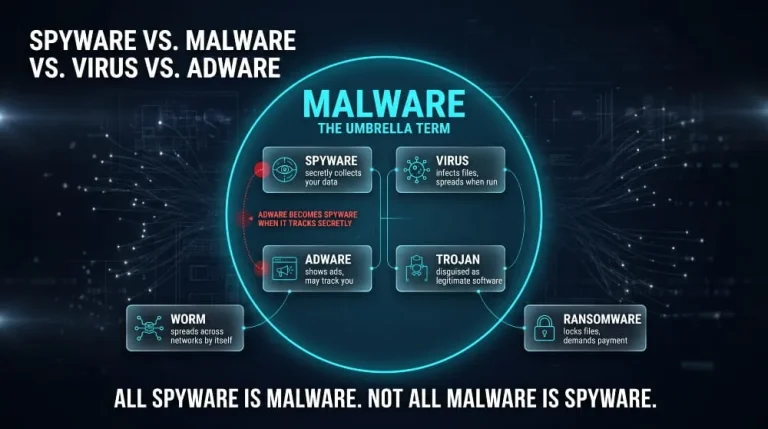
Spyware vs. Malware vs. Virus vs. Adware | What’s the Difference? (Complete Guide)
Malware is the umbrella term for any malicious software. Spyware is one type of malware, a virus is another, and adware is a third; what separates…
Read more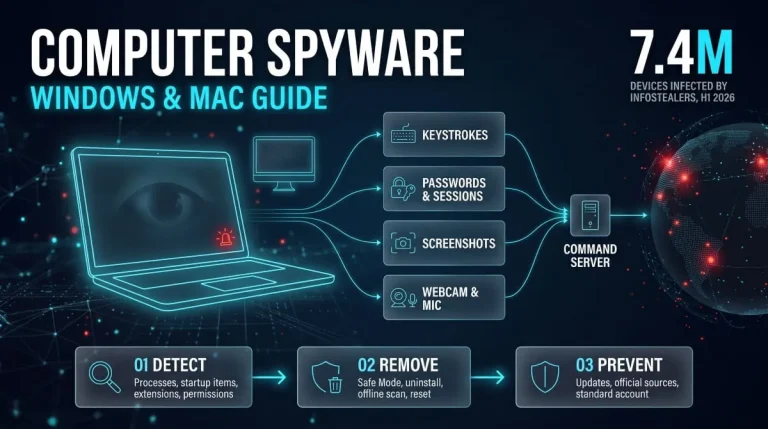
Computer Spyware | What It Is, How to Detect It and How to Remove It (Windows & Mac Guide)
Computer spyware is malicious software that secretly runs on a PC, laptop, or Mac, records your activity, and sends that data to someone else. To detect…
Read more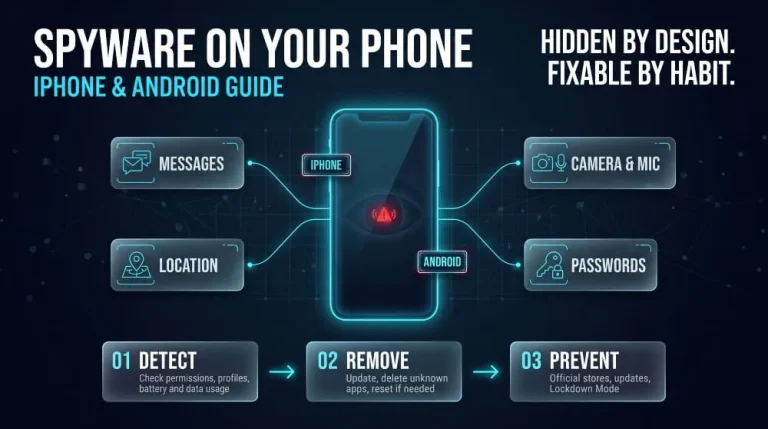
Spyware on Your Phone | How to Detect, Remove, and Prevent It (iPhone & Android Guide)
Yes, phones can get spyware. Spyware on a phone is hidden software that secretly collects your messages, calls, location, photos, and passwords and sends them to…
Read more