
How to Remove Malware from Chrome | Scan, Check & Clean Your Browser (Complete Guide)
If your browser is showing pop-ups, redirecting searches, or loading extensions you never installed, you may be dealing with Chrome malware. The good news is that you can usually remove malware from Chrome in under 30 minutes without reinstalling Windows or paying for a tool. The harder part is making sure the Chrome malware infection is really gone and that nothing it stole is still being used against you. This guide covers both.
Quick answer: the 5-step fix
- Remove suspicious extensions. Open chrome://extensions and delete anything you don’t recognize.
- Revoke notifications and site permissions. Settings > Privacy and security > Site settings.
- Reset Chrome. Settings > Reset settings > Restore settings to their original defaults.
- Scan the whole computer. Run a full scan with Microsoft Defender or a trusted antivirus, because malware often lives outside the browser.
- Change your passwords from a clean device, then check whether your logins have already leaked to the dark web.
What Is Chrome Malware?
Chrome malware is any malicious software that targets, abuses, or hides inside Google Chrome. It isn’t one specific virus. It’s a family of threats that all aim at the same thing: your browsing session, where your logins, payments, and accounts live.
Types of malware that target Chrome
- Browser hijackers change your homepage, default search engine, and new-tab page so your searches pass through an ad or data-harvesting site. A Yahoo-style search appearing out of nowhere is the classic sign.
- Adware injects ads, pop-ups, and sponsored links into pages that normally have none.
- Infostealers copy saved passwords, autofill data, cookies, and session tokens, then send them to an attacker. This is the most damaging type, and it usually runs outside the browser.
- Malicious extensions look like useful addons (ad blockers, PDF tools, video helpers) but track browsing, inject code, or hijack searches.
- Notification spam abuses Chrome’s permission prompts to push scam alerts straight to your desktop.
How malware gets into Chrome
Most infections need your help, even if you didn’t realize you were giving it.
- Fake updates. A page says your browser is out of date and offers a “Chrome update” download. It is malware.
- Bad extensions. Some are malicious from day one. Others are clean for years, get sold or compromised, and then receive a malicious update.
- Malicious downloads. Cracked software, fake PDF converters, “free” game mods, and email attachments often bundle infostealers or hijackers.
- Notification scams. Clicking “Allow” on a shady site permits it to send alerts that link to more scams.
- Malvertising. Ads on legitimate sites can redirect you to booby-trapped download pages.
Can Chrome itself get malware, or is it the system?
Both, but it’s usually a mix. Chrome’s own code is hardened and updated frequently, so true infections of the browser program itself are rare. What you typically see is malware that targets Chrome: a malicious extension, a changed settings policy, or a program on your PC that edits Chrome’s files and settings.
That difference matters when you clean up. If the cause is an extension or a changed setting, resetting Chrome fixes it. If the cause is a program on Windows or macOS, Chrome will be re-infected until you remove that program, which is why a full-system scan is part of every fix below.
Signs Your Chrome Has Malware
One symptom alone can be harmless. Two or three together mean you should act.
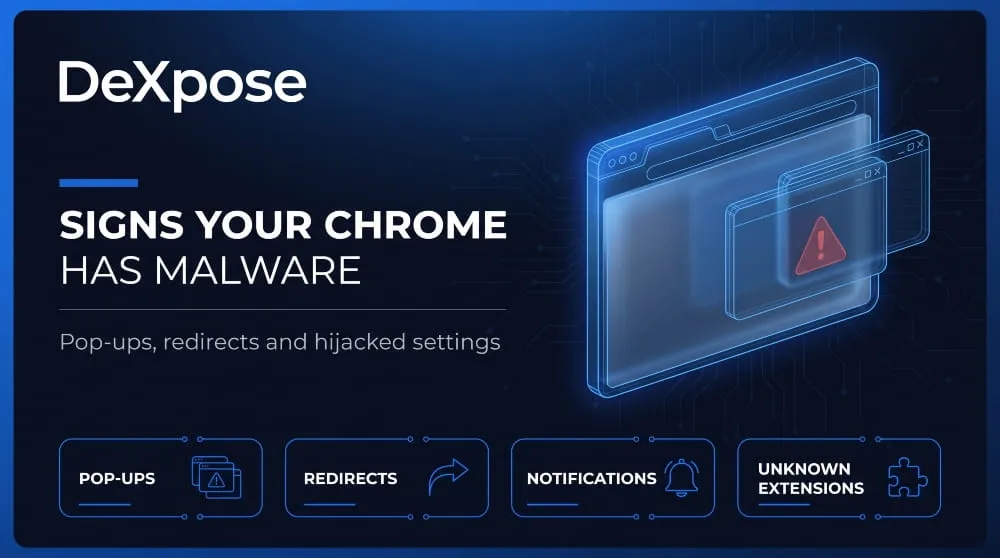
Pop-ups and malware warnings in Chrome
Pop-ups appearing even when no site is open, or ads inside pages that never had them, point to adware or a hijacker. Be careful with fake malware warnings too. Messages like “Your computer is infected, call this number” or “Virus detected, click to clean” are scams, not scans. Chrome never asks you to phone anyone or download a cleaner through a web page.
Redirects and hijacked search engines
If you search on Google but land on Yahoo, Bing clones, or an unfamiliar search site, your search engine setting has been changed. Check Settings > Search engine. Redirects that happen only on certain sites can also come from a hostile extension rewriting links.
Unwanted notifications
Desktop alerts about “virus found,” prizes, or adult content, from sites you haven’t opened in days, mean a site holds notification permission. This is common and fixable in site settings.
“Managed by your organization” message
If Chrome shows Managed by your organization on a personal computer that isn’t tied to work or school, something has set browser policies. Malware and unwanted software sometimes do this to lock your homepage, search engine, or extensions in place. Open chrome://management and chrome://policy to see what’s applied. On a work or school device, this message is normal.
Slow performance, unknown extensions, changed homepage
Sudden slowness, high CPU use from Chrome processes, a homepage you didn’t pick, and extensions you don’t remember adding are all common signs of Chrome malware.
Fake Chrome update prompts and scam pages
Chrome updates itself through the browser (Settings > About Chrome). Any website or pop-up that tells you to download a Chrome update installer is a lure. Close it, don’t click anything, and update Chrome from its own menu.
How to Scan Chrome for Malware
Scanning tells you what you’re dealing with before you start deleting things. Use at least two of the methods below, because no single scanner sees everything.
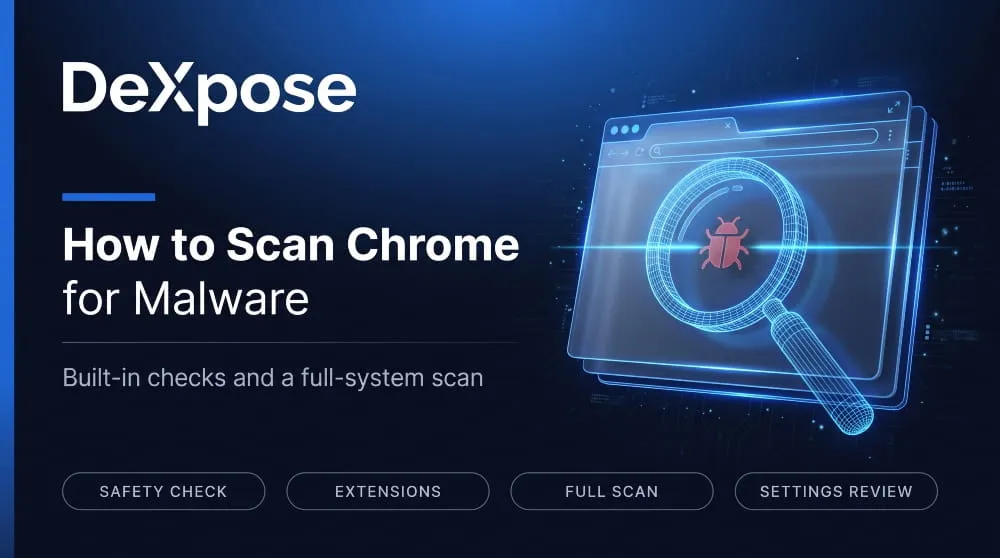
Use Chrome’s built-in malware scanner (Safety Check)
Chrome has no standalone virus scanner, but its Safety Check covers the browser-level basics.
- Open Chrome and go to Settings > Safety Check (or visit chrome://settings/safetyCheck).
- Click Check now.
- Review the results: Chrome flags compromised passwords, whether Safe Browsing is on, whether Chrome is up to date, and extensions it considers potentially harmful.
On Windows, older builds of Chrome also offered a Clean up computer option under Reset settings that looked for unwanted software. If you don’t see it in your version, use Windows Security instead (below).
Check Chrome extensions for malware.
Go to chrome://extensions. For each item, ask three questions: Did I install this on purpose? Is the developer a real company? Does it need the permissions it asks for? Click Details to see permissions and site access. An ad blocker that can “read and change all your data on all websites” isn’t automatically malicious, but the more access an extension has, the more damage it can do if it turns bad. Remove anything you don’t use.
Run a full-system scan with a trusted antivirus.
This is the step most guides skip. A hijacker may be reinstalling itself from a program on your PC.
- Windows: open Windows Security > Virus & threat protection > Scan options and choose Full scan. If the problem persists, run a Microsoft Defender Offline scan from the same screen, which checks before Windows fully loads.
- Mac: run your installed security software, and check System Settings > General > Login Items for apps you don’t recognize.
- Reputable free scanners can serve as a second opinion. Run only one real-time antivirus at a time, but a one-off on-demand scan alongside it is fine.
Check browser settings, startup pages, and permissions.
Before you reset anything, note what looks wrong:
- Settings > On startup: unfamiliar pages opening at launch
- Settings > Search engine: unknown default
- Settings > Privacy and security > Site settings: notifications, pop-up and permission lists
- Settings > Appearance: a changed homepage or new-tab button
- Chrome shortcut > Properties > Target (Windows): extra text after chrome.exe is a sign of tampering
Online malware scanners for Chrome: what they can and can’t detect
Web-based “scan my browser” tools and URL scanners can check whether a specific link or file is malicious, which is useful before you open something. What they cannot do is inspect your computer from a web page. Any site claiming to scan your Chrome for malware and then demanding a download is almost certainly a scam. Treat online scanners as a way to check links and files, not as a replacement for real antivirus software.
How to Remove Malware from Chrome (Step by Step)
Work through these in order. After each step, restart Chrome and see whether the problem is gone.
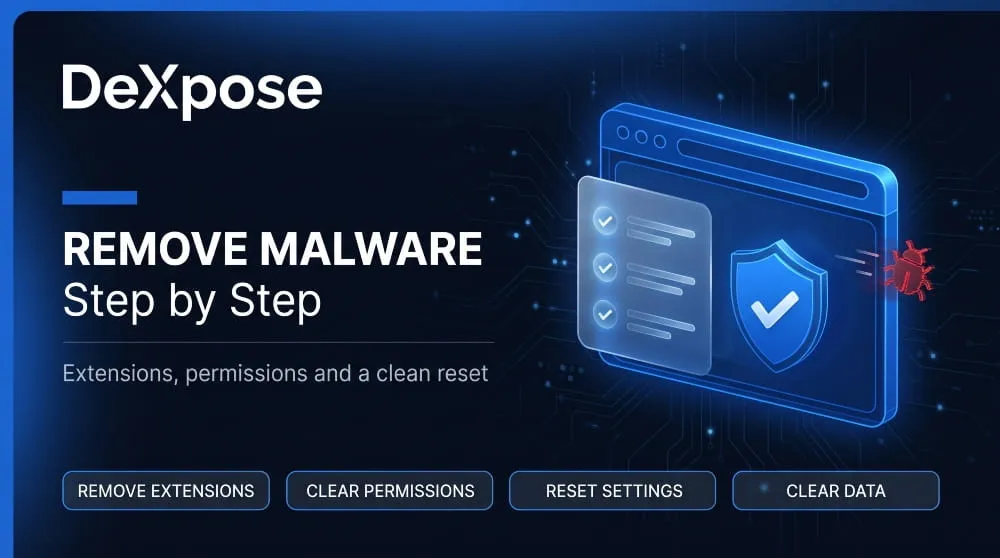
Step 1: Remove suspicious extensions
Open chrome://extensions, click Remove on anything you don’t recognize or use, and confirm. If an extension has no Remove button, or the Remove button is greyed out, jump to the reinstalling-extension section later in this guide.
Step 2: Clear notifications and site permissions
Go to Settings > Privacy and security > Site settings > Notifications. Under “Allowed to send notifications,” remove every site you don’t trust. Then check Pop-ups and redirects and make sure it’s set to blocked. Also review Additional permissions for sites with unexpected access.
Step 3: Reset search engine, homepage, and startup settings
- Search engine: Settings > Search engine > Manage search engines and site search. Set Google (or your preferred engine) as the default and delete unknown entries.
- Homepage: Settings > Appearance, then turn off Show home button, or set it to the New Tab page.
- Startup: Settings > On startup > Open the New Tab page.
Step 4: Use Chrome’s “Reset settings” and “Clean up computer”
Go to Settings > Reset settings > Restore settings to their original defaults > Reset settings. This turns off extensions, resets the startup page, search engine, and pinned tabs, and clears temporary data like cookies. It does not delete your bookmarks, history, or saved passwords. If your Windows version of Chrome shows Clean up computer, run it as well. If not, rely on the full Windows Security scan from the previous section.
Step 5: Clear cache, cookies and browsing data
Press Ctrl+Shift+Delete (Cmd+Shift+Delete on Mac), choose All time, and select cookies, cached images, and files. Clearing cookies signs you out of sites, so have your passwords handy. It also kills sessions an attacker may be using.
Step 6: Uninstall and reinstall Chrome: does it remove malware?
Only sometimes. Reinstalling removes Chrome’s program files, but it won’t remove a separate program on your PC that keeps tampering with Chrome. And if you sign back into Chrome with Sync on, bad extensions or settings can sync right back.
If you do reinstall: uninstall Chrome, tick Also delete your browsing data when prompted, run a full antivirus scan, reinstall from google.com/chrome, and sign in only after the scan is clean. Consider turning off extension sync until you’ve reviewed them.
Removing redirect and pop-up malware
For stubborn redirects and pop-ups, check three extra places:
- Installed programs: remove recently installed apps you don’t remember (Windows: Settings > Apps > Installed apps; sort by install date).
- Chrome shortcut: right-click the Chrome shortcut, open Properties, and remove anything appended after chrome.exe.
- Policies: visit chrome://policy. If it lists search or homepage policies you didn’t set, malware or unwanted software is likely enforcing them. Scan with Defender Offline and review installed apps before changing anything else.
Free malware removal tools for Chrome
You don’t need to pay. A solid free toolkit is:
- Microsoft Defender (built into Windows) for full and offline scans
- A reputable on-demand malware scanner for a second opinion
- Chrome’s own Reset settings and Safety Check
Be careful with anything that appears in a pop-up promising to “clean Chrome.” Many fake cleaners are the malware.
What if the malware keeps coming back?
Recurring malware usually means one of four things:
- A hidden program is reinstalling the extension or setting. Run Defender Offline and review installed apps.
- A scheduled task or startup entry relaunches it. Check Task Scheduler (Windows) or Login Items (Mac).
- Chrome Sync is restoring the bad extension. Sign out of Chrome, remove it, scan, and only then sign back in.
- A browser policy (chrome://policy) is forcing it. Remove the source program first.
If none of this works, back up your files (not your programs) and consider a clean OS reinstall as a last resort.
Chrome Extension Malware
Extensions deserve their own section because they are the most common way malware Chrome infections survive resets and reappear.
Can Chrome extensions have malware?
Yes. Extensions run with real access to the pages you visit, and attackers know it. Some are malicious from the start. Others are legitimate for years, then get sold, hijacked, or updated with malicious code, a pattern sometimes called a sleeper extension. Google’s review catches many bad extensions, but not all, and not always quickly.
What “This extension contains malware” means and what to do
Chrome shows this message when Google’s systems flag an installed extension as malicious. Chrome usually turns off the extension automatically.
What to do:
- Go to chrome://extensions and click Remove. Don’t just leave it disabled.
- Reset Chrome settings (Step 4 above) in case it changed your search or homepage.
- Run a full-system scan.
- Change passwords for accounts you used while it was active, starting with email, banking, and work accounts.
If you see this message on a page rather than in your extensions list, and it tells you to download something, that’s a scam, not a Chrome warning.
How to spot a malicious extension before installing
- Check the number of users and recent reviews, and be wary of high ratings that look suspiciously uniform.
- Look for a real developer website and a privacy policy.
- Read the permissions it requests and ask whether they match its job. A “dark mode” tool shouldn’t need your browsing history.
- Prefer well-known publishers, and install fewer extensions overall.
- Be suspicious when an extension you’ve used for years suddenly changes behavior or asks for new permissions.
Recent malicious-extension campaigns
Real cases show how this plays out. The Great Suspender, a popular tab-saving extension, was sold to an unknown owner and later disabled by Google over malicious behavior. More recently, researchers documented a long-running campaign nicknamed ShadyPanda, in which extensions that looked harmless were later updated to spy on users and hijack browsing. Details of campaigns change, so treat these as examples of the pattern, not a checklist.
How to remove an extension that keeps reinstalling
If an extension comes back after you delete it:
- Sign out of Chrome or pause Sync, then remove it.
- Check chrome://policy for an extension-install policy forcing it.
- Look for a program on your PC (an “optimizer,” “helper,” or bundled app) that reinstalls it, and uninstall that.
- Run a full scan, including Defender Offline.
What to Do After Removing Malware (Credential and Data Risk)
Removing malware stops further damage. It doesn’t undo what was already taken. Treat this section as part of the cleanup, not an optional extra.
Can malware steal passwords saved in Chrome?
Yes. Chrome encrypts saved passwords, but infostealer malware running on your computer can often access them, along with autofill details, cookies, and active session tokens. Stolen cookies are especially dangerous because they can let an attacker open your accounts without needing your password or even a second factor. Infostealers typically upload everything they grab as a “log,” which is then sold or shared on criminal marketplaces.
Change passwords and sign out of Chrome Sync on all devices.
Do this from a device you’ve confirmed is clean, in this order:
- Change your email password first, since it controls resets for everything else.
- Change banking, work, social, and shopping passwords.
- In your Google Account, go to Security > Your devices and sign out of every device, then turn Sync back on only where needed.
- Stop saving critical passwords in the browser and move to a dedicated password manager.
Enable 2FA and review account activity.
Turn on two-factor authentication, preferably with an authenticator app or a hardware key rather than SMS. Then review recent sign-ins, forwarding rules, connected apps, and payment activity on your most important accounts. Revoke anything unfamiliar.
Check whether your credentials were exposed on the dark web.
If an infostealer was on your device, your data may already be in a leaked log. You can find out instead of guessing.
Check your exposure with DeXpose. Run the Free Darkweb Report for an instant look at exposure across dark web markets, malware logs, and public breaches. Or use the Email Data Breach Scan to see whether your email appears in known breaches.
How to Protect Chrome from Malware
Turn on Safe Browsing (Enhanced Protection)
Go to Settings > Privacy and security > Security and choose Enhanced protection. It provides faster, proactive warnings about dangerous sites, downloads, and extensions, in exchange for sharing more browsing data with Google. Standard protection is the minimum you should run. Never choose “No protection.”
Does Chrome block malware by default?
Chrome blocks a lot: known dangerous sites, many malicious downloads and flagged extensions. But Safe Browsing relies on lists and signals, so brand-new threats, social-engineering tricks that persuade you to run a file yourself, and malware already on your PC can all slip past it. Chrome is a strong first layer, not a complete defense.
How to block malware sites in Chrome
- Keep Safe Browsing on (Enhanced if you’re comfortable with it).
- Set Pop-ups and redirects to blocked under Site settings.
- Set Notifications to “Don’t allow sites to send notifications,” or use quieter messaging.
- For families or organizations, use DNS filtering with malware-blocking resolvers.
- Don’t click “Proceed anyway” on a Chrome warning page.
Malware blocker extensions: do you need one?
Most people don’t need a dedicated blocker. Safe browsing plus a good antivirus covers the same ground, and every extension you add increases your attack surface. If you do add one, choose a well-known publisher, check its permissions, and treat it like any other extension that can see your browsing.
Safe habits: updates, downloads, extension hygiene
- Update Chrome and your OS promptly. Settings > About Chrome checks and installs updates.
- Download software only from official sites.
- Audit your extensions every few months and remove what you don’t use.
- Use a password manager and unique passwords.
- Keep real-time antivirus running.
Firefox Malware: Scan, Remove and Block
Use Firefox? The same ideas apply, but the menus and tools are different. Firefox has no built-in virus scanner, so the operating-system scan matters even more.
Signs Firefox has malware.
Look for the same patterns: a changed homepage or search engine, ads in unexpected places, extensions you didn’t install, constant redirects, or a browser that’s suddenly slow. A “Firefox infected with malware” warning on a website is almost always a scam pop-up, not a real Firefox message.
How to scan Firefox for malware
- Open about: add-ons and review every extension and theme. Remove anything unfamiliar.
- Go to about: preferences#home and about: preferences#search to check your homepage and default search engine.
- Visit about: policies to see whether enterprise policies are applied on a personal device, which can be a sign of tampering.
- Run a full scan with Windows Security or your antivirus.
You can also test for add-on problems by starting Troubleshoot Mode (Help > Troubleshoot Mode), which temporarily turns off extensions and customizations.
How to remove malware from Firefox
- Remove suspicious extensions in about: add-ons.
- Refresh Firefox. Open about: support and click Refresh Firefox. This removes extensions and customizations but keeps bookmarks, history, passwords, and cookies.
- Check search and homepage settings again after refreshing.
- Clear cookies and site data under Settings > Privacy & Security.
- Scan the computer. A malware program that keeps editing Firefox’s settings will undo the cleanup, which is why hijackers often tamper with a profile’s settings file (prefs.js) again after you fix it.
If the problem keeps returning, the cause is almost certainly outside the browser, so run Defender Offline or a second-opinion scanner.
“This file contains a virus or malware” in Firefox.
Firefox shows this warning when its Safe Browsing check flags a download as dangerous. Don’t override it. Delete the file, check where the link came from, and scan the computer if you already opened it. If you’re certain a file is a false positive, verify it from the publisher’s official site before doing anything else.
Block malware in Firefox
- Go to Settings > Privacy & Security > Security and keep Block dangerous and deceptive content and Block dangerous downloads turned on.
- Update Firefox only through help> About Firefox. Pages offering a “Firefox update” download are fake.
- Keep add-ons to a minimum and install only from the official Mozilla add-ons site.
- Run a real-time antivirus.
Find Out If Malware Already Leaked Your Logins
Cleaning your browser is only half the job. If infostealer malware ran on your device, your passwords, cookies, and session data may already be on sale.
DeXpose monitors the dark web, malware logs, and breach data so you can see exposure before attackers use it. Start with the Free Darkweb Report or the Email Data Breach Scan, or explore Dark Web Monitoring for ongoing protection.
Frequently Asked Questions (FAQ)
Does reinstalling Chrome remove malware?
Not reliably. Reinstalling removes Chrome’s program files, but it won’t remove a program on your PC that keeps tampering with Chrome, and Sync can restore bad extensions. Delete browsing data during uninstall, scan your computer, then reinstall and sign in only after it’s clean.
Does Chrome have a built-in malware scanner?
Chrome has Safety Check and Safe Browsing, which flag harmful sites, downloads, and extensions, but it isn’t a full antivirus. Older Windows builds also offered a Clean up computer tool. For deeper checks, run a full scan with Microsoft Defender or a trusted antivirus.
How do I know if my Chrome has malware?
Watch for unwanted pop-ups, redirects to unfamiliar search sites, a changed homepage, extensions you didn’t install, constant notifications, and a “Managed by your organization” label on a personal device. Two or more together mean you should scan Chrome and your computer.
Why does my Chrome say “managed by your organization”?
On work or school devices, it’s normal: an administrator sets policies. On a personal computer, it can mean unwanted software has applied browser policies. Check chrome://management and chrome://policy, then scan your computer and remove unfamiliar programs.
Can a Chrome extension steal my passwords?
Yes, a malicious extension with broad site access can capture what you type, read page data, and track your sessions. Limit extensions, check their permissions, and remove any you don’t use. If one turns out to be malicious, change your passwords right away.
Is a “Chrome malware” warning always real?
No. Warnings that appear inside Chrome’s own interface (Safety Check, a red Safe Browsing page, the extension warning) are real. Pop-ups on web pages saying you’re infected, giving a phone number, or urging a download are scams. Close the tab and don’t call or click.
How do I remove malware without antivirus software?
You can handle browser-level malware without third-party software. Remove suspicious extensions, revoke notifications, reset Chrome settings, and clear browsing data. For malware on the computer itself, use the free Microsoft Defender built into Windows, including its offline scan.
How do I scan Firefox for malware?
Firefox has no built-in virus scanner. Review about: add-ons and your search and homepage settings, use Troubleshoot Mode to isolate add-on problems, click Refresh Firefox in about: support, and run a full scan with Windows Security or your antivirus.
What should I do if Firefox says a file contains a virus or malware?
Don’t open it. Delete the download, verify where the link came from, and scan your computer if you already ran it. Only download software from the publisher’s official site.
How to Check for Malware on Mac, Windows and PC (Scan, Detect and Remove It)
How to Check Your Computer for Malware To check for malware, run a full scan with your operating system’s built-in security tool, then review the apps,…
Read more
Malware on Phone | How to Check, Scan and Remove It on iPhone and Android (2026 Guide)
You can check a phone for malware by reviewing installed apps, permissions, battery and data usage, and unknown profiles, then running Google Play Protect on Android.…
Read more
Malware Protection | The Complete 2026 Guide to Protecting Your Devices, Data and Network
Malware protection combines software, settings, and habits to detect, block, and remove malicious programs before they steal data, lock files, or take control of a device.…
Read more