
How to Check for Malware on Mac, Windows and PC (Scan, Detect and Remove It)
How to Check Your Computer for Malware
To check for malware, run a full scan with your operating system’s built-in security tool, then review the apps, startup items, and browser extensions you don’t recognize. If you find something, disconnect from the internet, remove it, and change your passwords from a different, clean device.
The 5-step check that works on any computer
The same five steps apply on a Mac, a Windows PC, a laptop, or a Linux machine; only the menus change.
- Update first. Install pending operating system and browser updates so your built-in scanner knows the latest threats.
- Run a full scan. Use Windows Security on a PC, or the automatic XProtect checks plus a reputable on-demand scanner on a Mac.
- Review what runs at startup. Look for apps, login items, and background processes you didn’t install.
- Check your browsers. Remove unfamiliar extensions and reset the homepage and search engine if they changed.
- Act on the results. Remove anything suspicious, then check whether your passwords were exposed.
What Is Malware on a Computer?
Malware is any software designed to harm a computer, steal data, or give someone else control of it. For the wider picture, see our malware protection guide and the comparison of spyware, malware, viruses and adware.
What malware can do to your computer?
It can slow the system, steal saved passwords and files, record what you type, lock your data, or quietly use your machine to attack others.
How malware gets onto your computer
Most infections start with something the user allowed: a cracked or fake app, a phishing link, a fake update pop-up, or a malicious attachment.
Signs Your Computer Has Malware
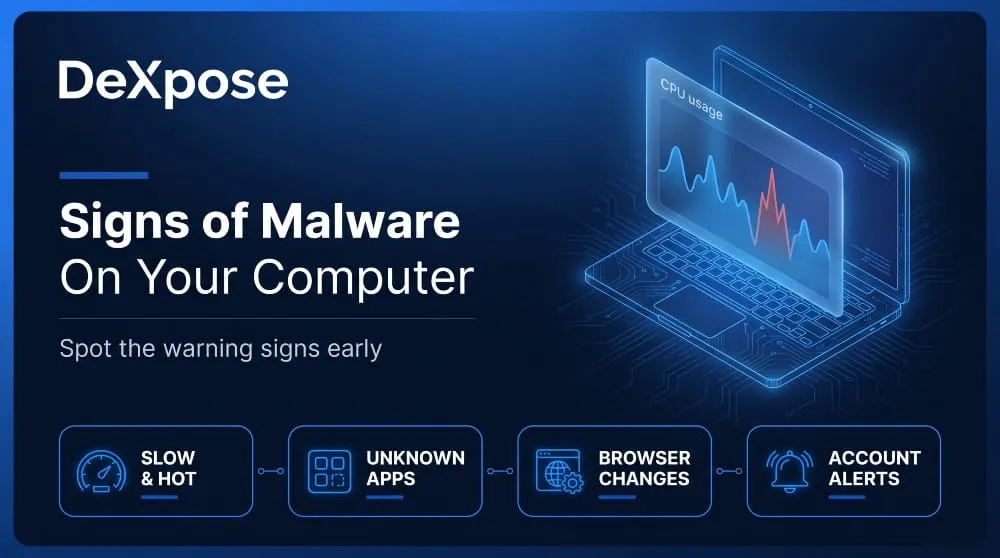
The clearest signs of malware are unexplained slowness, programs you didn’t install, and accounts behaving strangely. Any one of them can have an innocent cause, so look for several together.
Performance and behavior warning signs
Watch for a fan that runs hard while the computer is idle, a battery that drains much faster than before, programs that open or crash on their own, and files that move, vanish, or change extension. Pop-ups outside your browser and security tools that switch themselves off are also red flags. Hidden spyware often shows up as a quiet but constant drain on CPU and network use.
Browser and account warning signs
A changed homepage, a new search engine, extensions you never added, and endless redirects point to browser-level malware. On the account side, look for login alerts from places you’ve never been, password reset emails you didn’t request, and messages sent from the accounts that you didn’t write. Credential theft is often the real goal, and a keylogger or remote access trojan can run for weeks before you notice anything else. A webcam light that turns on by itself deserves immediate attention.
How to tell if it’s malware or just an old machine
An aging computer slows down gradually and evenly, while an infected one tends to change suddenly or behave oddly. If the slowdown started right after you installed something, clicked a link, or accepted a pop-up, suspect malware. If it crept up over years and a restart helps, storage, memory, and background apps are more likely causes. A full scan settles the question either way.
How to Check for Malware on Mac and MacBook
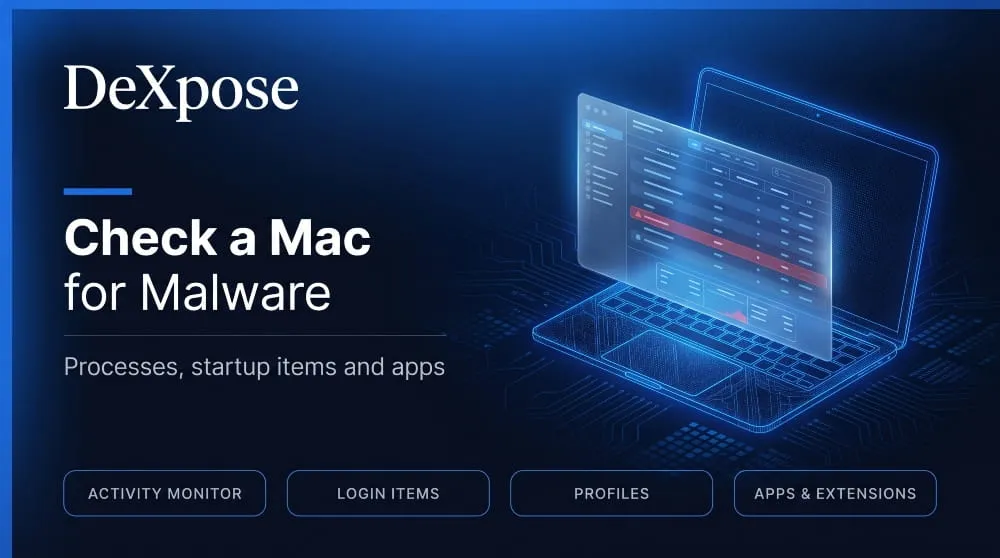
On a Mac, you check for malware by reviewing running processes, startup items, profiles, and installed apps, since macOS has no built-in manual scan button. Apple’s protections work in the background, so your job is to look for what they might have missed.
Can Macs and MacBooks get malware?
Yes, Macs and MacBooks can get malware. macOS includes strong built-in defenses, but attackers still target Mac users with fake installers, pirated apps, malicious ads, and phishing pages that steal passwords. A Mac is harder to infect than many machines, but not immune.
Check Activity Monitor, Login Items, and profiles.
Open Activity Monitor (Applications > Utilities), sort by % CPU, and search any process you don’t recognize before ending it. Then open System Settings > General > Login Items & Extensions and remove anything you didn’t add. Finally, check System Settings > Privacy & Security > Profiles. A Profiles section only appears if a configuration profile is installed, and unexpected ones can force browser settings or redirect traffic.
Review apps, browser extensions, and Settings.
Open your Applications folder and sort by date added to spot recent installs. Remove apps you don’t remember, especially “cleaner” or “optimizer” tools, which are a common disguise for adware. Then review extensions in Safari, Chrome, and Firefox, and check Privacy & Security for apps granted accessibility, screen recording, or full disk access.
Run a free malware scan on Mac using built-in protections.
macOS scans for known malware automatically through XProtect, which checks apps when they open and runs background checks that can remove known threats. To keep it effective, install every update under System Settings > General > Software Update, because security definitions arrive with them. For an on-demand scan, use a free scanner from an established security vendor, and avoid unknown “Mac cleaner” apps advertised in pop-ups, which are often the malware itself.
What a Mac malware scan can and cannot detect
A scan finds known malware by signature and behavior. It can miss brand-new threats, malicious browser extensions and stolen-credential attacks that never leave a file on disk, so a clean result is reassuring but not proof. Combine the scan with the manual checks above.
“macOS Cannot Verify That This App Is Free From Malware”: Real Threat or False Alarm?
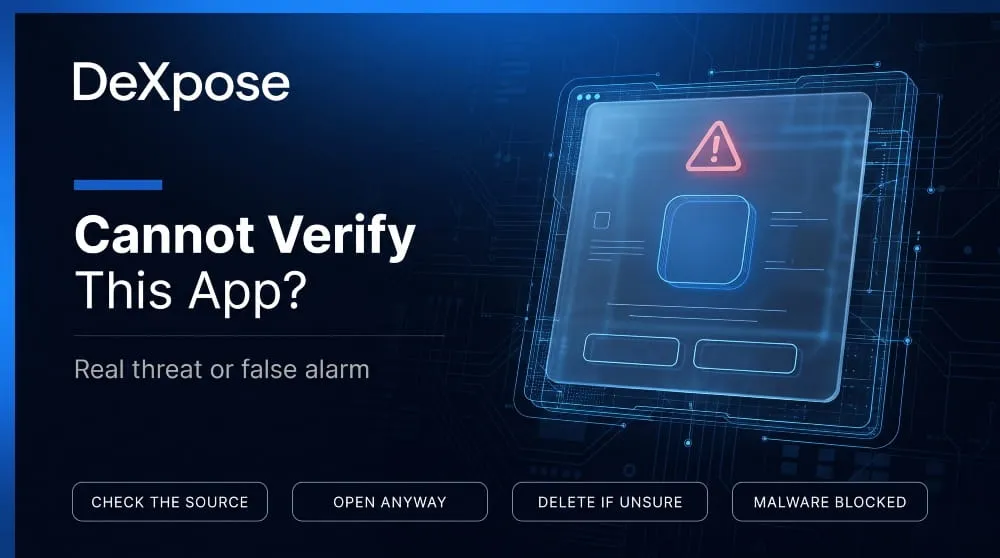
This message means macOS can’t confirm the app is safe, not that it is malware. The app may be from a small developer who skipped Apple’s notarization, or it may have been altered after release.
What this message actually means
Gatekeeper, the macOS safety check, blocks apps that aren’t notarized or whose signature doesn’t match. Depending on your macOS version, the wording may read “Apple could not verify” instead. The warning is a prompt to confirm the source, not a diagnosis.
When it’s safe to open the file, and when to delete it
Open it only if you downloaded it directly from the developer’s official site or a source you trust, and you expected this exact file. Delete it if it arrived by email, came from a cracked-software or file-sharing site, or you didn’t ask for it. To proceed with a trusted app, go to System Settings > Privacy & Security, scroll to the Security section, and choose Open Anyway, then authenticate. Newer macOS versions removed the old Control-click shortcut.
“Malware blocked” notifications and what to do next.
A “Malware Blocked” alert means macOS identified a known threat and stopped it. Choose Move to Trash, empty the Trash, restart, and then check Login Items and your browser extensions for anything related. Don’t try to override this kind of block.
How to Check for Malware on Windows 10 and 11 (PC and Laptop)
On Windows, the fastest check is a full scan in Windows Security, followed by checking Task Manager, startup apps, and installed programs. Both steps use tools already built into Windows 10 and 11.
Run a Windows Security scan (quick, full, offline)
Open Start > Windows Security > Virus & threat protection > Scan options. A Quick scan checks common infection spots, a Full scan checks every file and running program, and a Microsoft Defender Offline scan restarts the PC and scans before Windows loads, which helps against malware that hides while Windows is running. Run the full scan first, and the offline scan if you still suspect an infection.
Does Windows Defender scan for malware?
Yes. Microsoft Defender Antivirus, the current name for Windows Defender, scans for all kinds of malware, not just viruses, and protects in real time as well as on demand. If you installed a third-party antivirus, Defender may be switched to a passive role, so check which product is actually active.
Microsoft’s malware removal tool for Windows (64-bit)
The Windows Malicious Software Removal Tool targets specific widespread threats and is not a full antivirus. On Windows 10 and 11, it arrives automatically through Windows Update and matches your system, including 64-bit versions. To run it manually, press Windows + R, type mrt, and press Enter. Be cautious about sites offering a “download” of the tool, because fake copies exist.
Task Manager, startup apps and installed programs
Press Ctrl + Shift + Esc to open Task Manager and sort by CPU, memory, and network usage. On the Startup apps tab, turn off anything you don’t recognize, then open Settings > Apps > Installed apps and uninstall software you didn’t choose. Search for an unfamiliar process name before ending it, since some are legitimate Windows components.
Checking a laptop (HP, Dell, Lenovo): same steps
The brand doesn’t change the process, because the operating system does the scanning. The one laptop-specific tip is to look for pre-installed trial antivirus programs, which can conflict with Windows Security and leave you less protected than you think.
How to Check for Malware on Linux
On Linux, you check for malware with a command-line scanner such as ClamAV, plus a rootkit checker, and you review running processes and scheduled tasks. The approach is the same as elsewhere, with different tools.
Why Linux malware is rarer but real
Linux desktops are a smaller target, and its permission model limits what a program can change, but the risk is not zero. Servers and cloud systems attract cryptominers, botnet malware, and backdoors, and desktop users can still be caught by malicious packages or scripts.
Scan with ClamAV, rkhunter, or Linux Malware Detect.
Install ClamAV and run a recursive scan of your home directory with clamscan -r -i ~, which lists only infected files. Add rkhunter (sudo rkhunter –check) to look for rootkits and suspicious system changes. On web servers, Linux Malware Detect is built for shared hosting and flags malicious scripts. Review crontab -l and running services for entries you didn’t create, since persistence is how Linux malware survives a reboot.
How to Remove Malware From Your Computer
To remove malware, disconnect from the internet, boot into a limited mode, delete or quarantine the malicious items, reset your browsers, and reinstall the system if the infection persists. The order matters, because malware that stays connected can keep stealing data.
Step 1: Disconnect and back up safely
Turn off Wi-Fi and unplug Ethernet so the malware can’t send data out or receive commands. Then copy only your personal files, such as documents and photos, to an external drive. Skip programs and system folders, and scan the backup later on a clean device.
Step 2: Boot into Safe Mode / Recovery
On Windows, go to Settings > System > Recovery > Advanced startup, then Troubleshoot > Advanced options > Startup Settings and choose Safe Mode. On an Apple Silicon Mac, shut down, hold the power button until startup options appear, select your disk, then hold Shift and click Continue in Safe Mode. On an Intel Mac, hold Shift while it starts. Safe Mode loads fewer items, so malware that normally defends itself is often easier to remove.
Step 3: Remove malware on Windows or PC
Run a full Windows Security scan and a Microsoft Defender Offline scan, then follow its prompts to quarantine or remove each threat. Next, uninstall suspicious programs from Installed apps, turn off unknown startup entries in Task Manager, and restart. Rescan afterward to confirm the result is clean.
Step 4: Remove malware on Mac
Drag suspicious apps from Applications to the Trash, empty it, and remove unknown entries from Login Items and Profiles. Check the LaunchAgents and LaunchDaemons folders in your Library for items you don’t recognize, since persistent Mac malware often hides there. Update macOS, restart, and run an on-demand scan to confirm.
Step 5: Reset browsers and permissions
Remove unknown extensions, reset the homepage and default search engine, clear cookies and saved site data, and revoke notification permissions from sites you don’t trust. Cookies matter because some malware steals logged-in sessions, so signing out everywhere afterward is worth the minute it takes.
When to wipe and reinstall
Wipe the system if scans keep finding threats, security tools won’t start, or you suspect a rootkit or deep persistence. A clean reinstall is the only way to be certain, and it is also the fastest fix when your machine may be part of a botnet. Restore only your personal files, never your old system or applications.
After Removal: Check If Your Passwords Were Stolen
Once the malware is gone, assume the passwords and sessions on that device were exposed until you can show otherwise. Removing the malware ends the infection but doesn’t undo what it already took.

Why infostealer malware makes this critical
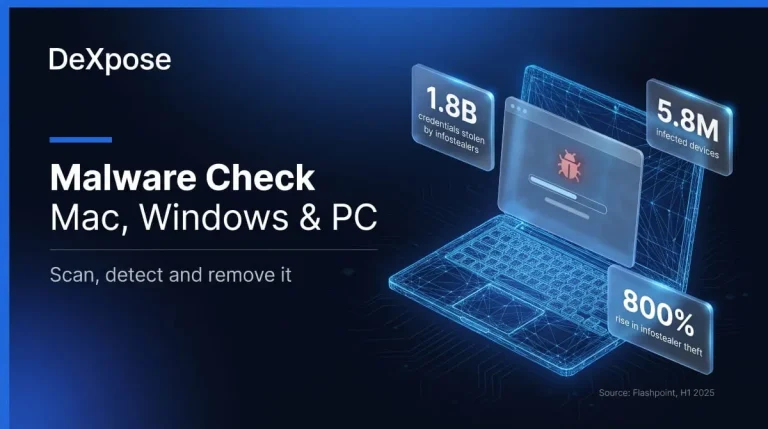
Infostealer malware is built to quietly collect saved passwords, browser cookies, and card details, then sell them. Flashpoint’s 2025 midyear threat intelligence report found infostealers harvested about 1.8 billion credentials from roughly 5.8 million infected devices in the first half of 2025 alone. Many victims never saw a single symptom.
Change passwords from a clean device.
Use a different, trusted device, not the one that was infected, to change passwords. Start with email, banking, and work accounts, then everything else, and turn on multi-factor authentication or passkeys. Sign out of all active sessions, since stolen session cookies can bypass a new password.
Check whether your credentials are on the dark web.
Stolen logins from infected devices often surface on dark web markets and in leaked credential lists. A dark web exposure check shows whether your email and credentials appear there, so you know which accounts to prioritize.
Run a free dark web report to see whether your email and credentials were exposed. If you manage devices for a company, breached credentials monitoring watches for employee logins appearing in leaked data.
How to Prevent Malware in the Future
Prevent most malware by keeping everything updated, installing software only from official sources, and treating unexpected links and update prompts with suspicion. These habits stop the large majority of everyday infections.
Updates, app sources and download habits
Turn on automatic updates for your operating system, browser, and apps. Install software from the Mac App Store, the Microsoft Store or the developer’s official site, and avoid cracked software, key generators and “free” versions of paid tools, which are a leading way malware reaches home computers.
Phishing and fake-update warnings
A pop-up claiming your browser or Windows needs an urgent update is almost always fake; real updates come through system settings. Don’t open unexpected attachments or click links in messages that create urgency, and learn the signs of phishing so you can spot it before you click.
Backups and account protection
Keep at least one backup disconnected from your computer, so ransomware or a wipe can’t reach it. Use a password manager with unique passwords and multi-factor authentication to limit the damage if one credential is ever stolen.
Frequently Asked Questions (FAQ)
Can a Mac get malware?
Yes. Macs have strong built-in protections, but fake installers, pirated apps, and phishing still infect them. Keep macOS updated and install apps only from trusted sources.
Does Windows Defender detect malware?
Yes. Microsoft Defender Antivirus detects many kinds of malware in real time and during scans. Run a full scan, plus an offline scan if you suspect a hidden infection.
How do I know if my laptop has malware?
Look for sudden slowness, unfamiliar programs, browser changes, and security tools turning off. Then run a full scan with the built-in security software and review startup items.
Is the “cannot verify” message a virus?
No. It means macOS couldn’t confirm the app’s safety, which is common for small developers. Open the file only if you trust its source, and delete it if you don’t.
Is a free malware scan enough?
For most home users, built-in tools plus good habits cover the basics. A scan can still miss new threats and stolen credentials, so check your accounts and keep your system updated.
Can malware be removed without reinstalling?
Often, yes. A full scan, removing suspicious apps, and resetting your browser clear most common infections. Reinstall if threats keep returning or the system acts abnormally after cleanup.
Malware on Phone | How to Check, Scan and Remove It on iPhone and Android (2026 Guide)
You can check a phone for malware by reviewing installed apps, permissions, battery and data usage, and unknown profiles, then running Google Play Protect on Android.…
Read more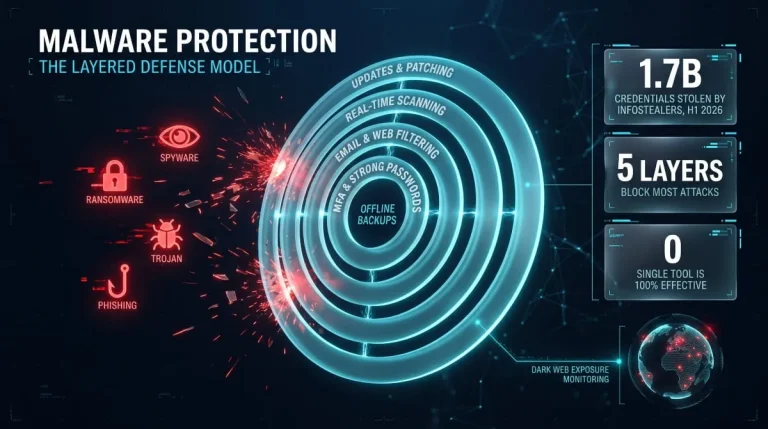
Malware Protection | The Complete 2026 Guide to Protecting Your Devices, Data and Network
Malware protection combines software, settings, and habits to detect, block, and remove malicious programs before they steal data, lock files, or take control of a device.…
Read more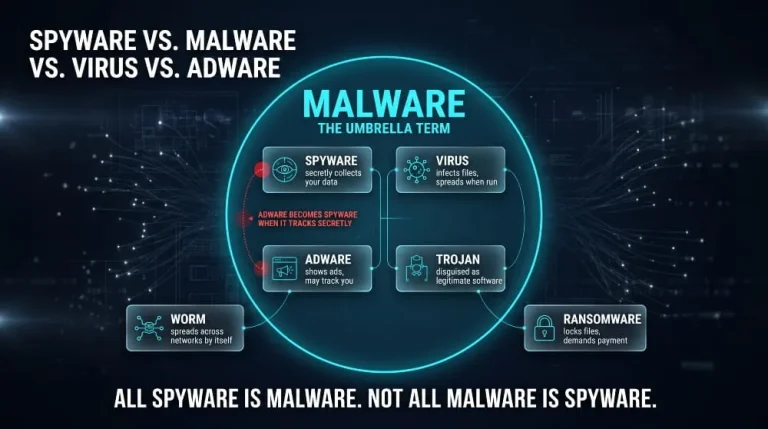
Spyware vs. Malware vs. Virus vs. Adware | What’s the Difference? (Complete Guide)
Malware is the umbrella term for any malicious software. Spyware is one type of malware, a virus is another, and adware is a third; what separates…
Read more