
How to Scan for Malware: Step-by-Step Ways to Check, Detect & Find Malware (Complete Guide)
How to Scan for Malware: The Quick Answer
The 5-step answer in one paragraph
To scan for malware, update your system, run a full scan with Windows Security, then run an offline scan to catch hidden threats. Next, manually check running processes, startup items, and browser extensions, and confirm with a second reputable scanner. If anything turns up, change your passwords from a clean device.
If you are not sure what you are looking for, our guide to what malware is explains the basics, and the steps below work for most Windows computers.
Scan vs check vs detect: what each term really means
Scanning, checking, and detecting describe three layers of the same job. A scan is an automated sweep of files and memory by security software. Checking is a manual review of things like processes, startup items, and browser settings. Detection is the result: the moment software or a person decides that something is malicious. A thorough approach uses all three.
How long does a malware scan take?
A quick scan usually takes a few minutes, and a full scan can take from under an hour to several hours depending on how many files the device holds. A Microsoft Defender Offline scan takes about 15 minutes plus a restart. Plan a full scan for a time when you do not need the computer.
How often should you scan for malware?
Keep real-time protection switched on at all times, and run a full scan at least once a month. Run an extra scan whenever the device slows down for no reason, a security alert appears, or you open a file you do not trust. Windows also runs scheduled background scans on its own.
Before You Scan: Prepare Your Device
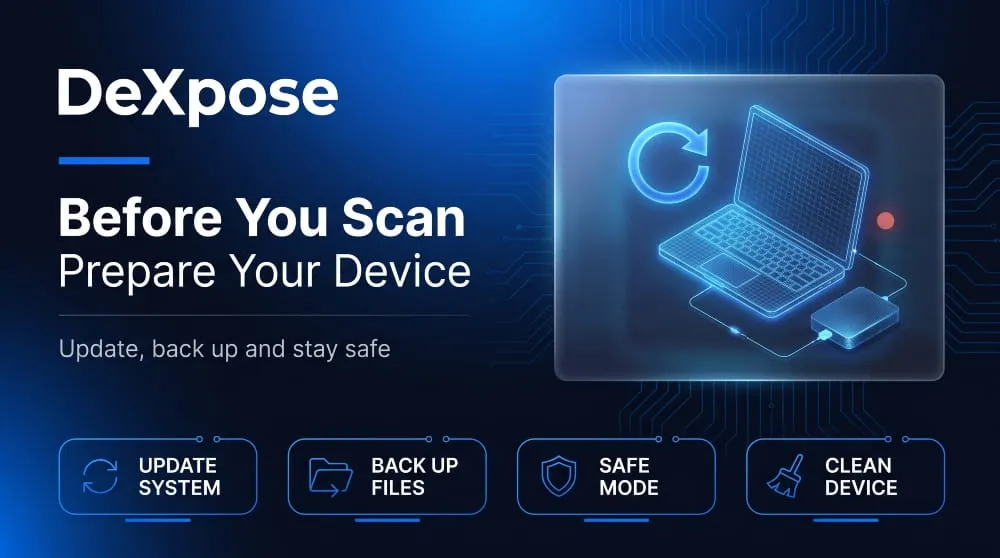
Update your operating system and security definitions.
Update Windows and your security software before scanning, because scanners can only recognize threats they already know about. Install pending Windows updates and let your antivirus refresh its definitions so the scan uses the latest detection data.
Back up important files first
Back up important files before scanning, since removing an infected file can occasionally damage the data it is attached to. Copy documents and photos to an external drive or cloud storage, but scan the backup later rather than assuming it is clean.
Boot into Safe Mode with Networking if the device is acting up.
Safe Mode with Networking starts Windows with only essential drivers and services, which stops most malware from running while you scan. To use it, open Settings, go to System, then Recovery, choose Restart now under Advanced startup, and then select Troubleshoot, Advanced options, Startup Settings, and Restart. Press 5 or F5 for Safe Mode with Networking.
Use a clean second device to change passwords.
If you suspect an infection, change important passwords from a different, trusted device. Malware such as keyloggers and infostealers can capture whatever you type on an infected computer, including your new passwords. More prevention basics are in our guide to malware protection.
How to Run a Malware Scan on Windows
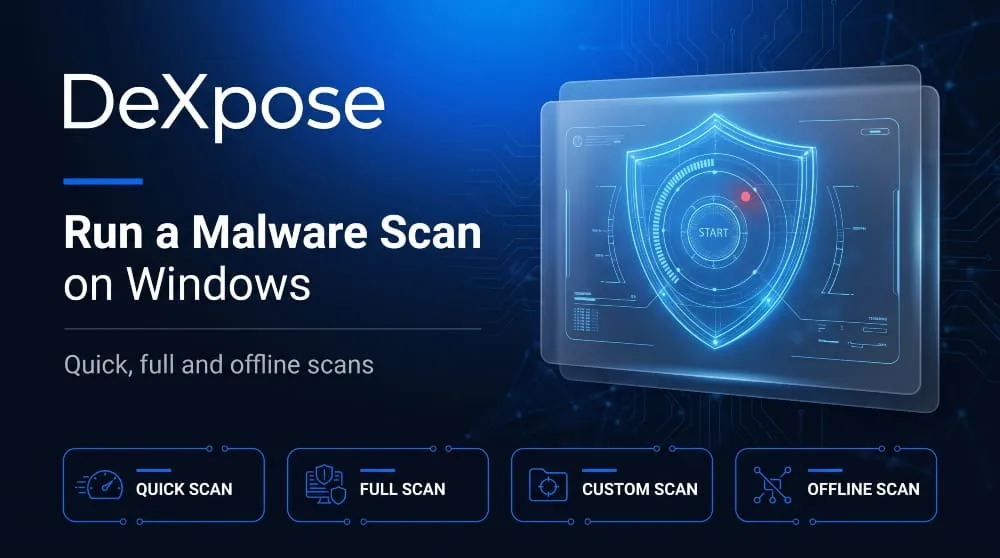
Quick scan vs full scan vs Custom scan in Windows Security
To run a malware scan on Windows, open Windows Security, select Virus & threat protection, and choose Scan options. A quick scan checks the places malware most often hides, a full scan checks every file and running program, and a Custom scan checks only a folder or drive you choose. Select Full scan, then Scan now, for the most thorough check.
How to run a Microsoft Defender Offline scan
A Microsoft Defender Offline scan runs outside Windows, so malware that hides while the system is running has a harder time evading it. In Windows Security, go to Virus & threat protection, open Scan options, select Microsoft Defender Antivirus (offline scan), and choose Scan now. Windows restarts, scans, and then boots normally. Save your work first.
Windows Malicious Software Removal Tool (mrt.exe)
The Windows Malicious Software Removal Tool (MSRT) is a built-in utility that checks for specific widespread malware families. To open it, press the Windows key and R, type mrt, and press Enter, then choose Quick, Full, or Customized scan. It supplements antivirus rather than replacing it, because it targets a limited set of well-known threats.
How to run a scan from Safe Mode
To run a scan from Safe Mode, boot into Safe Mode with Networking as described above, then run Windows Security or your security software as usual. This works well for malware that interferes with normal scans or restarts itself when you try to stop it.
How to Check for Malware Manually
To check for malware manually, review what is running, what starts automatically, and what has changed in your browser and network settings. These checks can reveal threats a scanner has not yet recognized.
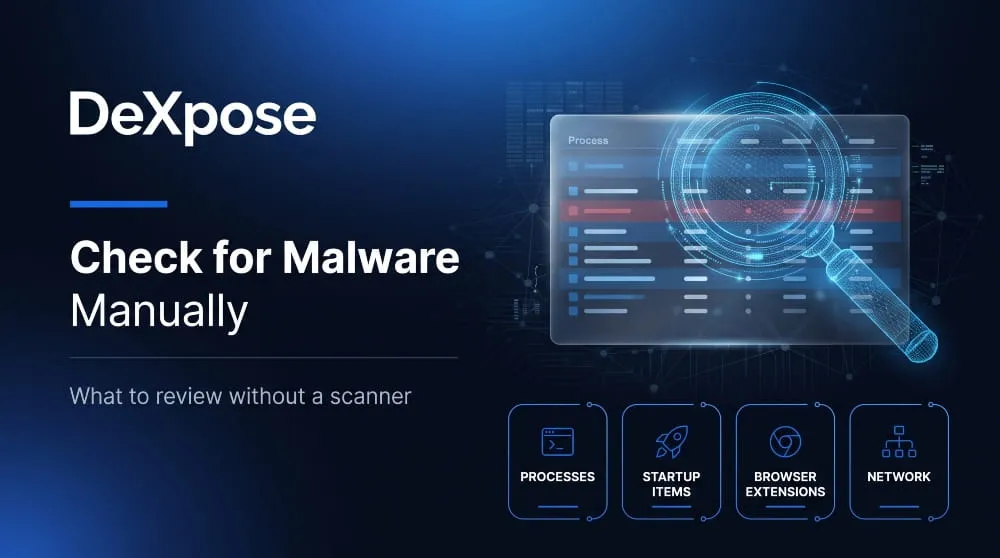
Check Task Manager for unfamiliar or high-resource processes.
Press Ctrl, Shift, and Esc to open Task Manager and look at the Processes tab. Unfamiliar names, processes that use heavy CPU or network capacity while you are idle, and programs with no clear publisher deserve a closer look. Search the process name before ending it, since many system processes look odd but are legitimate.
Review startup apps, scheduled tasks, and installed programs.
Malware often survives reboots by adding itself to startup. Check the Startup apps tab in Task Manager, open Task Scheduler to look for tasks you didn’t create, and review Settings, then Apps, for programs you don’t remember installing.
Check browser extensions, homepage, and search engine settings.
Browser hijackers and malicious extensions change your homepage, redirect searches, or read what you type. Open your browser’s extensions page, remove anything you don’t recognize, and confirm the homepage and default search engine are the ones you chose.
Check network connections and the hosts file.
Open Command Prompt and run netstat -ano to list active connections, then look for unexpected remote addresses tied to unfamiliar processes. Also open the hosts file in C:\Windows\System32\drivers\etc. A normal hosts file holds mostly comments, so extra entries that redirect well-known sites are a warning sign.
Review account activity and security alerts
Check sign-in history and security alerts on your email, banking, and social accounts. Logins from unfamiliar locations or devices can mean a credential stealer has already sent your data out, even if the computer itself seems fine.
How to Find Malware a Scanner Might Miss
Why a single scan is not enough
A single scan is not enough because new malware appears faster than any scanner can track. The AV-TEST Institute registers more than 450,000 new malicious programs and potentially unwanted applications every day, so some threats are always new to the scanner on your computer. Layering a scan, a manual check, and a second opinion catches more than any one method.
How to run a second-opinion scan with a reputable on-demand scanner
A second-opinion scan uses a different security product to examine the same device, and it works because each vendor detects slightly different things. Choose an on-demand scanner from an established security vendor designed to run alongside your main antivirus, download it only from the vendor’s website, and avoid programs promoted through pop-ups or ads. Never run two real-time antivirus products at once, because they can conflict.
How to look for fileless and in-memory malware
Fileless malware lives in memory and abuses built-in tools such as PowerShell so that a file scan may find nothing. Signs include unexpected PowerShell or command-line activity, odd scheduled tasks, and security alerts about suspicious behavior with no matching file. Behavior-based protection and logging are the best defenses here.
How to test for malware safely (what not to do)
The safe way to test whether your antivirus is working is the EICAR test file, a harmless text string that every mainstream scanner is designed to flag. Do not download “malware samples” from random websites to test a scanner, because those files are often real malware. If you want to search for malware on your own device, rely on scans and manual checks instead.
How Malware Detection Works

What is malware detection?
Malware detection is the process of identifying malicious code or behavior on a device or network. Security tools use several techniques at once because no single method catches every threat.
Signature-based detection
Signature-based detection compares files against a database of known malware fingerprints. It is fast and very accurate for threats that have already been identified, but it cannot recognize new or modified malware that has no signature yet.
Heuristic and behavioral detection
Heuristic detection looks for suspicious traits in code, and behavioral detection watches what a program does, such as mass-encrypting files, injecting code into other processes, or contacting unusual servers. These methods can catch unknown malware, though they occasionally flag legitimate software.
Sandboxing and machine-learning detection
Sandboxing runs a suspicious file in an isolated environment to safely observe its behavior. Machine-learning models classify files and behavior by comparing them with patterns learned from large malware datasets, helping detect previously unseen samples.
AI-powered detection: what it can and cannot spot
AI-powered detection can spot unknown malware by recognizing patterns and unusual behavior, but it is not perfect. It can produce false positives, and attackers actively adapt their code to avoid detection. Treat AI as one layer of protection, not a guarantee.
Why detection sometimes fails
Detection fails when malware changes faster than the defenses. Polymorphic malware rewrites itself to avoid signatures, fileless malware avoids leaving files to scan, and some samples wait before acting so that sandboxes see nothing suspicious. This is why combining scans with manual checks and monitoring matters.
Types of Scans Explained
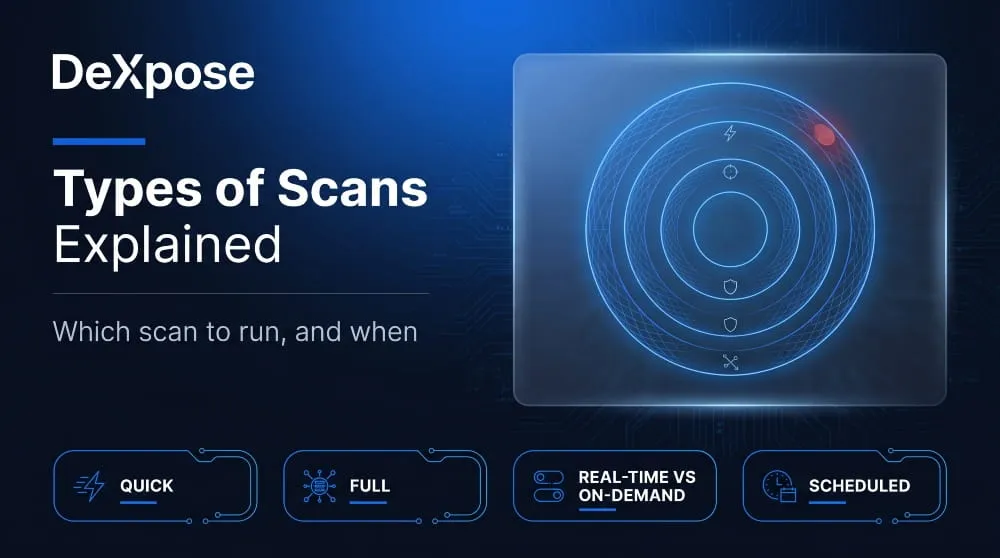
Quick, full, custom, and offline scans
A quick scan checks common infection points, a full scan checks everything, a Custom scan checks locations you choose, and an offline scan runs before Windows loads to catch malware that hides during normal operation. Use quick scans for routine checks and full or offline scans when you suspect a real problem.
Real-time protection vs on-demand scanning
Real-time protection watches files and activity continuously and blocks threats as they appear, while an on-demand scan checks the device only when you start it. They work together: real-time protection stops most threats, and on-demand scans find what slipped through.
Scheduled scans and why they help
Scheduled scans run automatically at set times, so regular scanning does not depend on you remembering. Set a full scan for a time when the computer is on but idle, such as overnight.
What to Do When a Scan Says “Malware Detected”
Do not panic, and do not ignore the alert.
When a scan says malware was detected, treat it as real until proven otherwise. Do not dismiss the alert, and do not keep using the device for banking or sensitive logins until it is resolved.
Quarantine, then confirm it is not a false positive
Let the scanner quarantine the item, which isolates it so it cannot run. If the file is something you recognize and trust, confirm by running a second scan or checking the file’s reputation before restoring anything. Security software can occasionally flag legitimate programs.
Change passwords from a clean device.
If the detection involved a stealer, keylogger, or remote access tool, assume the passwords on that device are exposed. Change them from a clean device, turn on multi-factor authentication, and sign out of active sessions.
Remove what the scan found.
For step-by-step cleanup after a detection, see [how to remove malware page].
How to Scan a Linux Server or Website for Malware
To find malware on a server, combine file integrity checks, a scanner, and log review, because servers rarely show visible symptoms.
File integrity checks and unexpected changes.
Compare system and web files against known-good versions or checksums, and look for recently modified files in places such as web roots, temporary folders, and startup scripts. File integrity monitoring tools automate this and alert on unexpected changes.
Rootkit and malware scanners for Linux servers
Open-source scanners such as ClamAV can scan files for known malware, and rootkit checkers such as rkhunter and chkrootkit look for signs of rootkits. They are useful but incomplete, so treat a clean result as one signal rather than proof.
Log review and suspicious processes.
Review authentication logs, cron jobs, running processes, and open network ports for anything unfamiliar. Unexpected outbound connections, unknown cron entries, and processes running from temporary directories are common indicators of compromise.
Website and CMS file comparison
For WordPress and other CMS sites, verify that core files and plugins match the official versions. WP-CLI can do this with wp core verify-checksums, and any modified core file or unfamiliar file in the uploads folder deserves investigation.
A Clean Scan Does Not Mean Your Data Is Safe
Scans find infections, not what was already stolen.
A clean scan tells you the malware is gone, not that your data is safe. If an infostealer ran even briefly, it may already have copied your passwords, cookies, and wallet data, and removing it later does not undo that.
How infostealers send data out before you scan
Infostealers collect and upload their haul within moments of running, often before any alert appears. The stolen logs are then sold or traded on dark web markets and messaging channels. Our guide to infostealer malware explains how this works, and the combolist dark web ecosystem shows how stolen credentials get reused.
Common Malware Scanning Mistakes
Scanning only once
One scan is a snapshot, not a verdict. Run a full scan, an offline scan, and a manual check, then rescan after changing passwords and removing anything suspicious.
Trusting fake scanners and scareware pop-ups
A pop-up claiming that your device is infected and urging you to download a scanner is usually scareware. Only use security software you installed deliberately from the vendor’s own website or from your operating system.
Skipping offline and boot-time scans
Some malware hides while Windows is running, so skipping the offline scan can leave it undiscovered. Make an offline scan part of any serious investigation.
Forgetting browser extensions and mobile devices
Malicious browser extensions and infected phones are easy to overlook. On Android, Google Play Protect can scan your apps from the Play Store settings. On iPhone, keep iOS updated and remove unknown apps and configuration profiles under Settings > General > VPN & Device Management. For habits that reduce risk on every device, see our malware protection guide.
Check Whether Malware Has Already Exposed Your Data
A scan can clean a device, but it cannot tell you whether malware already leaked your information. DeXpose’s Free Dark Web Report checks whether your email or credentials appear in leaked datasets and infostealer logs, so you can change passwords and secure accounts before they are abused. Security teams can go further with breached credentials monitoring, which watches continuously for exposed employee and customer credentials.
Frequently Asked Questions (FAQ)
How do I scan my computer for malware?
Update Windows, open Windows Security, go to Virus & threat protection, choose Scan options, and run a Full scan. Then run a Microsoft Defender Offline scan and manually check startup items and browser extensions.
How do I check for malware on my computer?
Check for malware by combining an automated scan with manual checks. Review Task Manager, startup apps, installed programs, browser extensions, and network connections, and watch for unusual behavior or security alerts.
How to find malware on Windows?
To find malware on Windows, run a full scan and an offline scan in Windows Security, review Task Manager and startup apps, and check browser settings. Confirm the result with a second reputable on-demand scanner.
How can I tell whether a scan really found everything?
You cannot be certain from one scan, because no scanner detects everything. Run an offline scan, a second-opinion scan, and a manual check, and monitor for unusual activity afterward.
How often should I run a malware scan?
Keep real-time protection on and run a full scan at least monthly, plus an extra scan after any suspicious event such as an unexpected alert or a questionable download.
What is the difference between a quick scan and a full scan?
A quick scan checks the locations malware most commonly uses and takes minutes. A full scan checks every file and running program and can take hours.
What should I do if a scan finds malware?
Allow the scanner to quarantine or remove it, change your passwords from a clean device, enable multi-factor authentication, and run another scan to confirm it is gone.
Can malware hide from a scan?
Yes. Polymorphic, fileless, and rootkit-style malware are designed to avoid detection, which is why offline scans, behavior monitoring, and manual checks matter.
Can AI spot malware?
Yes, machine-learning models can flag unknown malware by recognizing suspicious patterns and behavior, but they can miss threats and produce false positives. AI works best as one layer among several.
Types of Malware | 15+ Examples, How Each Works & How to Tell Them Apart (Complete Guide)
The main types of malware are viruses, worms, trojans, ransomware, spyware, adware, keyloggers, rootkits, backdoors, botnets, infostealers, fileless malware, cryptojackers, wipers, and logic bombs. Each type…
Read more
What Is Malware? Definition, Meaning, How It Works & Why It’s Dangerous (Complete Guide)
What Is Malware? (Definition and Meaning) Malware definition in one sentence Malware is any software designed to damage, disrupt, spy on, or gain unauthorized access to…
Read more
Google Malware Scanner & Built-In Malware Checks on Microsoft, Apple and GitHub: What They Catch and What They Miss
Do Google, Microsoft, Apple and GitHub Scan for Malware? (Quick Answer) Yes. Each one runs its own built-in defense: a Google malware scanner in Play Protect…
Read more